> ## Documentation Index
> Fetch the complete documentation index at: https://docs.vcms.io/llms.txt
> Use this file to discover all available pages before exploring further.
# Register an Accommodation
> Create the accommodation you want to manage, or join one you have been invited to.
***
## My accommodations
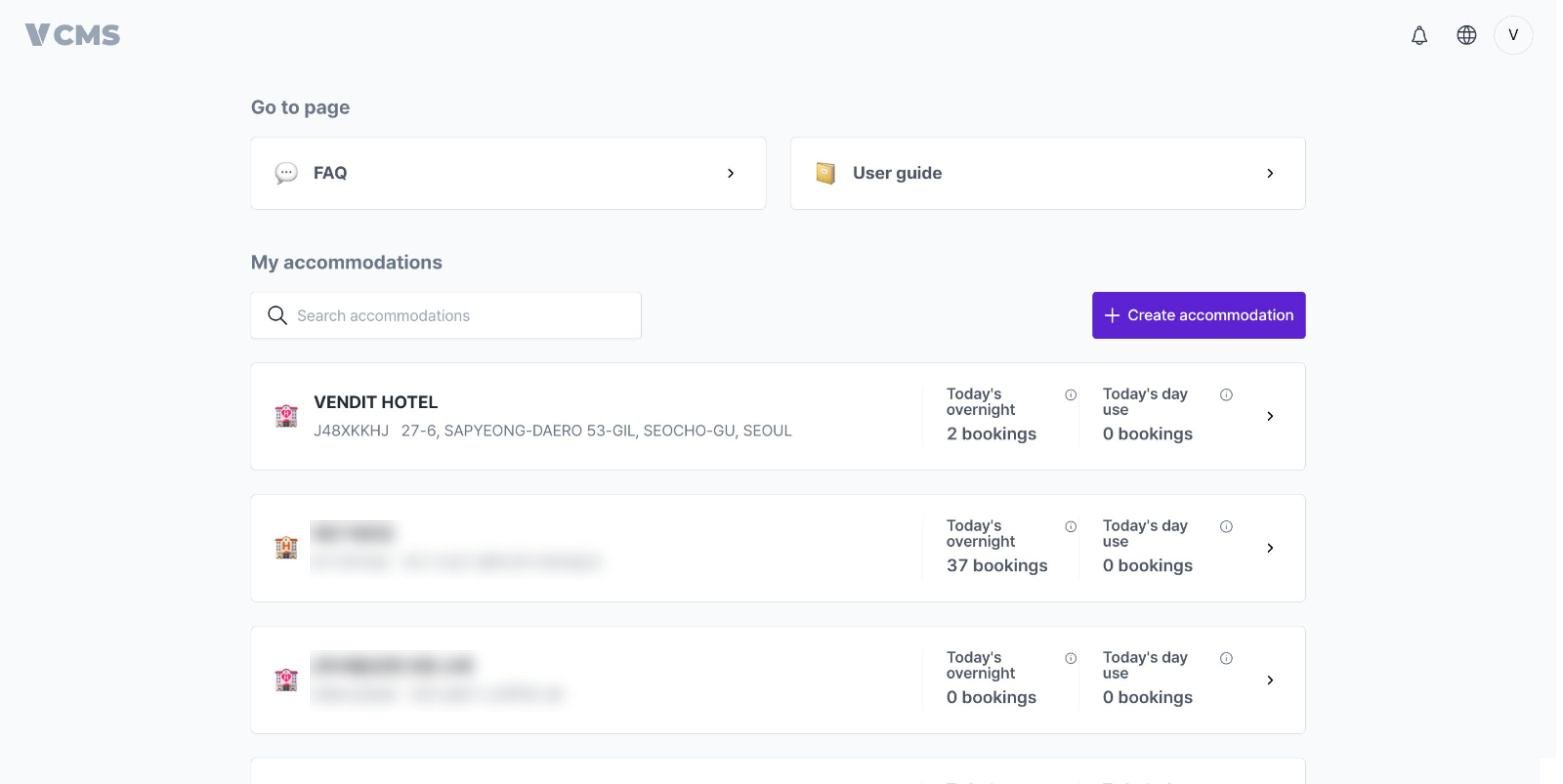
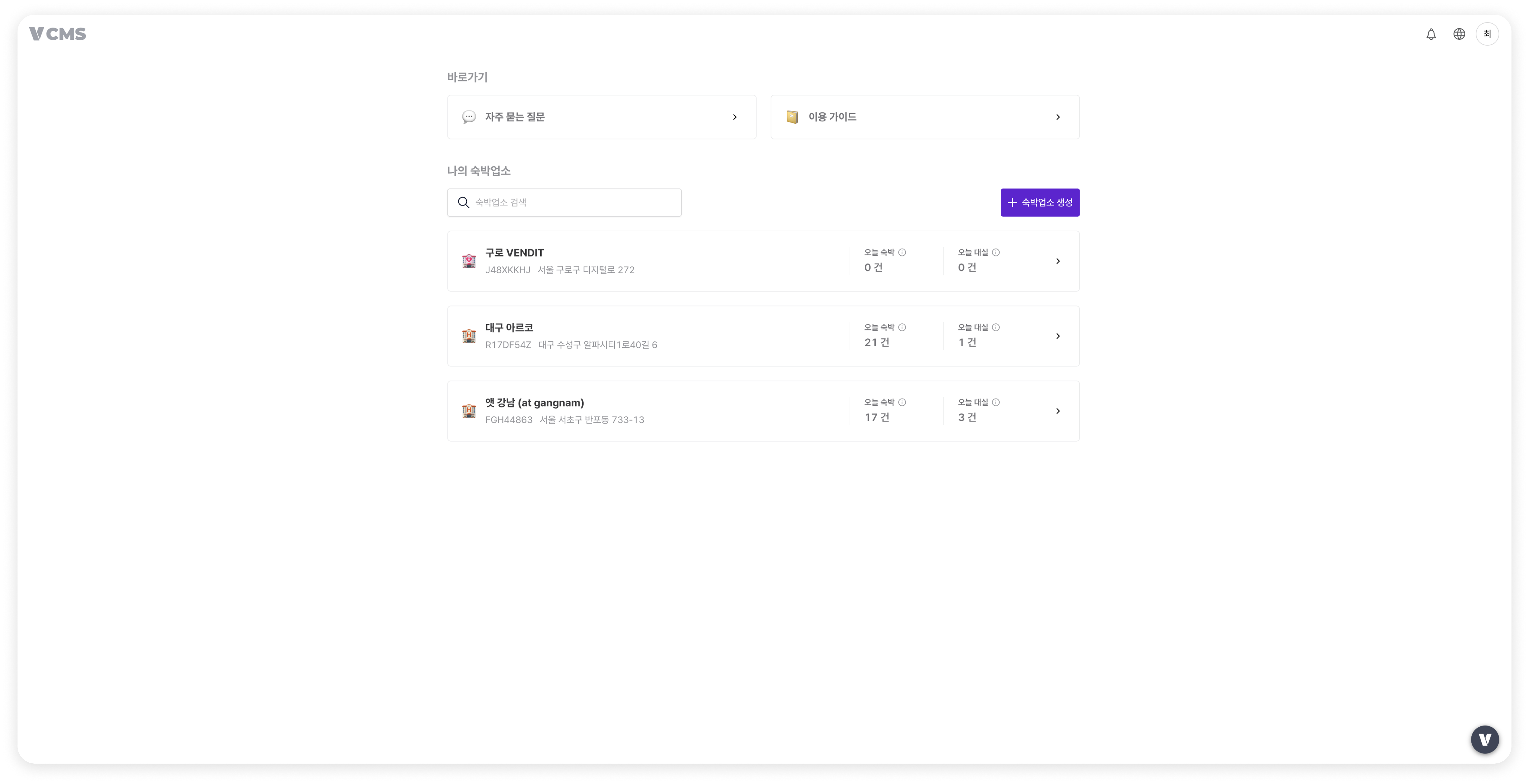
This is the list of accommodations linked to your account. Select one to go straight to it, or use the button in the top right to create a new one.
 ***
## Accepting an invitation
Received an invitation? Accept it and you get access to the accommodation right away.
***
## Accepting an invitation
Received an invitation? Accept it and you get access to the accommodation right away.
 ***
## Creating an accommodation
### Step 1. Search for the property
Search for the name of the accommodation you operate.
The search fills in the property name and address for you. If your property isn't on the list, select \[Enter manually] and register the details yourself.
### Step 2. Enter the basic information
Fill in the basic details.
**Basic information**
* Name: enter the accommodation's registered business name.
* Address: filled in by the search, and you can edit it if needed.
* Accommodation type: used only for classification inside Vendit. It has no effect on how the service works.
* Default check-in and check-out times: when a channel booking arrives without times attached, the values you set here are applied.
### Step 3. Create room types
Add the room types you currently operate.
Room types can be added and edited later.
### Step 4. Set max occupancy and number of rooms
For each room type, enter the max occupancy and how many rooms you operate.
**Room type setup guide**
* Max occupancy: the highest number of guests who can stay in that room type. It is the basis for extra-guest rates.
* Number of rooms: the physical rooms you actually operate. It is the basis for inventory management.
### Step 5. Create packages
Create the packages you want to sell. Even within one room type, you can split packages by the services included or the conditions of stay.
**Package setup guide**
* Room only: the basic package, accommodation and nothing else.
* Packages with services: create separate packages that include breakfast, parking, or other add-ons. Several packages can share one room type and sell at different rates.
### Step 6. Registration complete
Your accommodation is registered. Connect the channels you use and they sync with VCMS immediately.
Everything you entered can be changed later in the accommodation settings. Room types and packages can be added or deleted too.
***
## Creating an accommodation
### Step 1. Search for the property
Search for the name of the accommodation you operate.
The search fills in the property name and address for you. If your property isn't on the list, select \[Enter manually] and register the details yourself.
### Step 2. Enter the basic information
Fill in the basic details.
**Basic information**
* Name: enter the accommodation's registered business name.
* Address: filled in by the search, and you can edit it if needed.
* Accommodation type: used only for classification inside Vendit. It has no effect on how the service works.
* Default check-in and check-out times: when a channel booking arrives without times attached, the values you set here are applied.
### Step 3. Create room types
Add the room types you currently operate.
Room types can be added and edited later.
### Step 4. Set max occupancy and number of rooms
For each room type, enter the max occupancy and how many rooms you operate.
**Room type setup guide**
* Max occupancy: the highest number of guests who can stay in that room type. It is the basis for extra-guest rates.
* Number of rooms: the physical rooms you actually operate. It is the basis for inventory management.
### Step 5. Create packages
Create the packages you want to sell. Even within one room type, you can split packages by the services included or the conditions of stay.
**Package setup guide**
* Room only: the basic package, accommodation and nothing else.
* Packages with services: create separate packages that include breakfast, parking, or other add-ons. Several packages can share one room type and sell at different rates.
### Step 6. Registration complete
Your accommodation is registered. Connect the channels you use and they sync with VCMS immediately.
Everything you entered can be changed later in the accommodation settings. Room types and packages can be added or deleted too.