> ## Documentation Index
> Fetch the complete documentation index at: https://docs.vcms.io/llms.txt
> Use this file to discover all available pages before exploring further.
# Invite Users
> Invite people to your accommodation and manage their details.
***
## User list
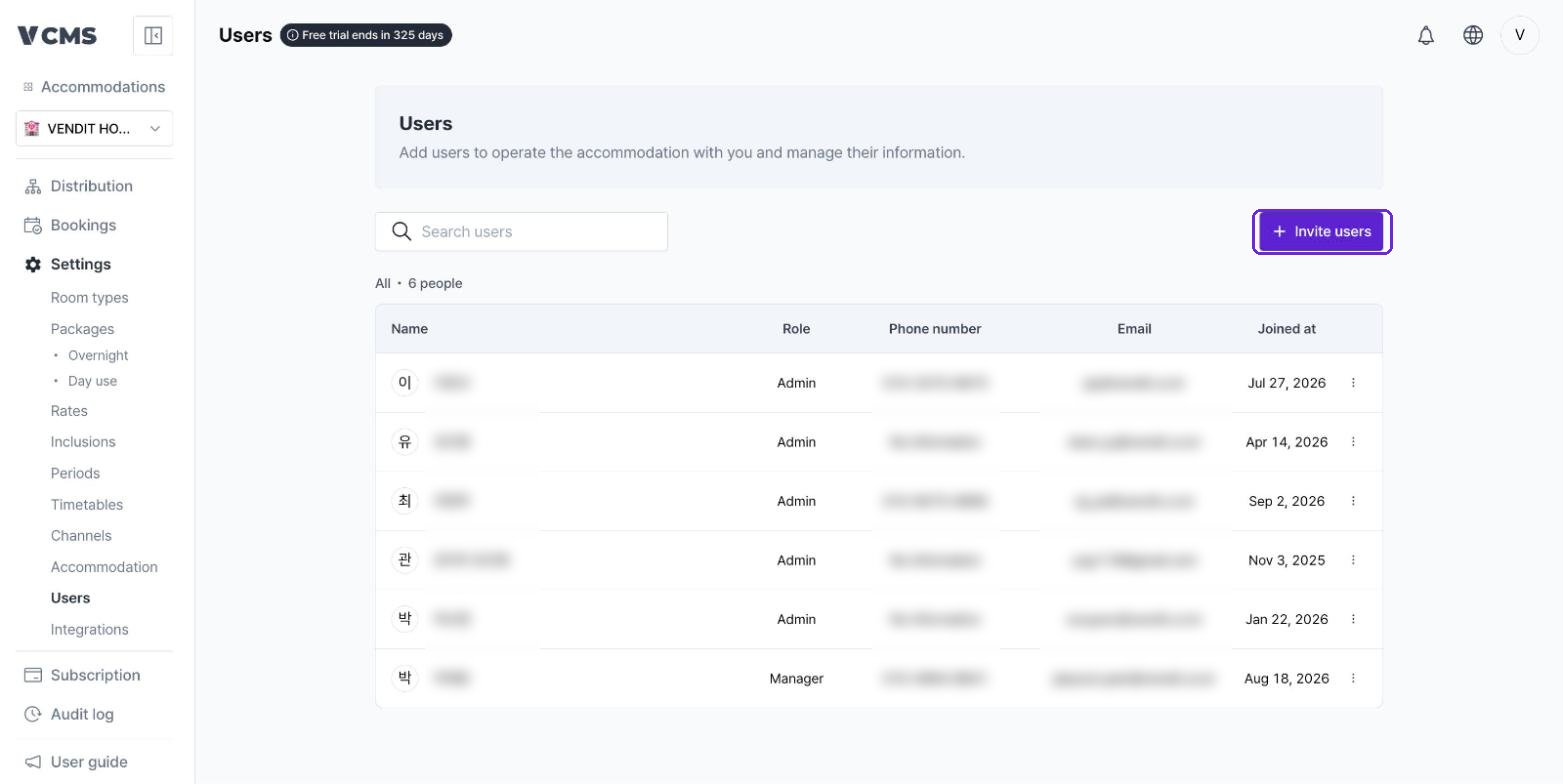
Check the role, phone number, email, and join date of everyone attached to the accommodation.
 ***
## Inviting users
### Adding people to invite
Use \[Invite users] to bring in an Admin, Manager, or Staff member. Choose the invitation method, enter the person's phone number or email, pick a role, then add them to the pending list.
***
## Inviting users
### Adding people to invite
Use \[Invite users] to bring in an Admin, Manager, or Staff member. Choose the invitation method, enter the person's phone number or email, pick a role, then add them to the pending list.
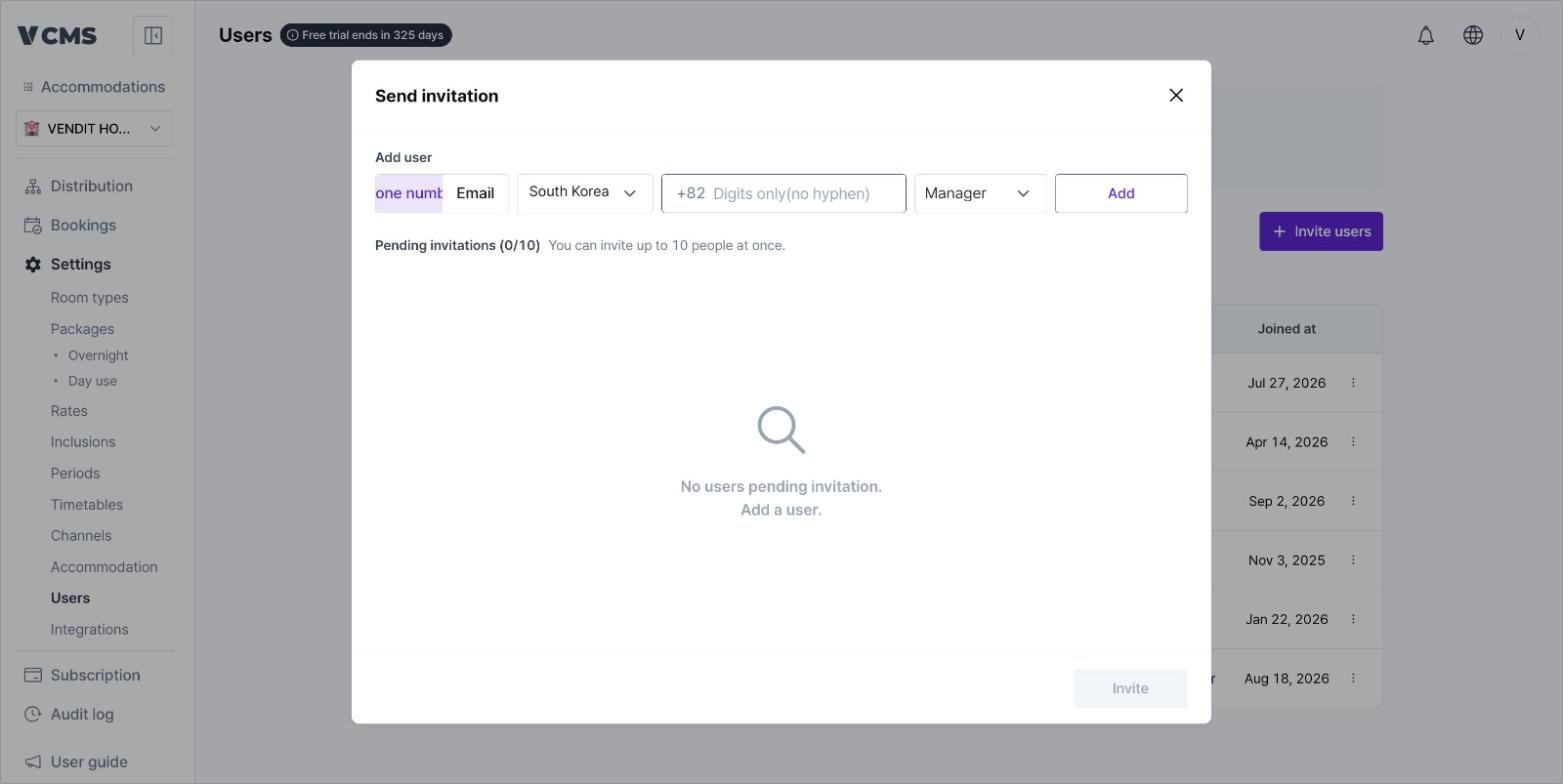 You can invite up to 10 people at a time.
### Permissions and language
You can restrict a user to read-only access, and choose the language they see, at the point of invitation.
### Accepting an invitation
* Invite someone who already has a pending invitation and the SMS or email is simply sent again.
* The person accepts by opening the link in the invitation message or email.
* Once accepted, the accommodation appears in their list of accommodations.
* Cancel the request before it is accepted and that person gets no access.
***
## Changing a user's role
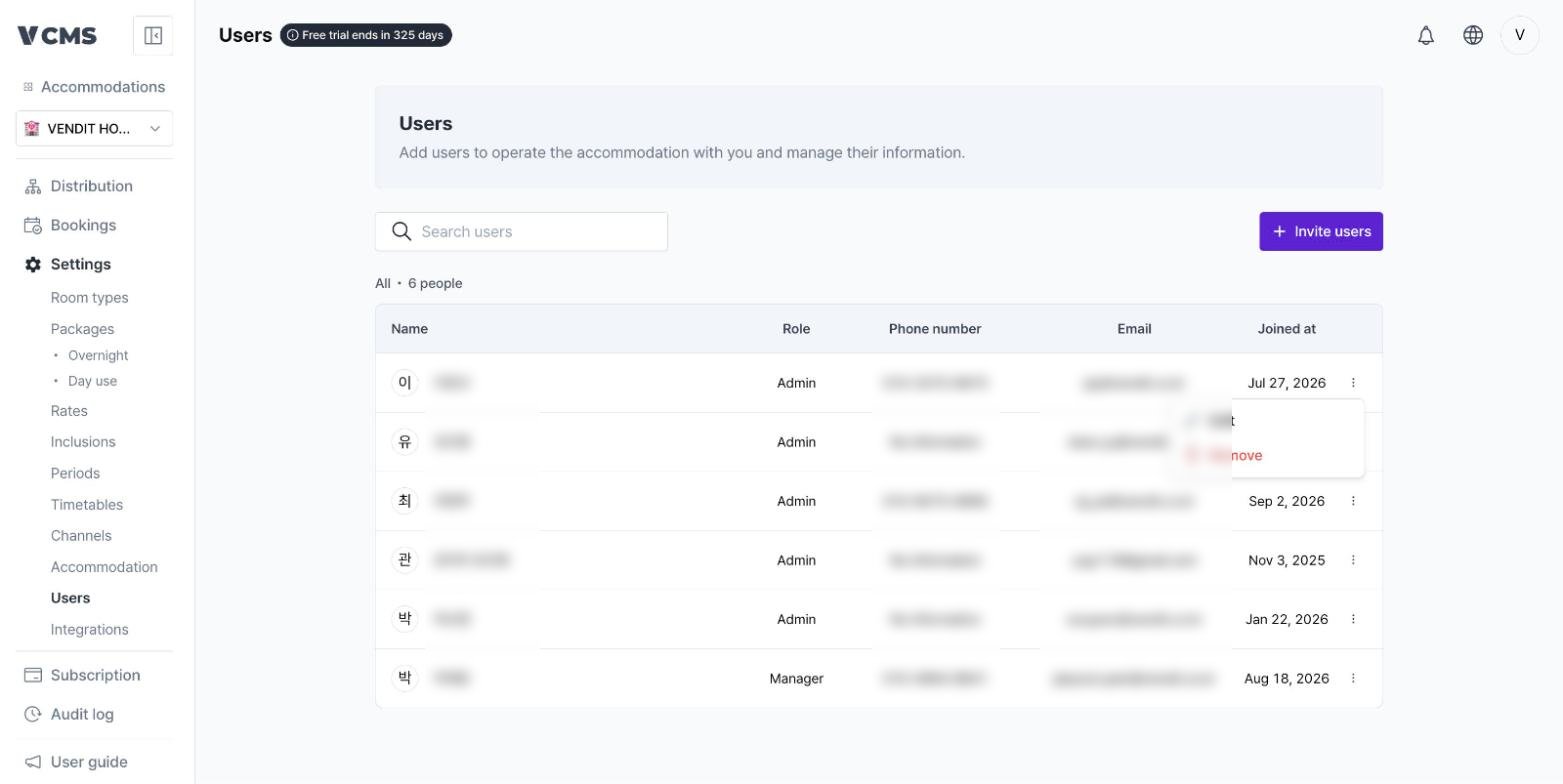
Select the option button on the right to edit a user's details or remove them.
You can invite up to 10 people at a time.
### Permissions and language
You can restrict a user to read-only access, and choose the language they see, at the point of invitation.
### Accepting an invitation
* Invite someone who already has a pending invitation and the SMS or email is simply sent again.
* The person accepts by opening the link in the invitation message or email.
* Once accepted, the accommodation appears in their list of accommodations.
* Cancel the request before it is accepted and that person gets no access.
***
## Changing a user's role
Select the option button on the right to edit a user's details or remove them.
 ### Setting the role
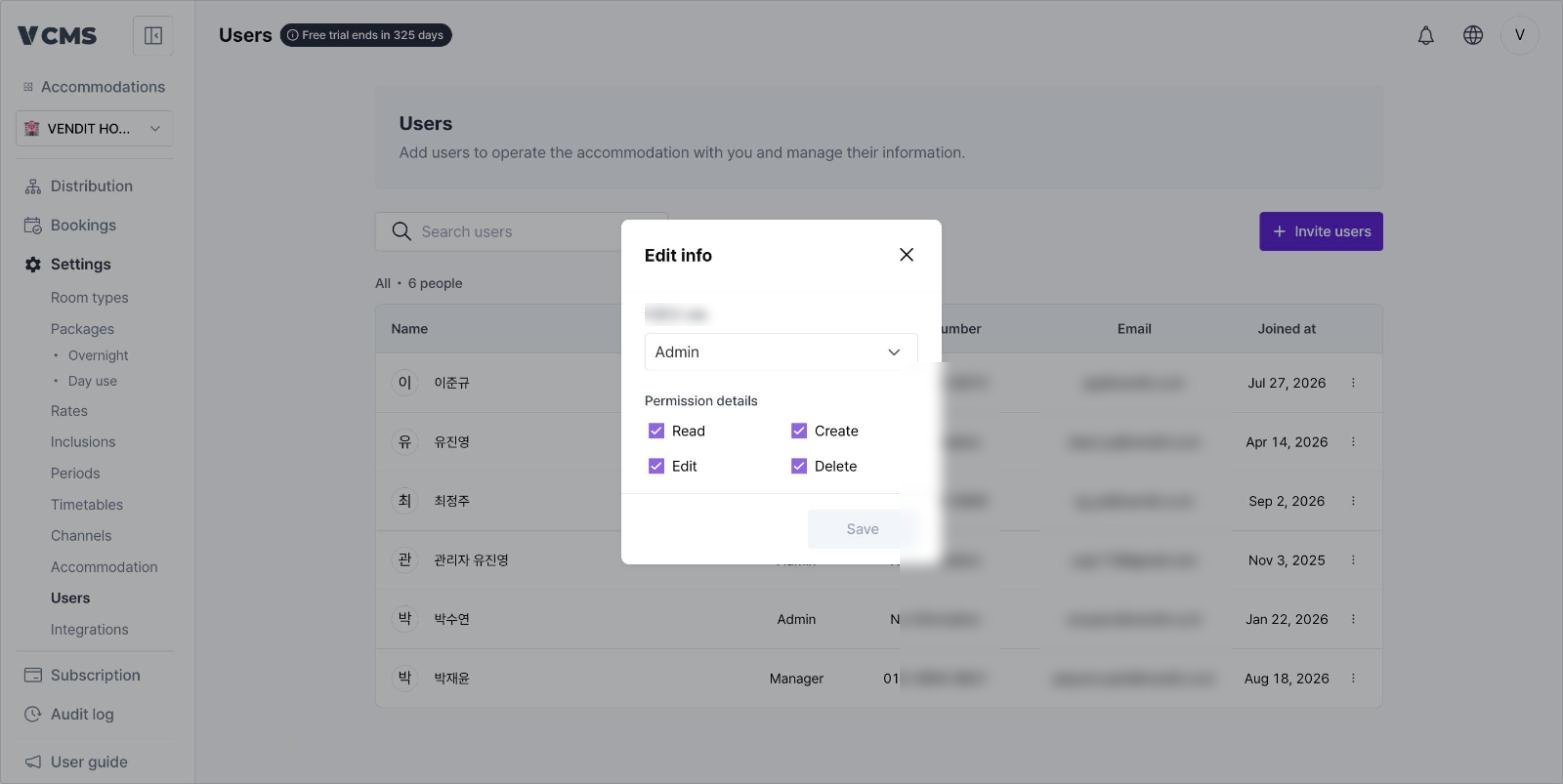
* Edit info lets you change the role: Admin, Manager, or Staff.
* Detailed permissions (Read, Create, Edit, Delete) can be set individually.
* Clear every detailed permission and the user can do nothing but sign in to VCMS.
### Setting the role
* Edit info lets you change the role: Admin, Manager, or Staff.
* Detailed permissions (Read, Create, Edit, Delete) can be set individually.
* Clear every detailed permission and the user can do nothing but sign in to VCMS.
 ***
## Removing a user
### Remove
* You can remove users whose role is the same as yours or lower.
* A removed user has no access to the accommodation until you invite them again.
***
## Removing a user
### Remove
* You can remove users whose role is the same as yours or lower.
* A removed user has no access to the accommodation until you invite them again.