> ## Documentation Index
> Fetch the complete documentation index at: https://docs.vcms.io/llms.txt
> Use this file to discover all available pages before exploring further.

# My Airbnb or Expedia connection dropped

> Work through these in order: Chrome extension sign-in, extension enabled, Windows power options, network.

## What to check when the connection drops

### Check you are signed in to the Chrome extension

<Accordion title="Check the sign-in state on the screen where the Chrome extension is installed." defaultOpen>
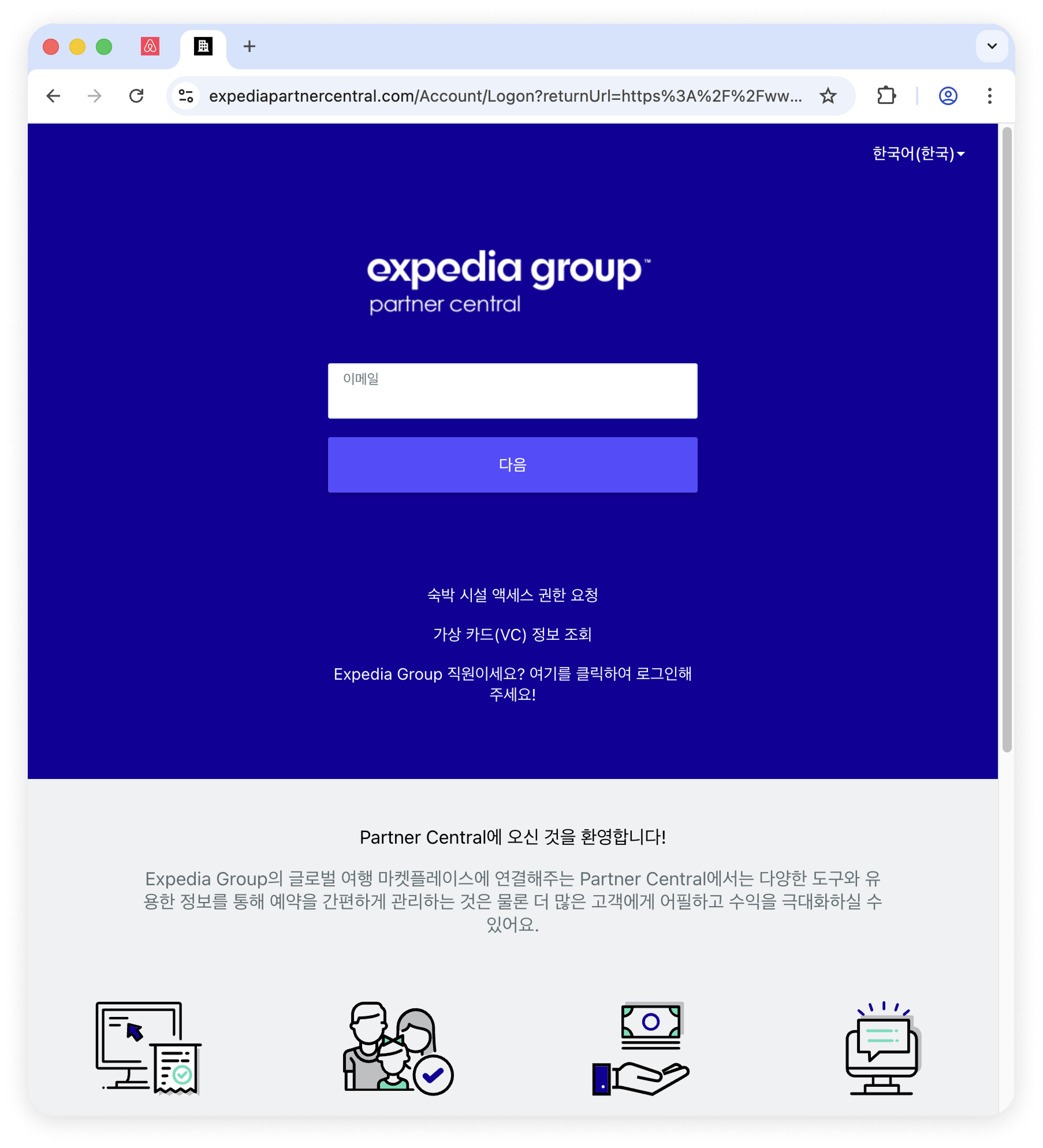
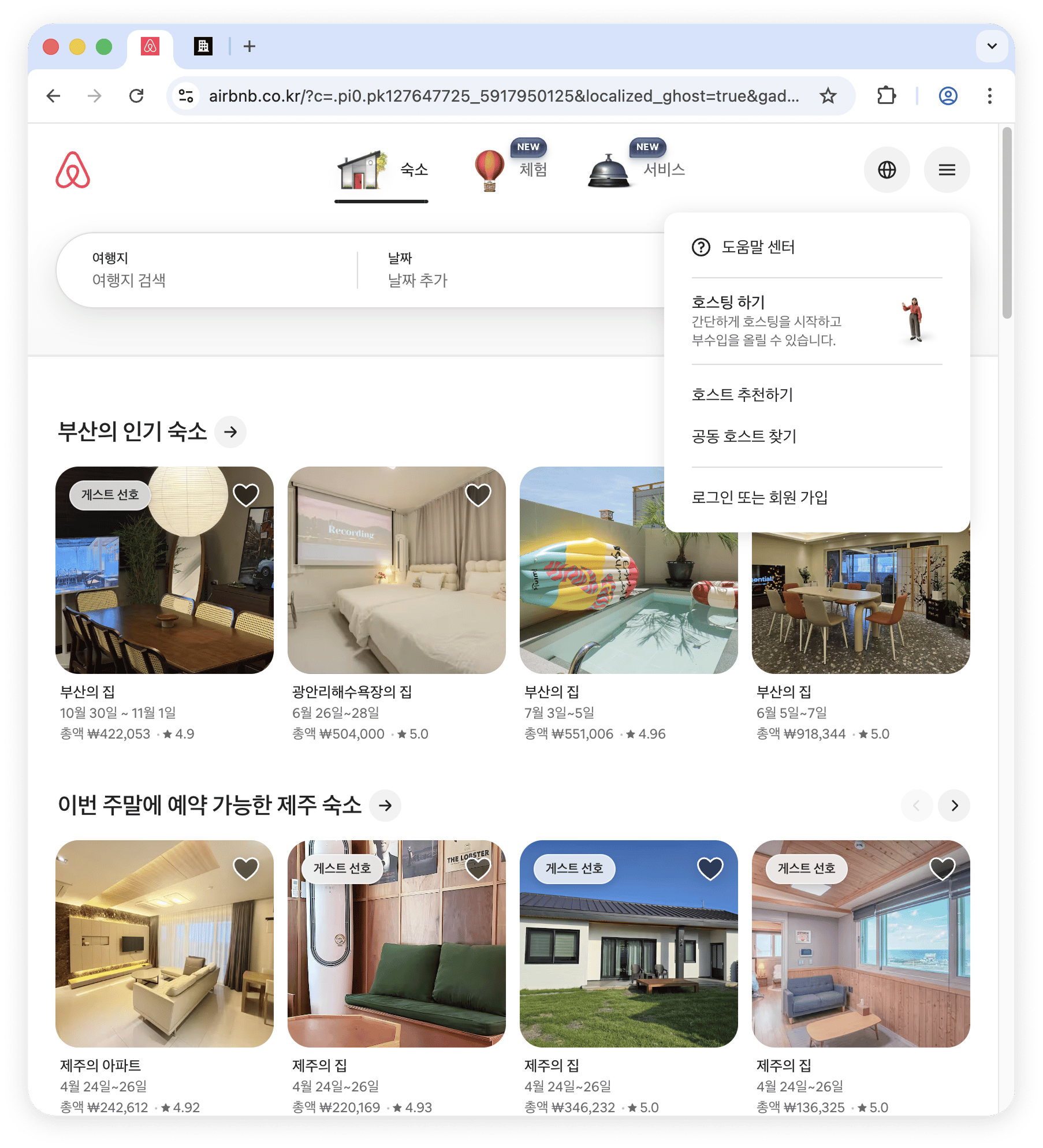
  * Look at the Chrome window with the pinned Airbnb or Expedia tab on the left.
      <Columns cols={2}>
        <Column>
          <Frame>
            <img src="https://mintcdn.com/vendit-d49adf2c/dD0sRoixJEtvtuDk/images/airbnb-sign-in-2.png?fit=max&auto=format&n=dD0sRoixJEtvtuDk&q=85&s=bfa15b5fd658cdcfa110ad0d33592741" alt="Airbnb sign-in" width="1806" height="1988" data-path="images/airbnb-sign-in-2.png" />
          </Frame>
        </Column>

        <Column>
          <Frame>
            <img src="https://mintcdn.com/vendit-d49adf2c/dD0sRoixJEtvtuDk/images/expedia-partner-center-1.png?fit=max&auto=format&n=dD0sRoixJEtvtuDk&q=85&s=0423d4cdfd33507fb0471146b5d4dba2" alt="Expedia Partner Central" width="1806" height="1988" data-path="images/expedia-partner-center-1.png" />
          </Frame>
        </Column>
      </Columns>
  * Signed out? Sign back in.
  * After signing in, leave the tab open. Minimizing the window is fine.
      <Info>
        The tab has to stay open for sync with Vendit to hold.
      </Info>
      <Warning>
        The pinned tab on the left exists for the integration. Do not work in it. To check something on the channel, open a new tab.
      </Warning>
</Accordion>

### Check the Vendit extension is switched on

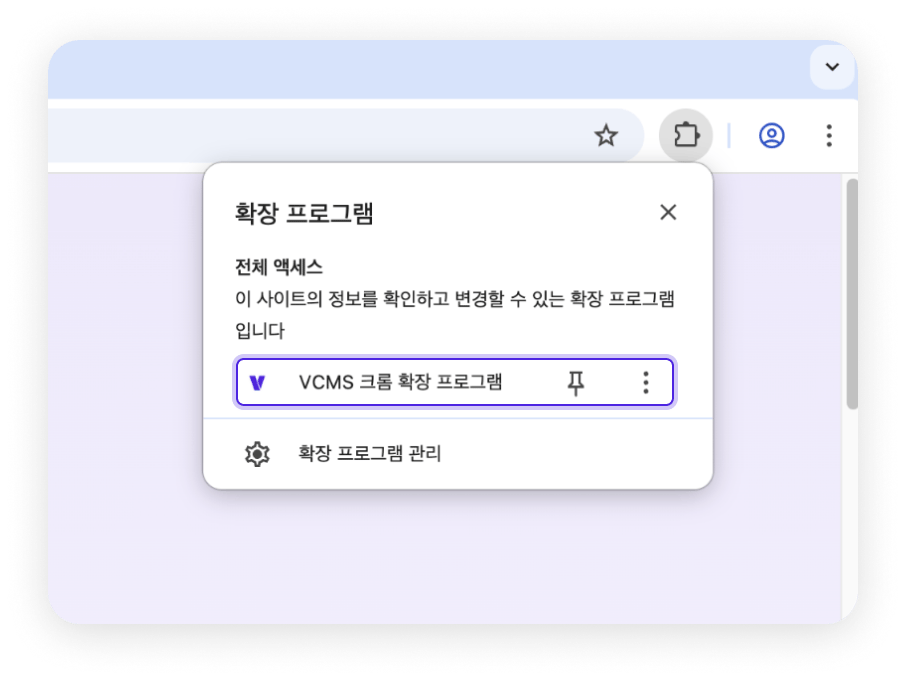
<Accordion title="Is the Vendit extension enabled?" defaultOpen>
  Check the extensions installed in Chrome.
  <Frame>
    <img src="https://mintcdn.com/vendit-d49adf2c/dD0sRoixJEtvtuDk/images/chrome-extension-1.png?fit=max&auto=format&n=dD0sRoixJEtvtuDk&q=85&s=928155e189e7fbd6a23f4679cee37aad" alt="Chrome extension enabled" width="906" height="680" data-path="images/chrome-extension-1.png" />
  </Frame>
</Accordion>

### Check the Windows power options

<Accordion title="Is sleep or turn-off-screen set in the Windows power options?" defaultOpen>
  <Info>
    Set the power options for the Windows version you run.
  </Info>

  <Accordion title="Windows 10 power settings" icon="computer" iconType="regular">
    <Steps>
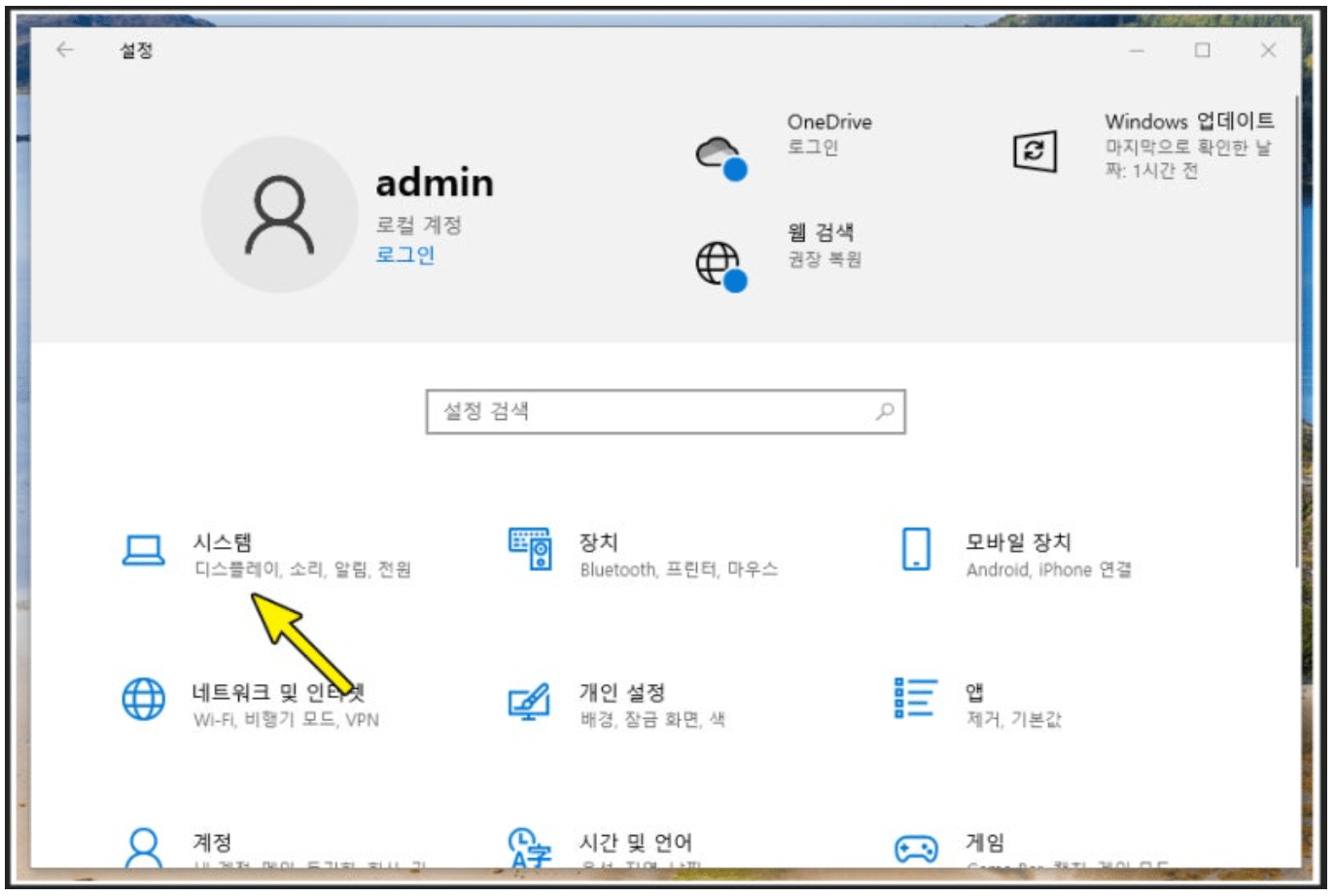
      <Step title="Windows icon → Settings → &#x22;System&#x22;.">
        <Frame>
          <img src="https://mintcdn.com/vendit-d49adf2c/_h_iXDG6qzry3_k9/images/image-35.png?fit=max&auto=format&n=_h_iXDG6qzry3_k9&q=85&s=9de70c3f4e34afa6fcca46ad2b4bd994" alt="Windows 10 system settings" width="1372" height="922" data-path="images/image-35.png" />
        </Frame>
      </Step>

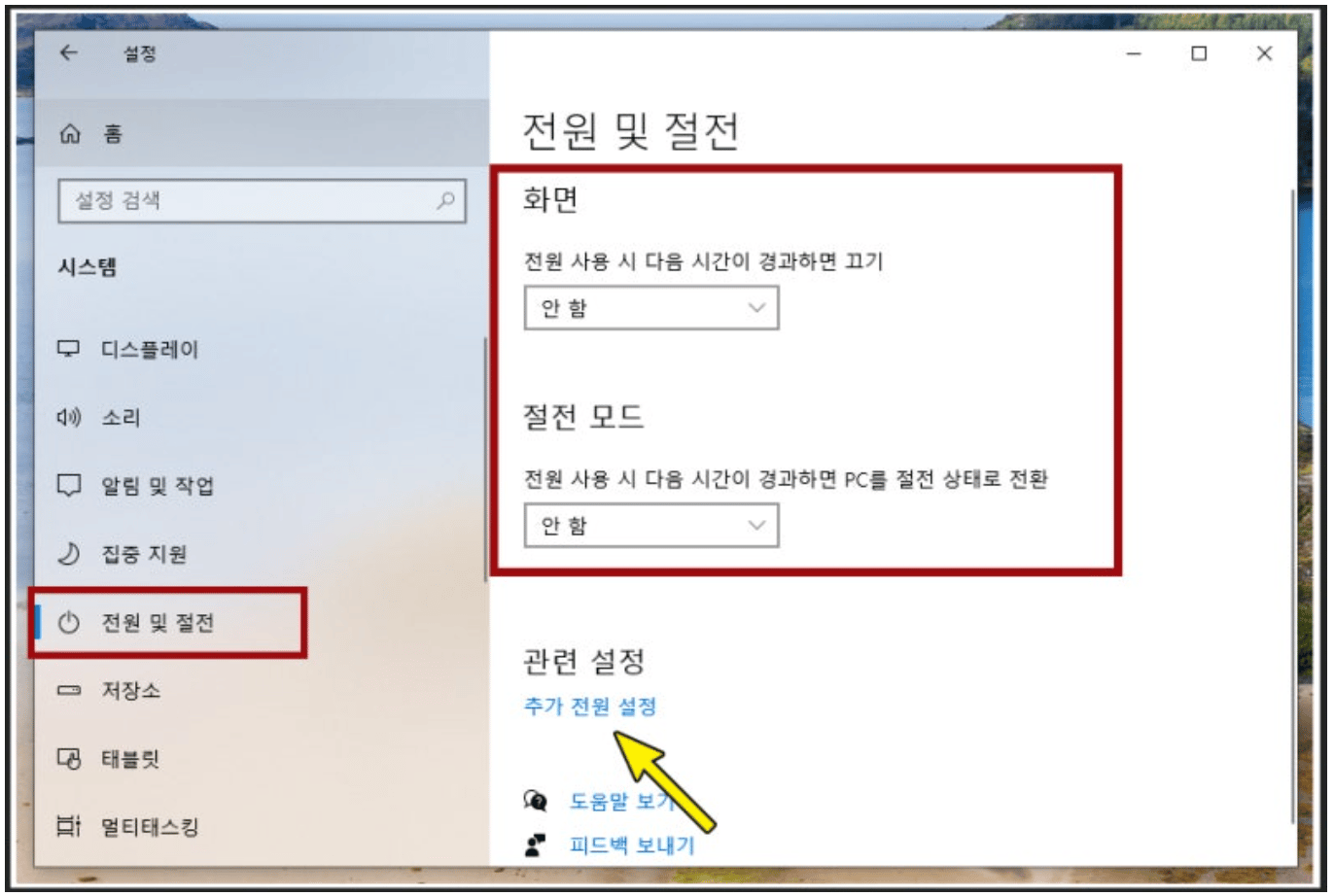
      <Step title="Set power and sleep to &#x22;Never&#x22;, as below.">
        <Frame>
          <img src="https://mintcdn.com/vendit-d49adf2c/_h_iXDG6qzry3_k9/images/image-36.png?fit=max&auto=format&n=_h_iXDG6qzry3_k9&q=85&s=9bc5f9c5fb1a848e210cd18a5e47a679" alt="Windows 10 power and sleep" width="1372" height="922" data-path="images/image-36.png" />
        </Frame>
      </Step>

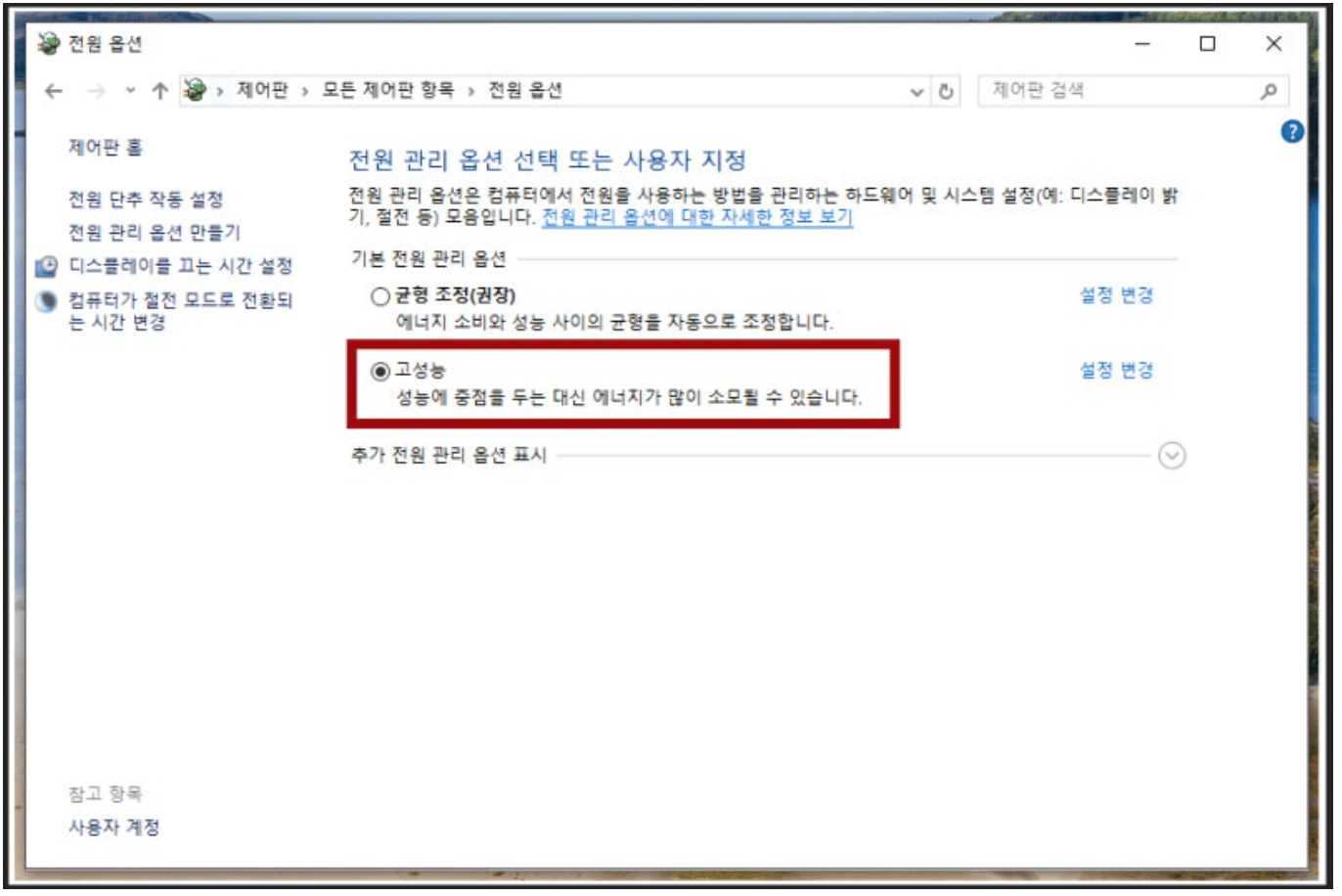
      <Step title="Check the additional power settings.">
        <Frame>
          <img src="https://mintcdn.com/vendit-d49adf2c/_h_iXDG6qzry3_k9/images/image-37.png?fit=max&auto=format&n=_h_iXDG6qzry3_k9&q=85&s=c7b0df26cdf8bb9fd0cab2c44e667531" alt="Windows 10 additional power settings" width="1372" height="916" data-path="images/image-37.png" />
        </Frame>
      </Step>
    </Steps>
  </Accordion>

  <Accordion title="Windows 11 power settings" icon="computer" iconType="regular">
    <Steps>
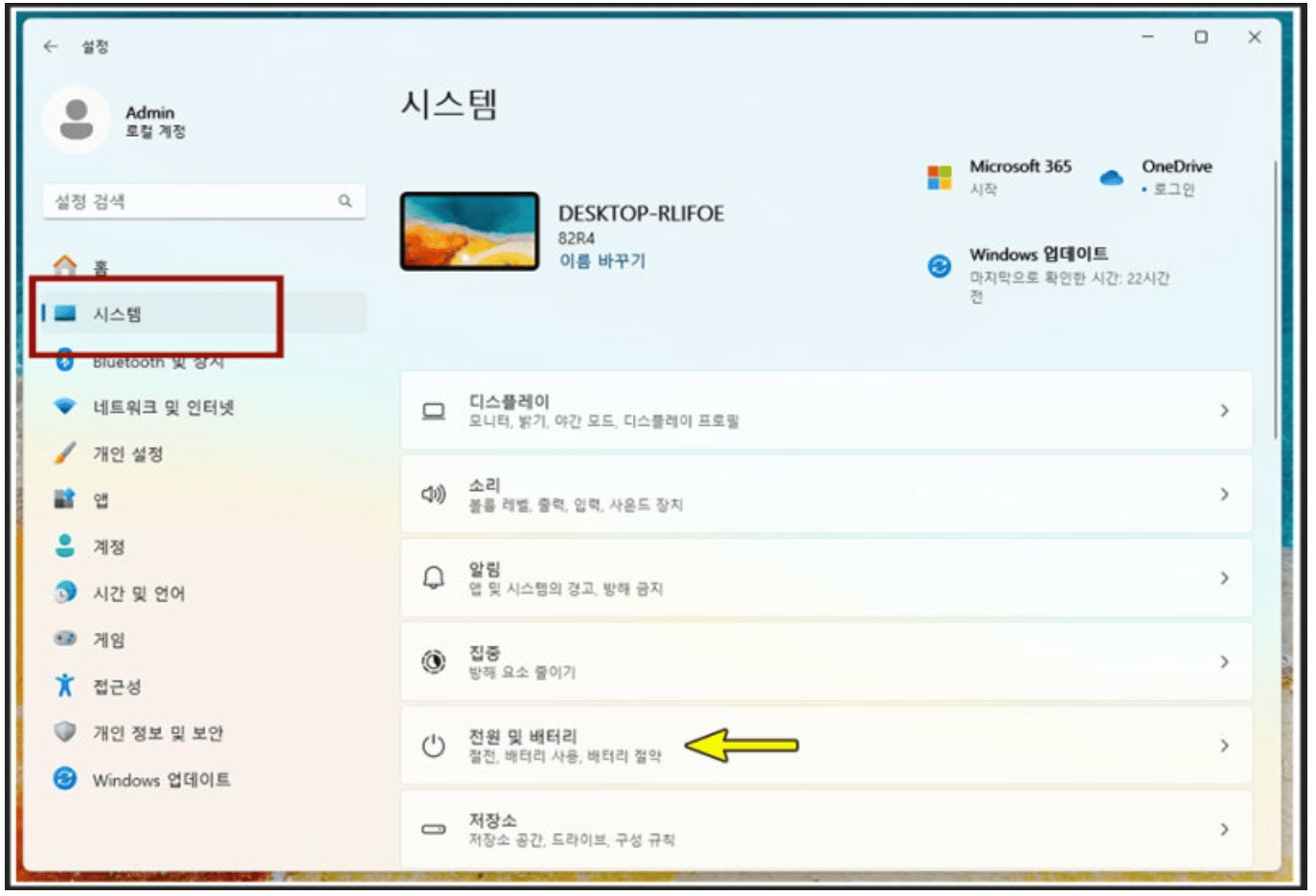
      <Step title="Settings → System → &#x22;Power & battery&#x22;.">
        <Frame>
          <img src="https://mintcdn.com/vendit-d49adf2c/_h_iXDG6qzry3_k9/images/image-39.png?fit=max&auto=format&n=_h_iXDG6qzry3_k9&q=85&s=6ca2098ff8f2f0479bb878fd2d34d037" alt="Windows 11 power and battery" width="1374" height="936" data-path="images/image-39.png" />
        </Frame>
      </Step>

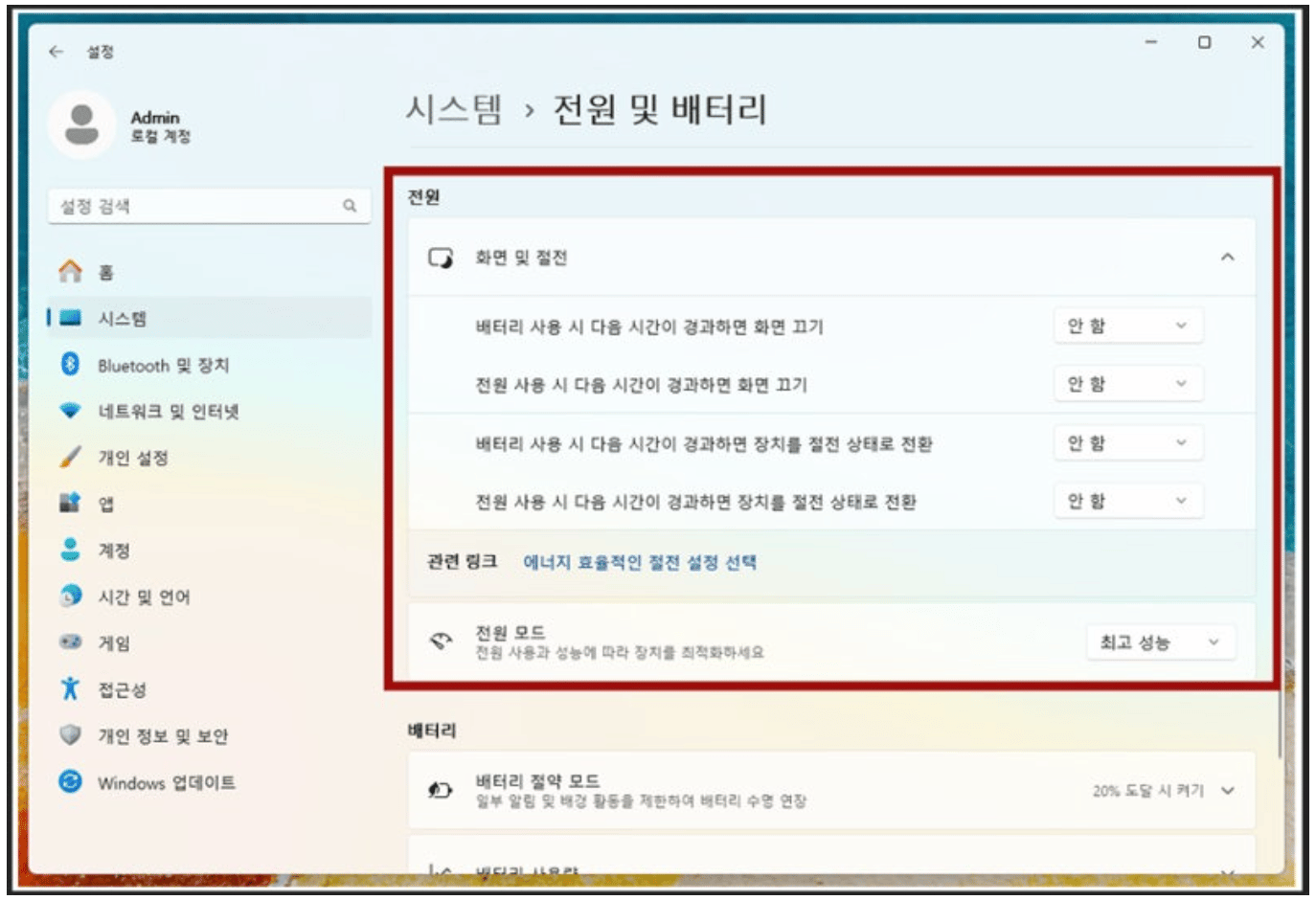
      <Step title="Set every power option below to &#x22;Never&#x22; and set power mode to &#x22;Best performance&#x22;.">
        <Frame>
          <img src="https://mintcdn.com/vendit-d49adf2c/_h_iXDG6qzry3_k9/images/image-38.png?fit=max&auto=format&n=_h_iXDG6qzry3_k9&q=85&s=6ef4a121e7b1a20422b9be9d6139a049" alt="Windows 11 power options" width="1374" height="940" data-path="images/image-38.png" />
        </Frame>
      </Step>
    </Steps>
  </Accordion>
</Accordion>

### Check the network at your property

<Accordion title="Is the property network working?" defaultOpen>
  If everything above checks out and it still will not connect, look at the network at your property.
</Accordion>