> ## Documentation Index
> Fetch the complete documentation index at: https://docs.vcms.io/llms.txt
> Use this file to discover all available pages before exploring further.
# Overnight Packages
> Create packages for how you actually sell, and manage inventory and rates across every connected channel package at once.
***
## Package list
Basic information and rate information for your overnight packages, in one place. Packages can be reordered freely.
### Basic information
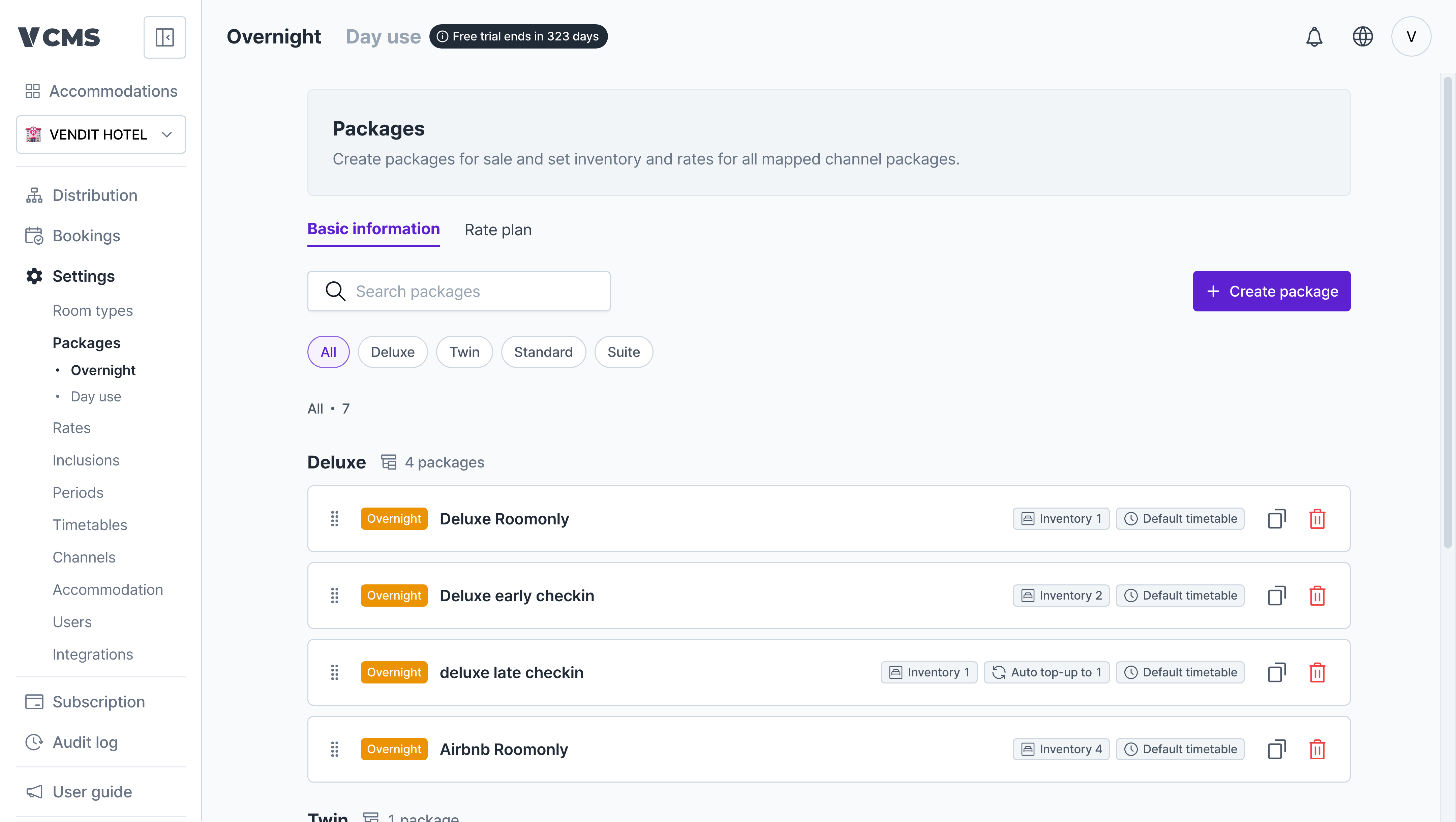 Every overnight package built on a room type, with its name, inventory, and timetable at a glance.
### Rate information
Every overnight package built on a room type, with its name, inventory, and timetable at a glance.
### Rate information
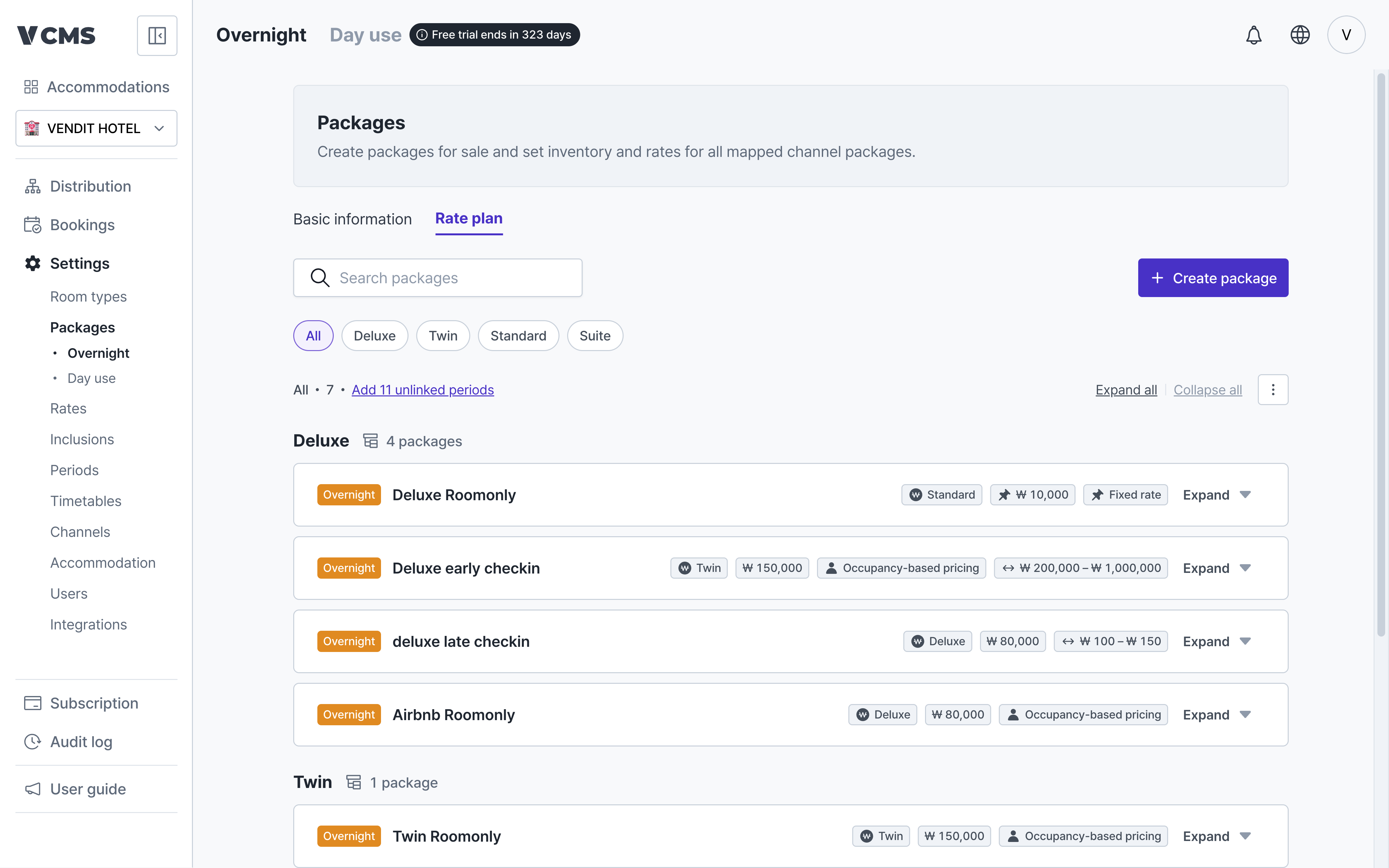 Check and set a package's base rate and its rate periods.
* **Base rate**: the selling rate applied on any date without a period of its own.
* **Period rate**: add a period and the package sells at a different rate for those dates only.
Two things make the rate screen easier to work in.
* **Expand or collapse all**: "Expand all | Collapse all" at the top of the list opens or closes rate information for every package at once. With many packages, you get to the one you want quickly.
* **Multi-select room type filter**: the room type chips at the top take more than one selection, so you can pull up just the types you want and compare them side by side.
**Changes apply provisionally. Nothing is final until you press Save**
Everything you do on the rate information tab (bulk apply, import, adding periods, sorting, editing rows) lands on screen first as a provisional change.
* A changed package card carries a "provisional" badge, and the changed cells and order are highlighted.
* The undo (↩︎) button on a card reverts that package to its pre-save state.
* Press Save in the top bar to commit. Leave the page without saving and the changes are gone.
***
## Creating a package
Check and set a package's base rate and its rate periods.
* **Base rate**: the selling rate applied on any date without a period of its own.
* **Period rate**: add a period and the package sells at a different rate for those dates only.
Two things make the rate screen easier to work in.
* **Expand or collapse all**: "Expand all | Collapse all" at the top of the list opens or closes rate information for every package at once. With many packages, you get to the one you want quickly.
* **Multi-select room type filter**: the room type chips at the top take more than one selection, so you can pull up just the types you want and compare them side by side.
**Changes apply provisionally. Nothing is final until you press Save**
Everything you do on the rate information tab (bulk apply, import, adding periods, sorting, editing rows) lands on screen first as a provisional change.
* A changed package card carries a "provisional" badge, and the changed cells and order are highlighted.
* The undo (↩︎) button on a card reverts that package to its pre-save state.
* Press Save in the top bar to commit. Leave the page without saving and the changes are gone.
***
## Creating a package
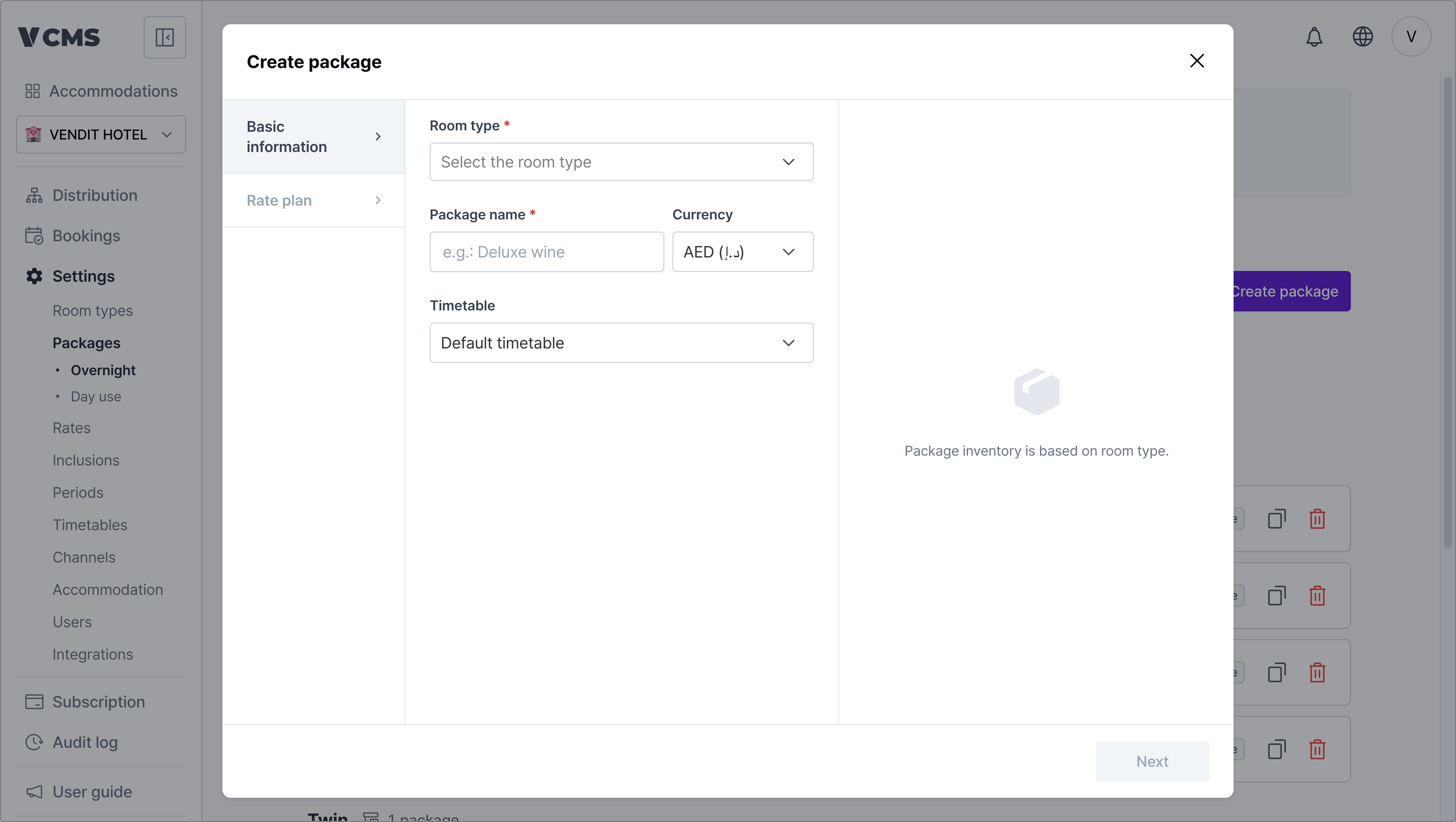 Pick a room type, fill in the name, currency, timetable, and the rest, and the overnight package exists.
Here is what you enter:
* **Room type (required)**: the room type this package is connected to. Inventory follows the number of rooms in that type, and the connection cannot be changed after creation.
* **Package name (required)**: the name that distinguishes this package.
* **Currency**: the currency the package rate is in. Like the room type, it cannot be changed after creation.
* **Timetable**: the package's check-in and check-out times.
* **Inventory details**
* **Max inventory**: caps how many can be sold, up to the number of rooms in the room type.
* **Auto top-up**: tops the availability of every connected channel package back up so inventory stays level. If the number you set matches actual inventory, it draws down as sales come in.
* **Units per booking**: how many rooms one booking consumes. Set it to 2 and each booking draws 2 from inventory. Inventory stays accurate even when several rooms are sold as a single package, as with capsule rooms.
Change the units per booking and it applies to rate adjustments made from then on. Adjustments already in place are untouched.
When a booking comes in for a package that sets units per booking, that setting shows up in Bookings.
Pick a room type, fill in the name, currency, timetable, and the rest, and the overnight package exists.
Here is what you enter:
* **Room type (required)**: the room type this package is connected to. Inventory follows the number of rooms in that type, and the connection cannot be changed after creation.
* **Package name (required)**: the name that distinguishes this package.
* **Currency**: the currency the package rate is in. Like the room type, it cannot be changed after creation.
* **Timetable**: the package's check-in and check-out times.
* **Inventory details**
* **Max inventory**: caps how many can be sold, up to the number of rooms in the room type.
* **Auto top-up**: tops the availability of every connected channel package back up so inventory stays level. If the number you set matches actual inventory, it draws down as sales come in.
* **Units per booking**: how many rooms one booking consumes. Set it to 2 and each booking draws 2 from inventory. Inventory stays accurate even when several rooms are sold as a single package, as with capsule rooms.
Change the units per booking and it applies to rate adjustments made from then on. Adjustments already in place are untouched.
When a booking comes in for a package that sets units per booking, that setting shows up in Bookings.
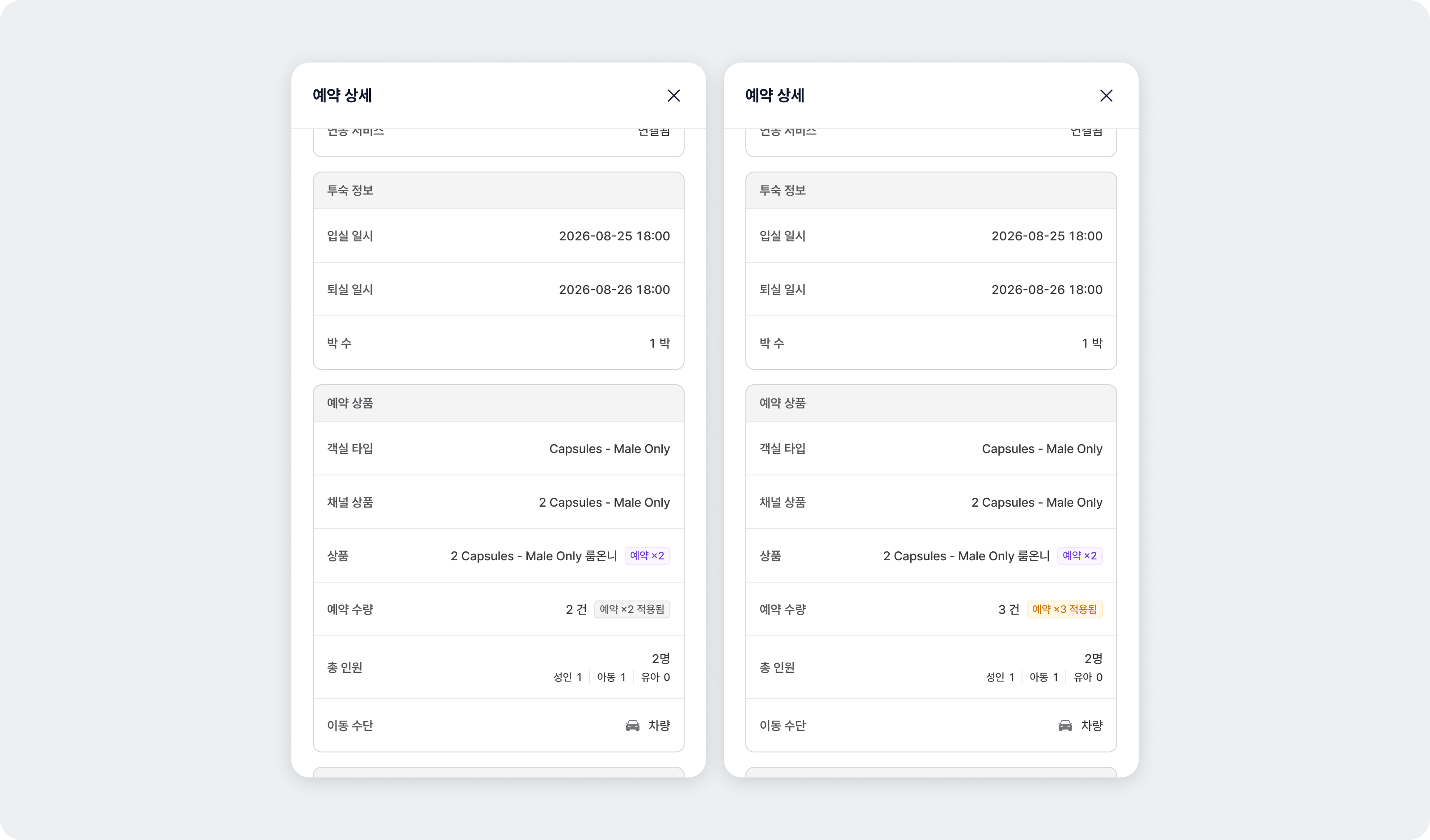 * **Package**: a "booking ×2" badge next to the package name shows the units per booking currently set.
* **Quantity**: "booking ×2 applied" shows the units per booking that was in force when the booking synced.
### **Setting the package rate**
* **Package**: a "booking ×2" badge next to the package name shows the units per booking currently set.
* **Quantity**: "booking ×2 applied" shows the units per booking that was in force when the booking synced.
### **Setting the package rate**
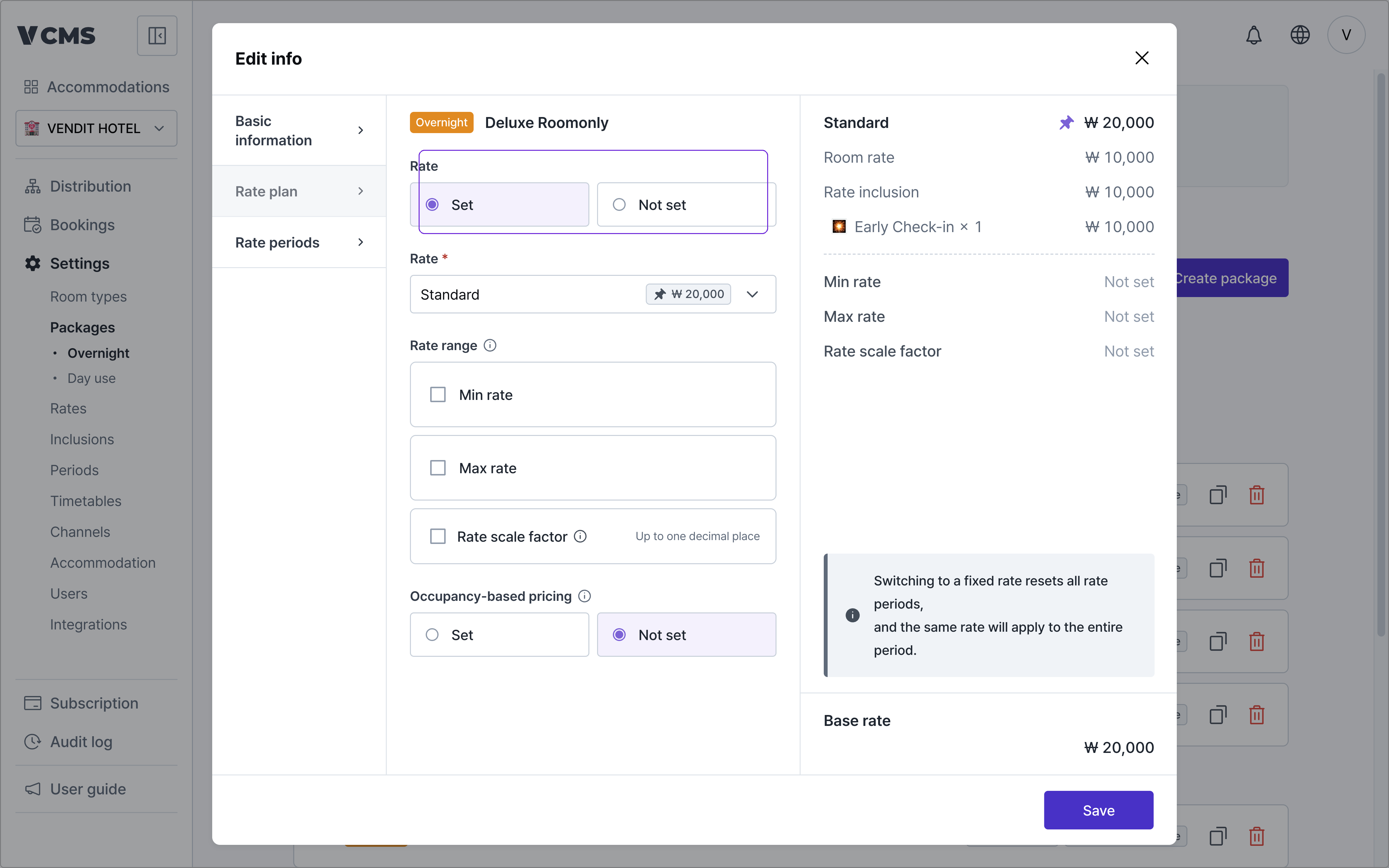 Turn rate management on and you control this package's rate directly.
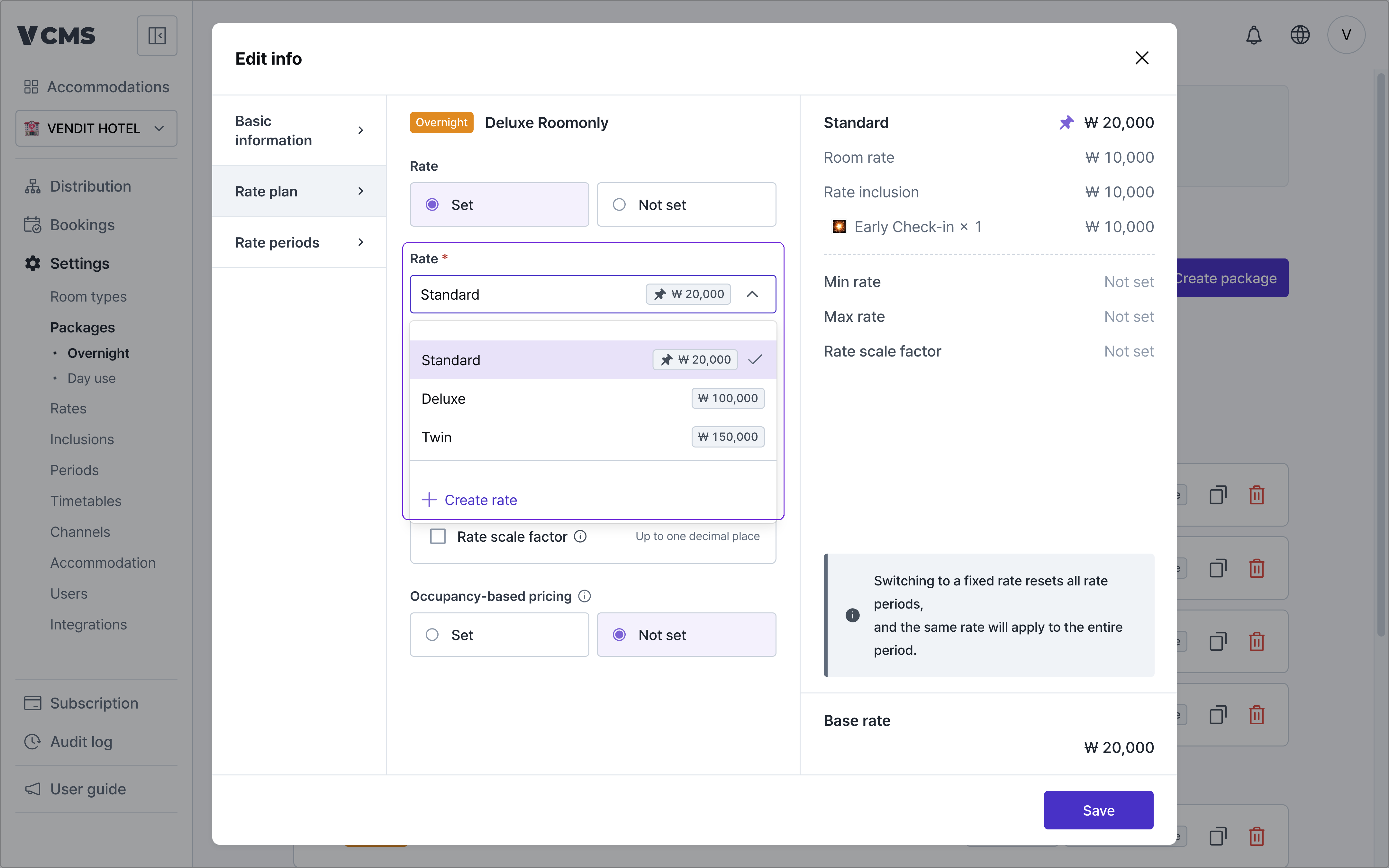 Pick the rate to apply. If the one you need does not exist, press `+ Create rate` and make it on the spot. The [rates guide](/en/inventory-rate/rate) covers this in full.
### Package inclusions
Pick the rate to apply. If the one you need does not exist, press `+ Create rate` and make it on the spot. The [rates guide](/en/inventory-rate/rate) covers this in full.
### Package inclusions
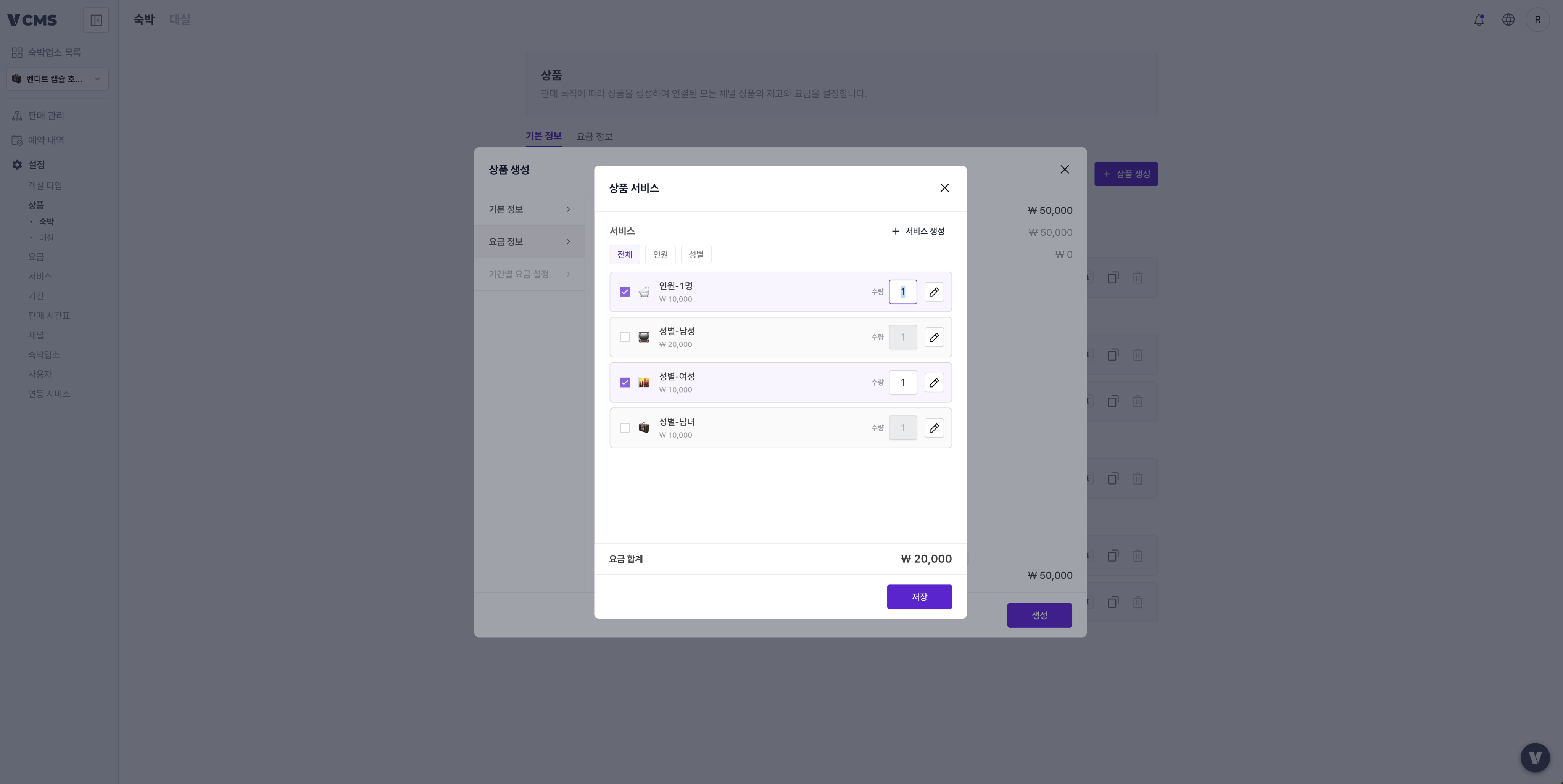 Pick the inclusions that apply to this package alone. Their combined total becomes the package's base rate. If the inclusion you need does not exist, press `+ Create inclusion`. The [inclusions guide](/en/inventory-rate/inclusion) covers this in full.
### Extra rate adjustment
Pick the inclusions that apply to this package alone. Their combined total becomes the package's base rate. If the inclusion you need does not exist, press `+ Create inclusion`. The [inclusions guide](/en/inventory-rate/inclusion) covers this in full.
### Extra rate adjustment
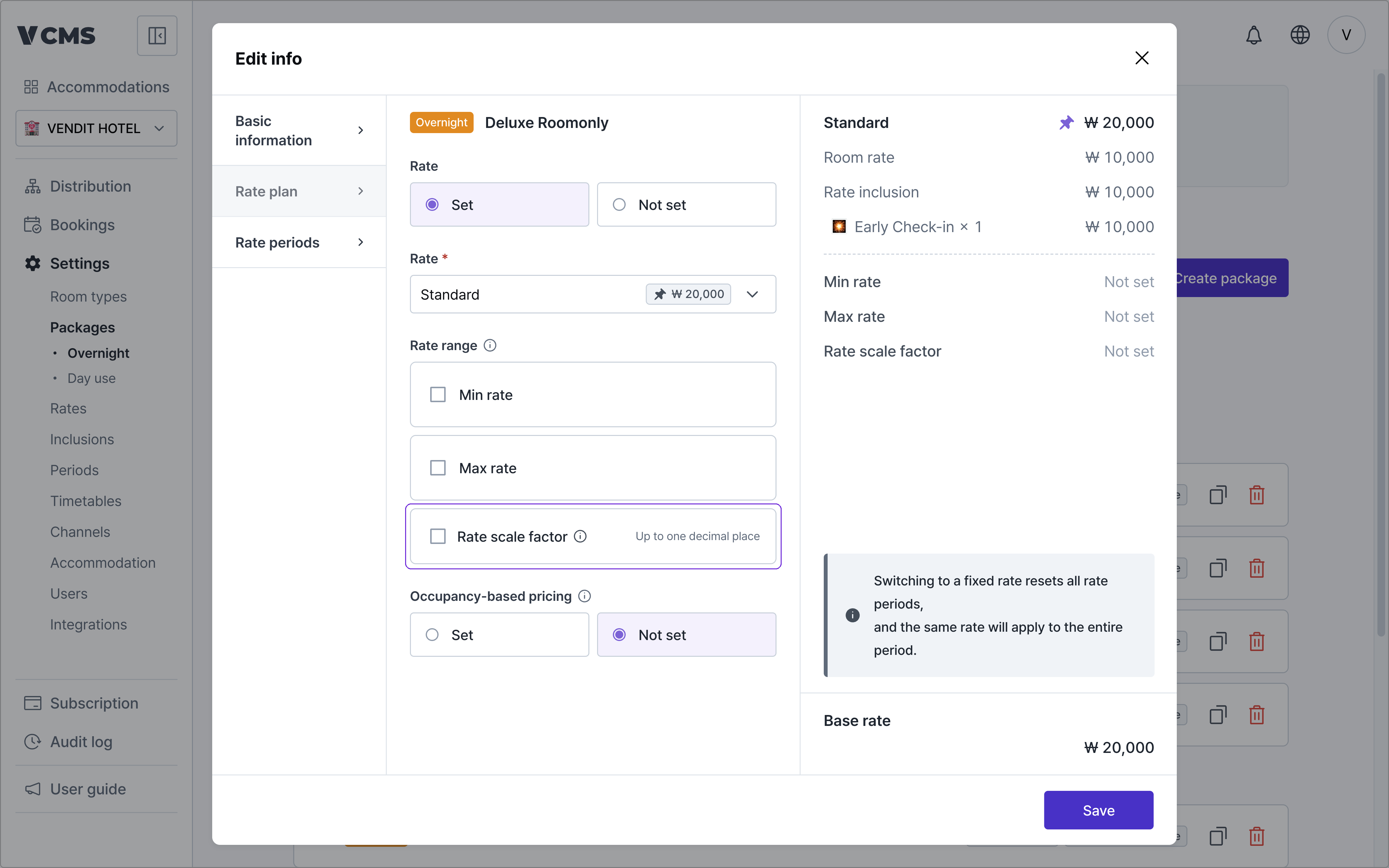 Add a markup or a discount on top of the package's base rate. The final rate, calculated from the amount or percentage you enter, is shown immediately.
### Rate range
Add a markup or a discount on top of the package's base rate. The final rate, calculated from the amount or percentage you enter, is shown immediately.
### Rate range
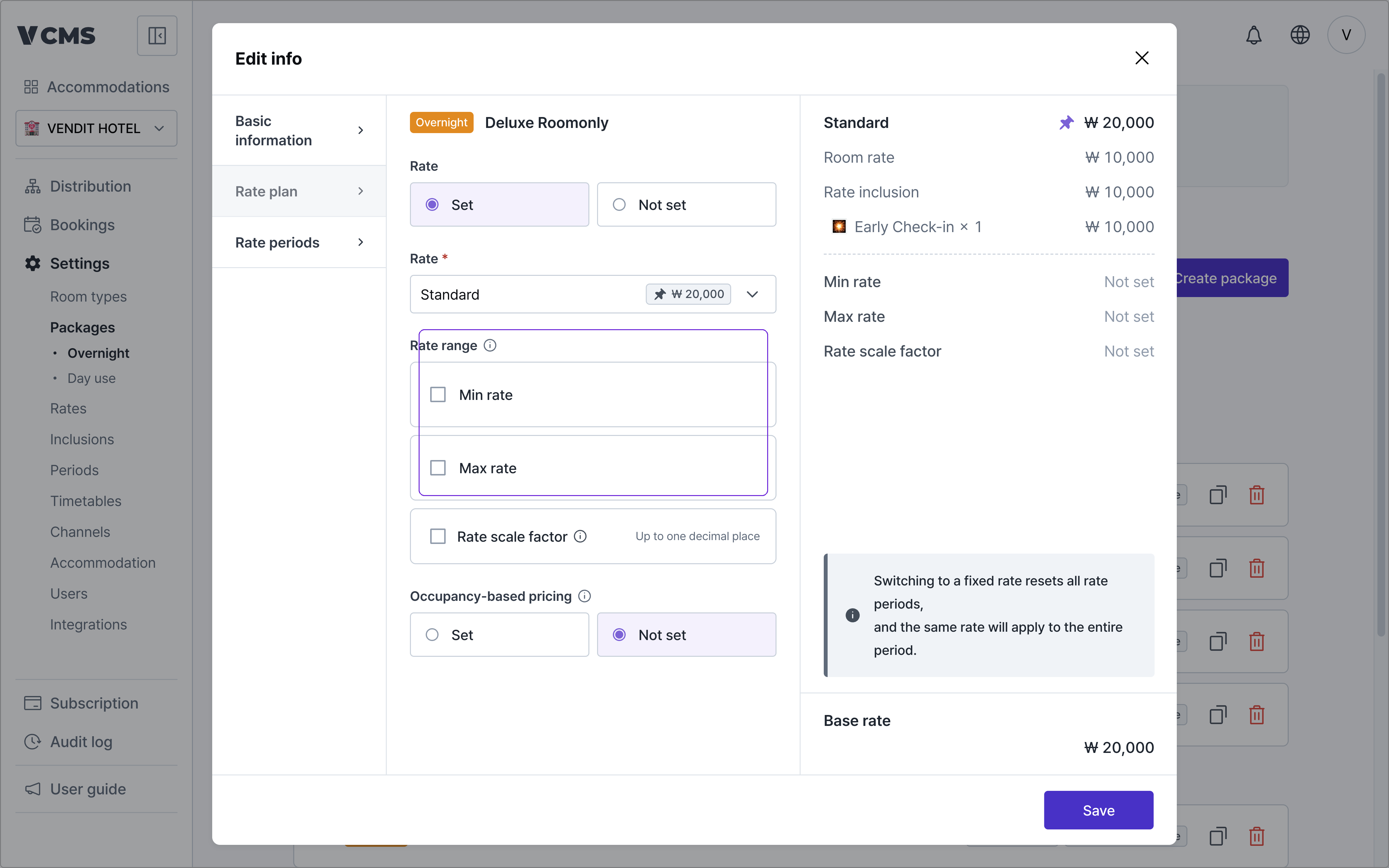 Set a minimum and maximum for the selling rate. Set both, or just one. The maximum has to be higher than the minimum.
### Occupancy-based pricing
Set a minimum and maximum for the selling rate. Set both, or just one. The maximum has to be higher than the minimum.
### Occupancy-based pricing
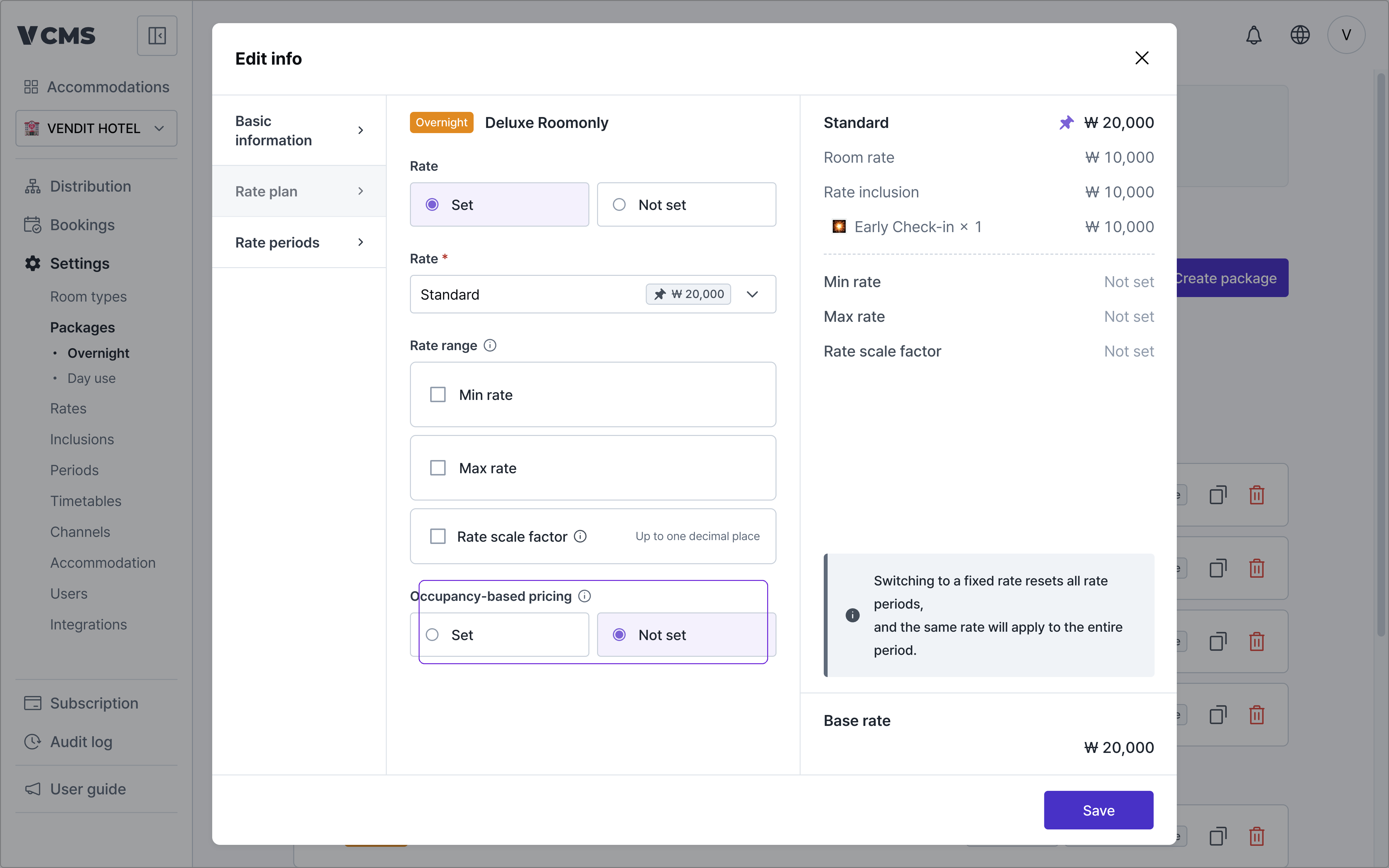 On channels that support occupancy-based pricing (Agoda, for one), a per-person surcharge is added to the room rate once guests exceed base occupancy. Channels without that support price against max occupancy.
***
## Setting rate periods
When you want a different rate in peak season than in the quiet months, rate periods give you the room to do it.
### Period rates
Add a period and a different rate applies for those dates only. The [periods guide](/en/inventory-rate/period) covers how to build one.
On channels that support occupancy-based pricing (Agoda, for one), a per-person surcharge is added to the room rate once guests exceed base occupancy. Channels without that support price against max occupancy.
***
## Setting rate periods
When you want a different rate in peak season than in the quiet months, rate periods give you the room to do it.
### Period rates
Add a period and a different rate applies for those dates only. The [periods guide](/en/inventory-rate/period) covers how to build one.
 ### Adding a period
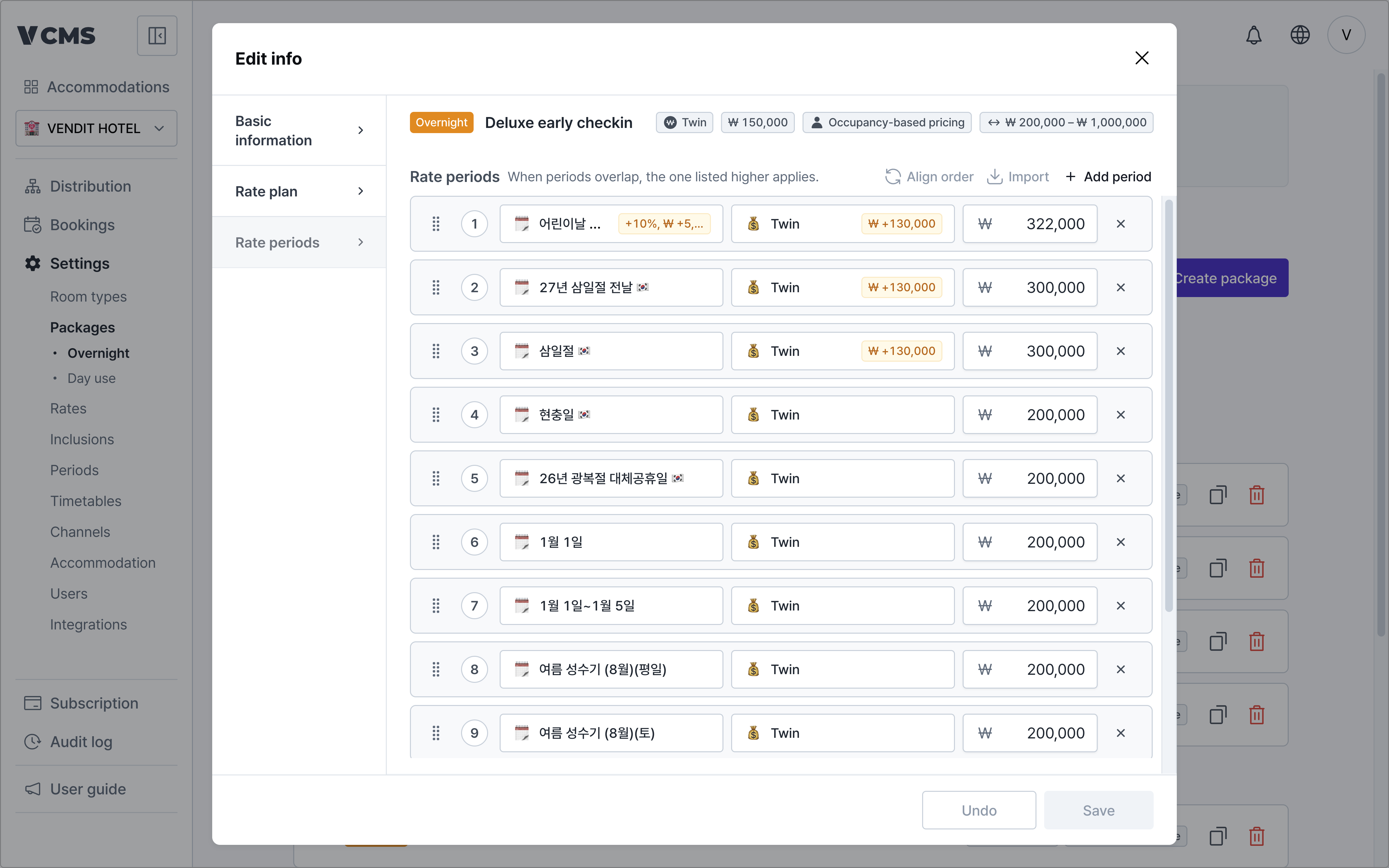
Connect a period you built on the periods page to a package, and it has a period rate.
* **Add to several packages at once**: if a period is connected to no package at all, an "Add N unconnected periods" link appears at the top of the list. An unconnected period sells at the base rate for those dates, so follow the link when you see it.
### Adding a period
Connect a period you built on the periods page to a package, and it has a period rate.
* **Add to several packages at once**: if a period is connected to no package at all, an "Add N unconnected periods" link appears at the top of the list. An unconnected period sells at the base rate for those dates, so follow the link when you see it.
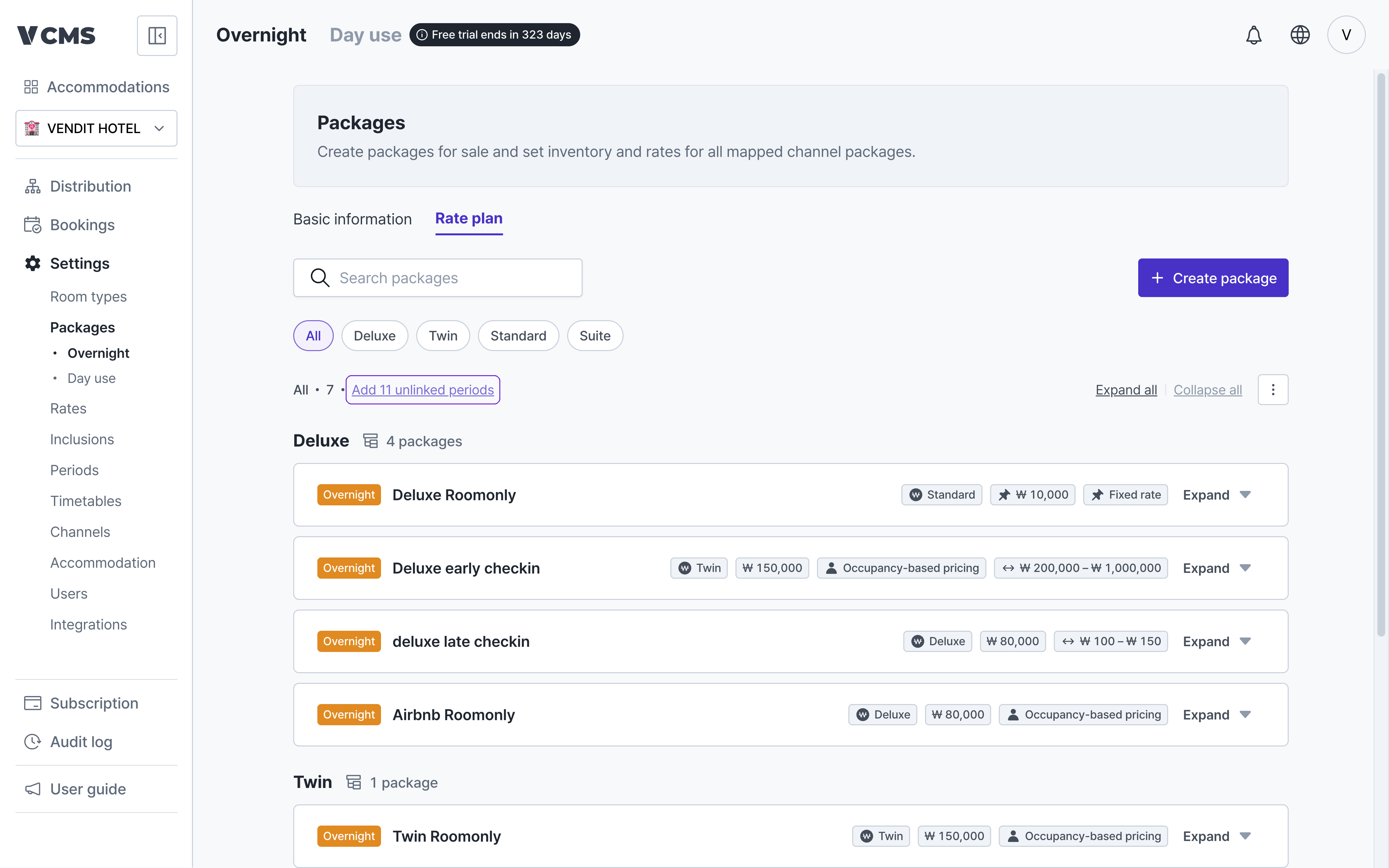 * **Add to a single package**: use the "Add period" button on the package card. The adjustment stored on the period comes across as the starting value.
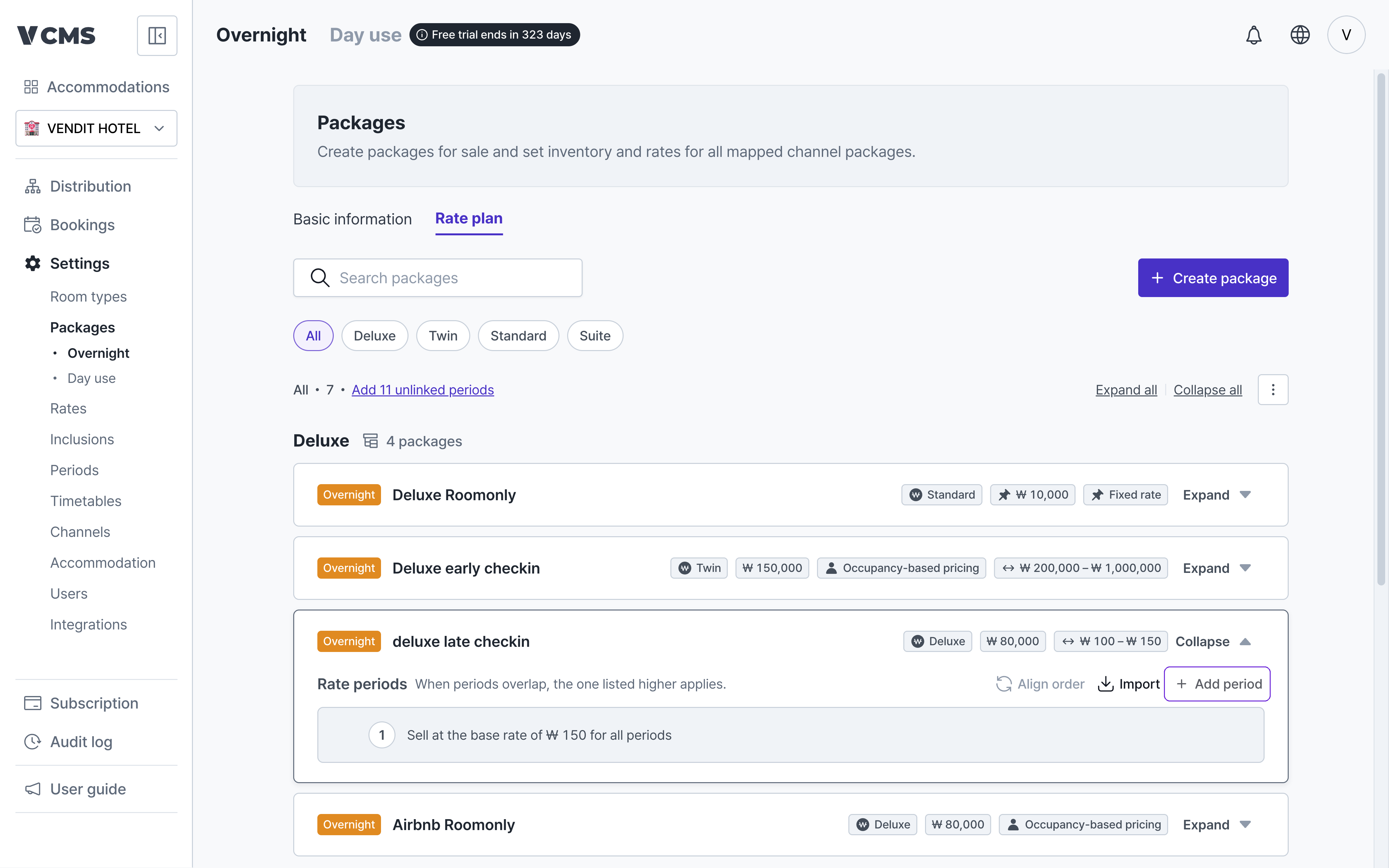 * An added period slots in at its priority position from the periods page.
If a period you add overlaps one already there, the higher period wins and the rate can change. Check each package's rate before you save.
### Applying rate periods to other packages
Period rates set on one package can be carried over to others, so you are not repeating the same periods package by package.
* An added period slots in at its priority position from the periods page.
If a period you add overlaps one already there, the higher period wins and the rate can change. Check each package's rate before you save.
### Applying rate periods to other packages
Period rates set on one package can be carried over to others, so you are not repeating the same periods package by package.
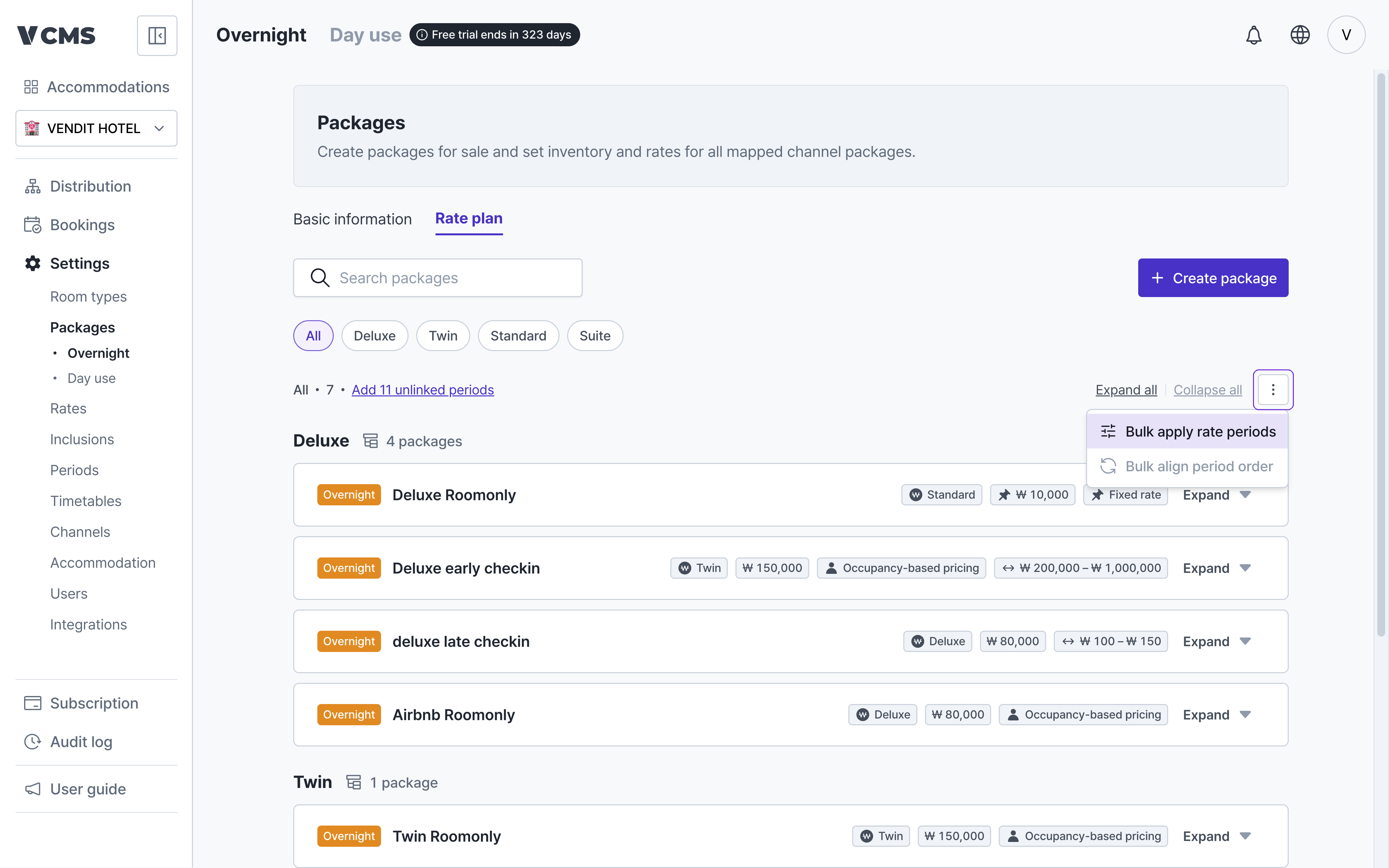
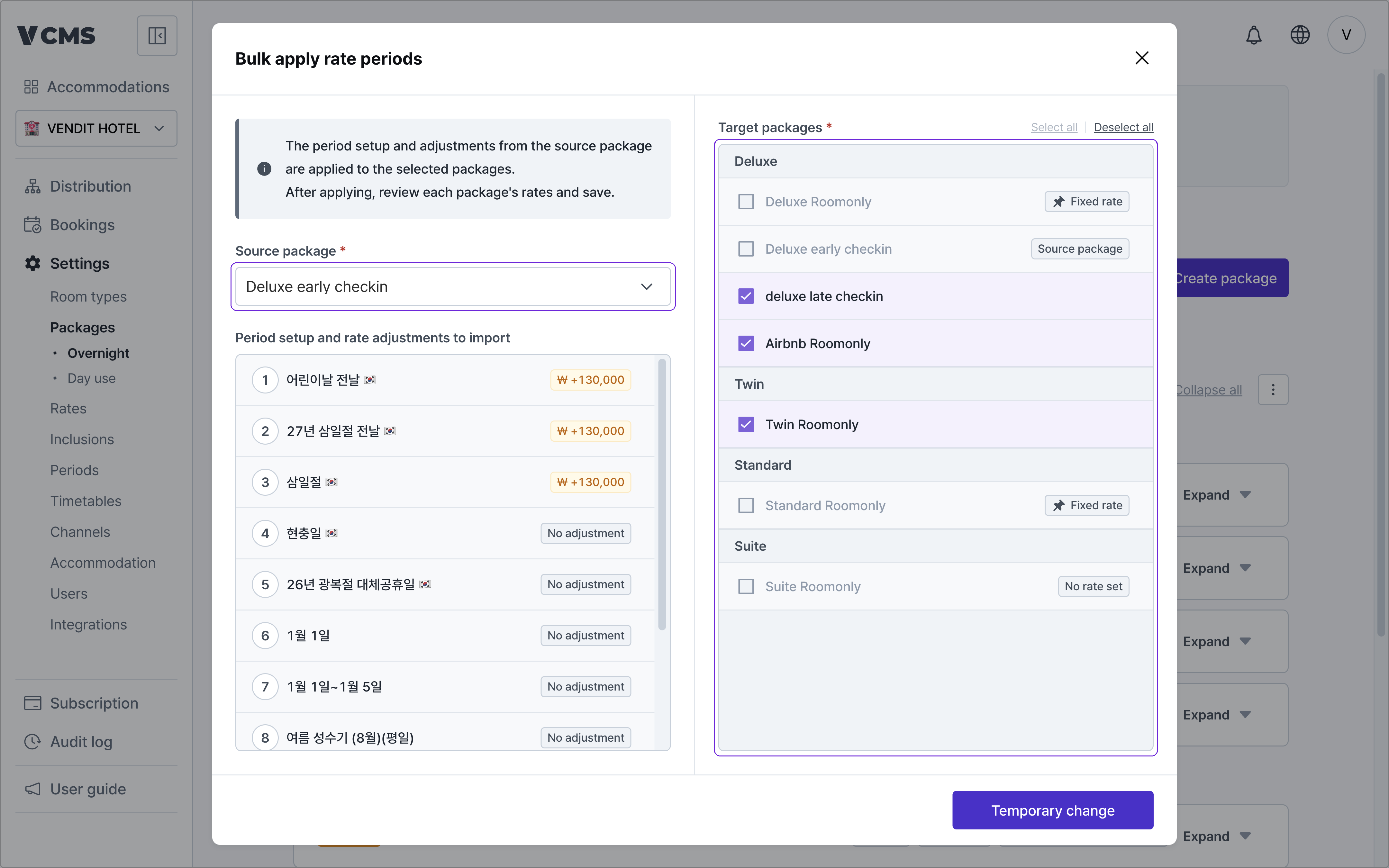 * **Bulk apply**: from the option (⋮) menu at the top of the list, pick one package to copy from and apply it to many at once.
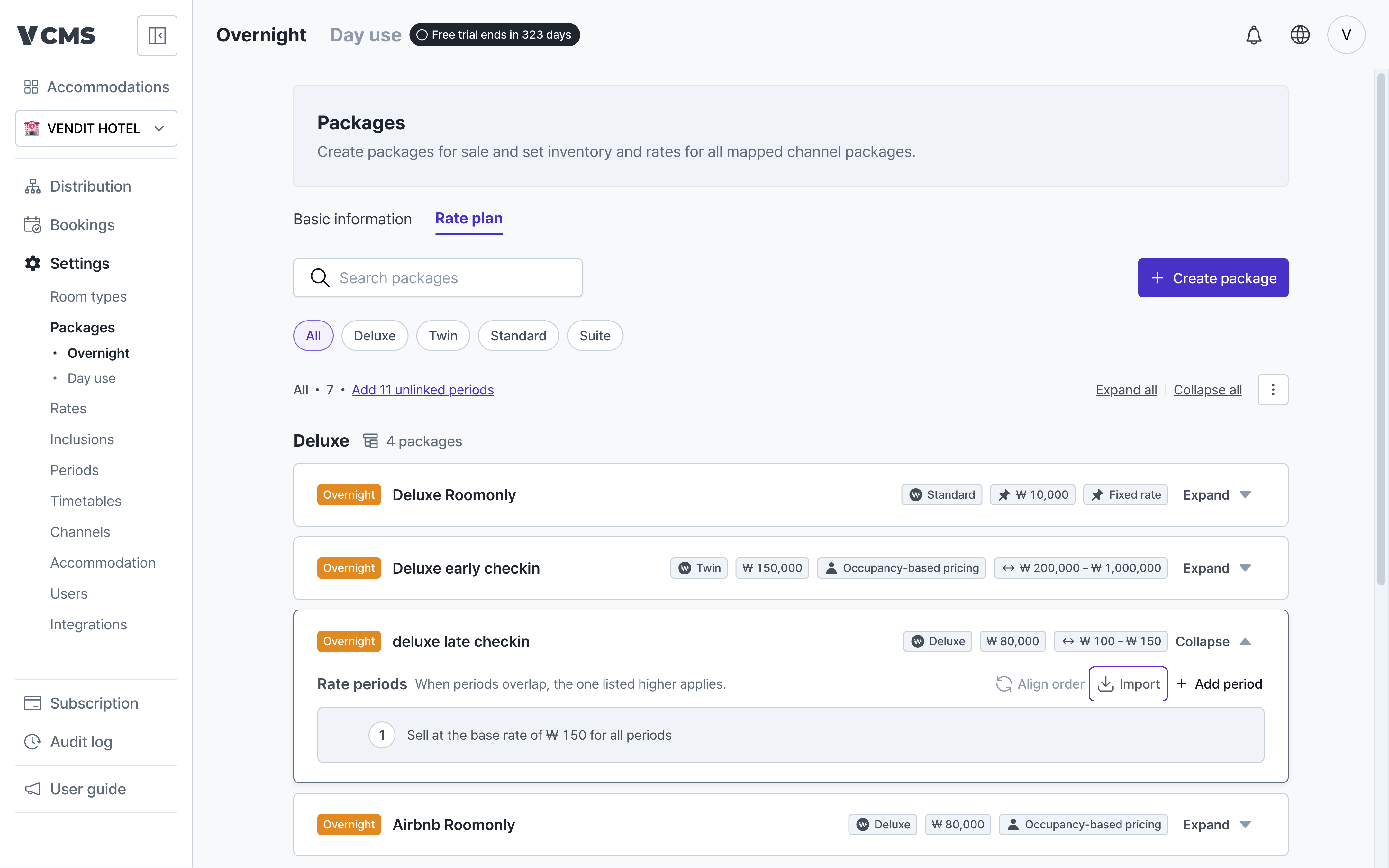
 * **Import**: the "Import" button on a package card pulls another package's rate periods into this one.
 **What copies is the period structure and the adjustments, not the amounts**
* The final rate is recalculated by applying the adjustments to each package's own rate. A package's base rate never moves.
* Periods that exist only on the receiving package are kept, and rates you changed individually are kept too.
* A calculated rate that falls outside the package's minimum or maximum is pulled back inside the range.
* Packages on a fixed rate, packages with no rate set, and packages in a different currency are excluded, and the list says why.
### Sorting periods
When periods overlap, the one higher up applies first. Out of order, they can sell at a rate you did not intend, so a package's rate periods can be sorted to match the priority on the periods page.
* **Every package**: run "Sort periods" from the option (⋮) menu. Packages already in the right order are skipped.
* **One package**: use the "Sort" button on the package card.
Only the order changes. No period is added or removed, and no rate or adjustment is touched.
***
## Deleting a package
**What copies is the period structure and the adjustments, not the amounts**
* The final rate is recalculated by applying the adjustments to each package's own rate. A package's base rate never moves.
* Periods that exist only on the receiving package are kept, and rates you changed individually are kept too.
* A calculated rate that falls outside the package's minimum or maximum is pulled back inside the range.
* Packages on a fixed rate, packages with no rate set, and packages in a different currency are excluded, and the list says why.
### Sorting periods
When periods overlap, the one higher up applies first. Out of order, they can sell at a rate you did not intend, so a package's rate periods can be sorted to match the priority on the periods page.
* **Every package**: run "Sort periods" from the option (⋮) menu. Packages already in the right order are skipped.
* **One package**: use the "Sort" button on the package card.
Only the order changes. No period is added or removed, and no rate or adjustment is touched.
***
## Deleting a package
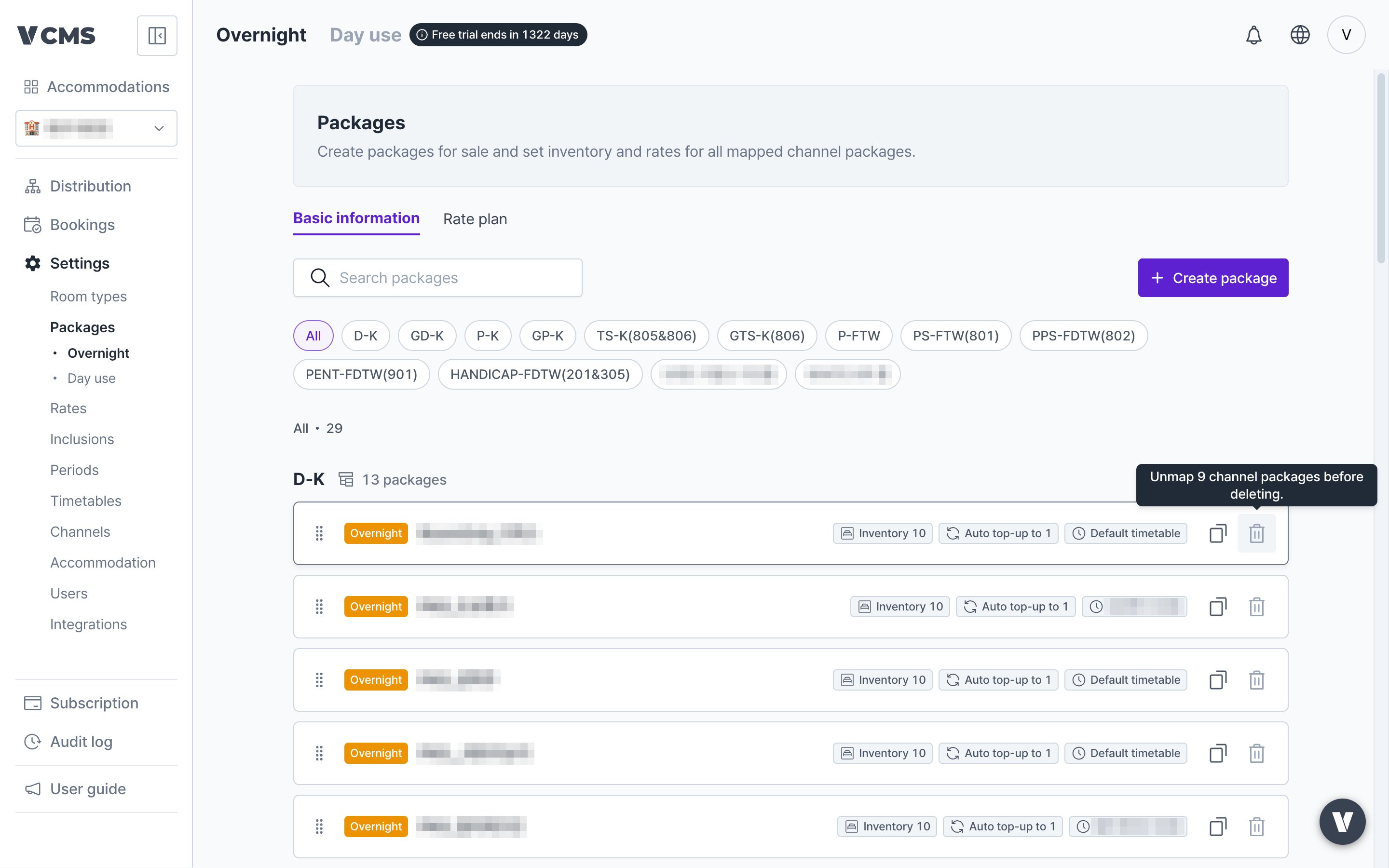 An overnight package connected to a channel package cannot be deleted. Only packages with no channel package attached can go.