> ## Documentation Index
> Fetch the complete documentation index at: https://docs.vcms.io/llms.txt
> Use this file to discover all available pages before exploring further.
# Sep 3, 2026
> Hello from Vendit. Here is what changed in VCMS in the first week of September.
***
> **Highlights**
"Apply one package's rate periods to other packages in a single pass."
## New
### Apply rate periods to other packages at once
> For owners setting the same rate periods across many packages
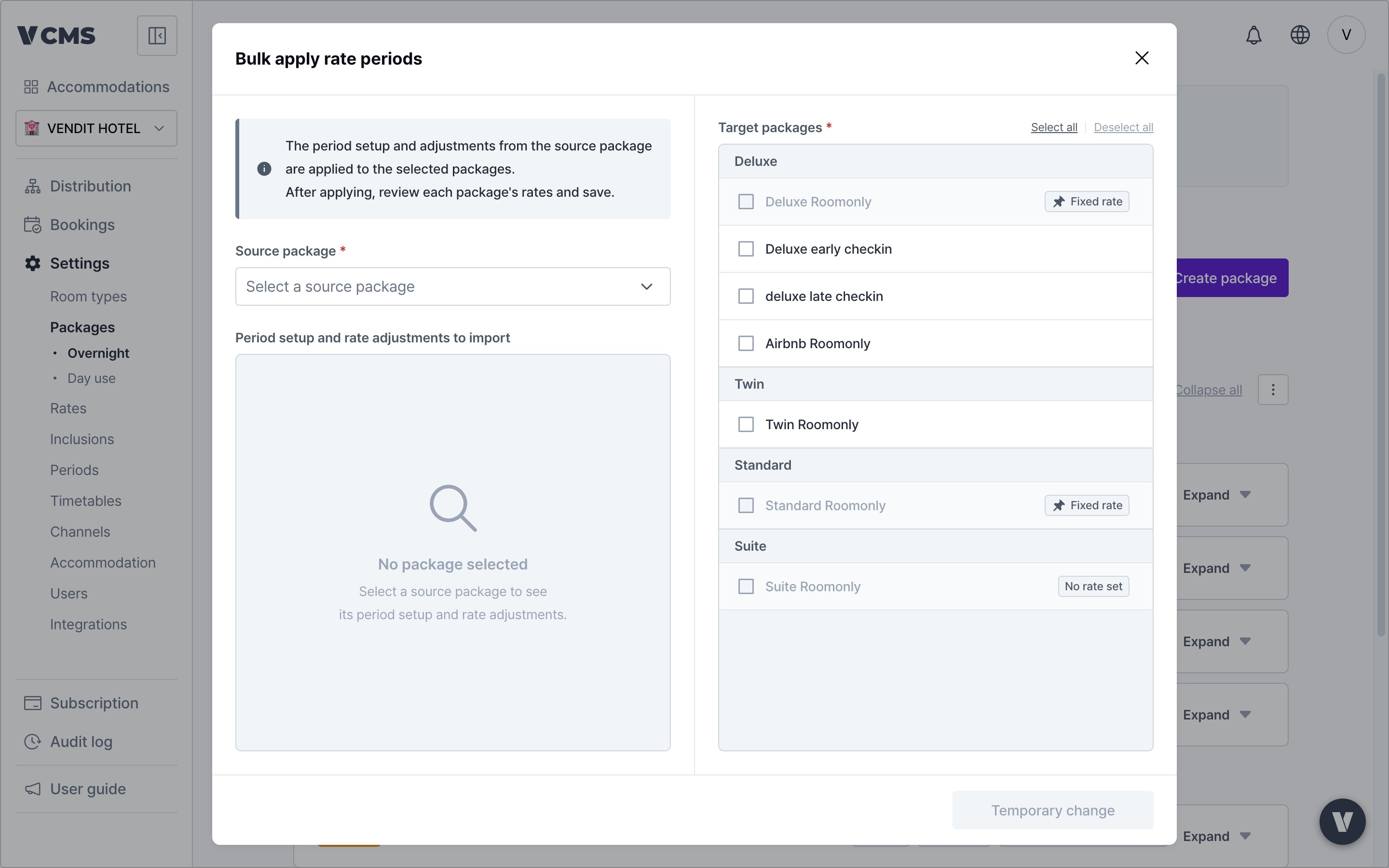 On the Settings > Packages > rate information tab, rate periods set on one package can be copied to others. Instead of repeating the same periods package by package, the period structure moves across as it is.
* **Bulk apply rate periods**: from the option (⋮) menu at the top of the list, pick one package to copy from and apply it to many at once.
On the Settings > Packages > rate information tab, rate periods set on one package can be copied to others. Instead of repeating the same periods package by package, the period structure moves across as it is.
* **Bulk apply rate periods**: from the option (⋮) menu at the top of the list, pick one package to copy from and apply it to many at once.
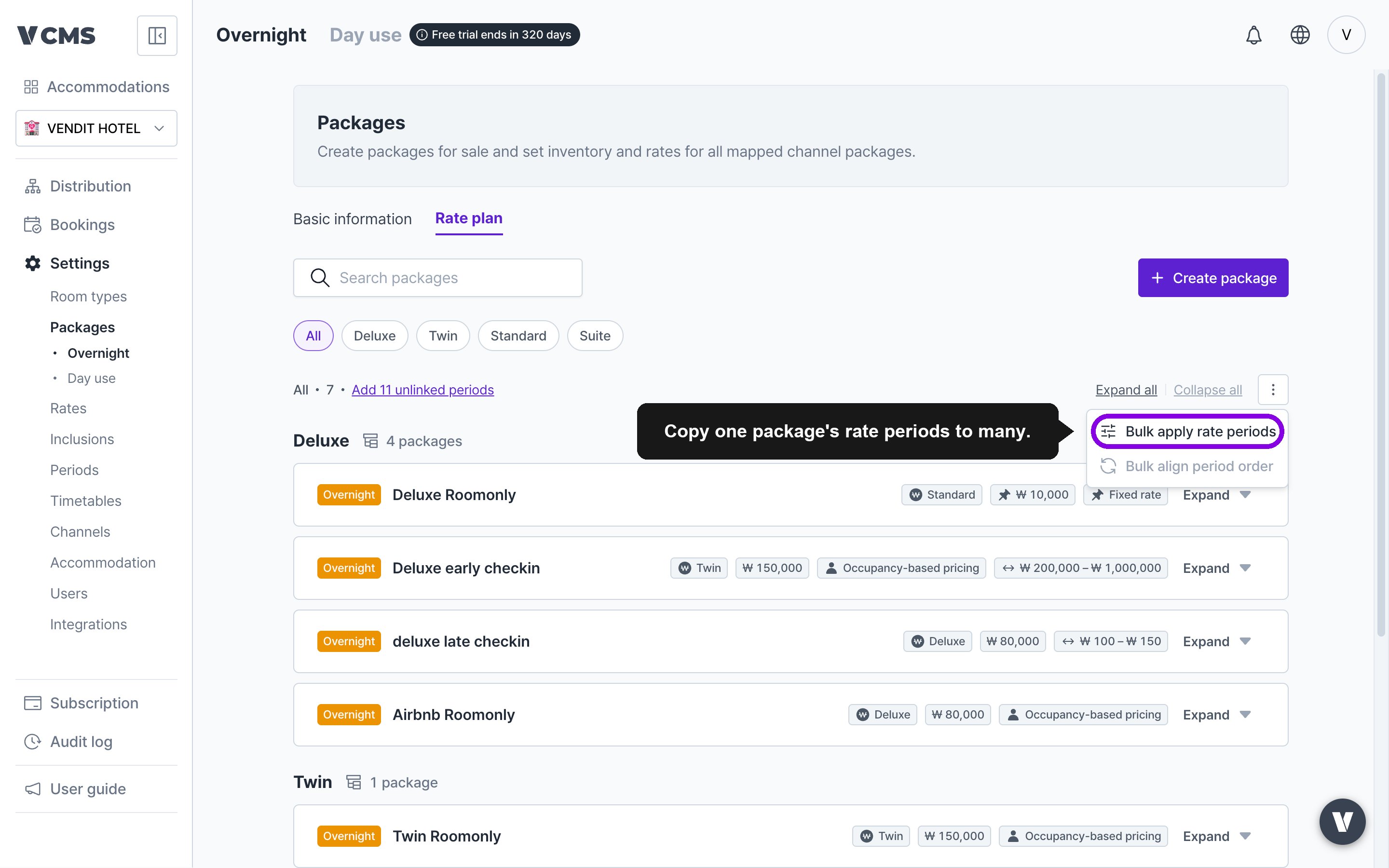 * **Import rate periods**: the "Import" button on a package card pulls another package's rate periods into this one.
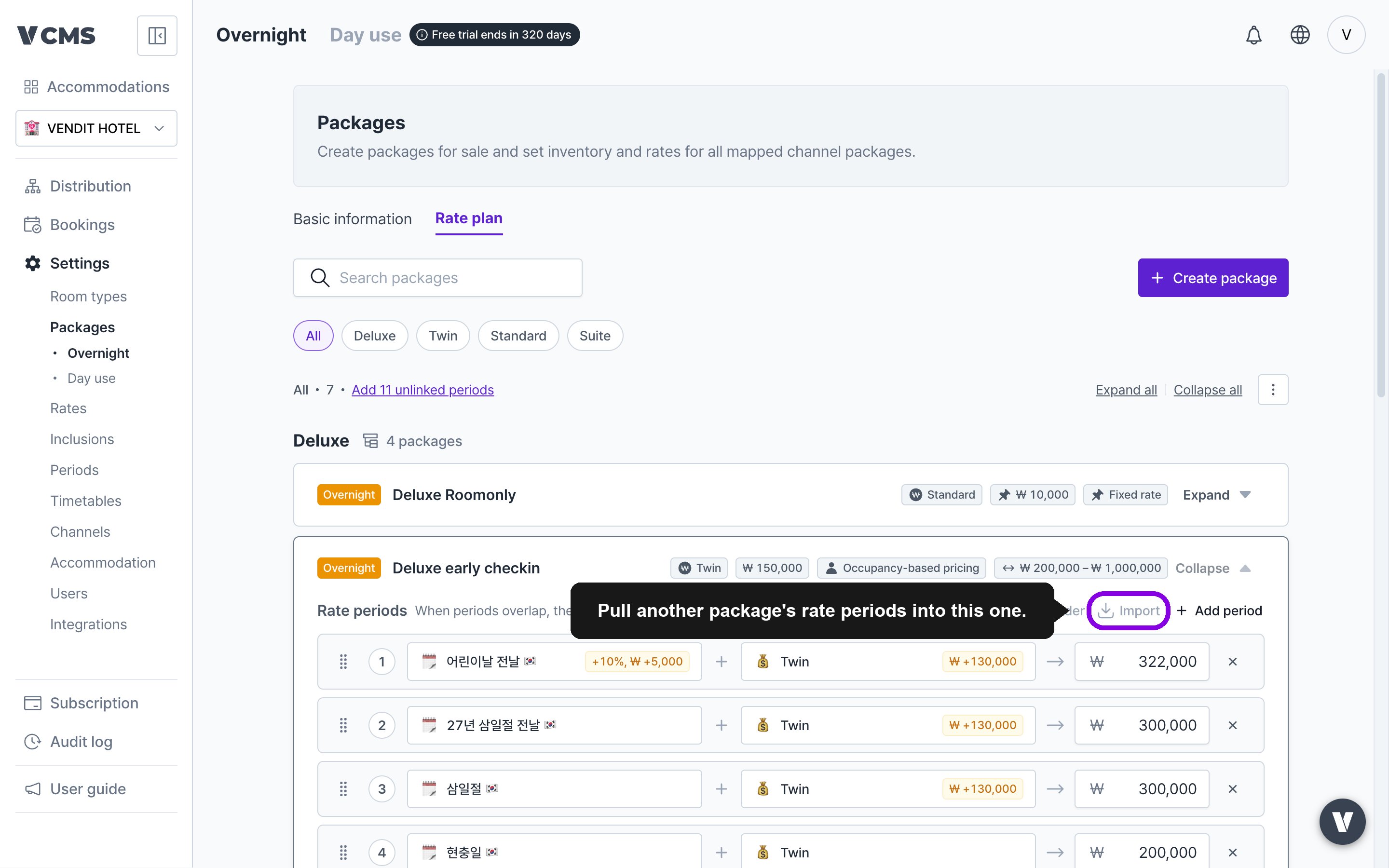 **What copies is the period structure and the adjustments, not the amounts**
* The final rate is recalculated by applying the adjustments to each package's own rate. A package's base rate never moves.
* Periods that exist only on the receiving package are kept, and rates you changed individually are kept too.
* A calculated rate that falls outside the package's minimum or maximum is pulled back inside the range.
* Packages on a fixed rate, packages with no rate set, and packages in a different currency are excluded, and the list says why.
***
### Adding a period to a package is easier
> For owners tired of connecting periods one package at a time
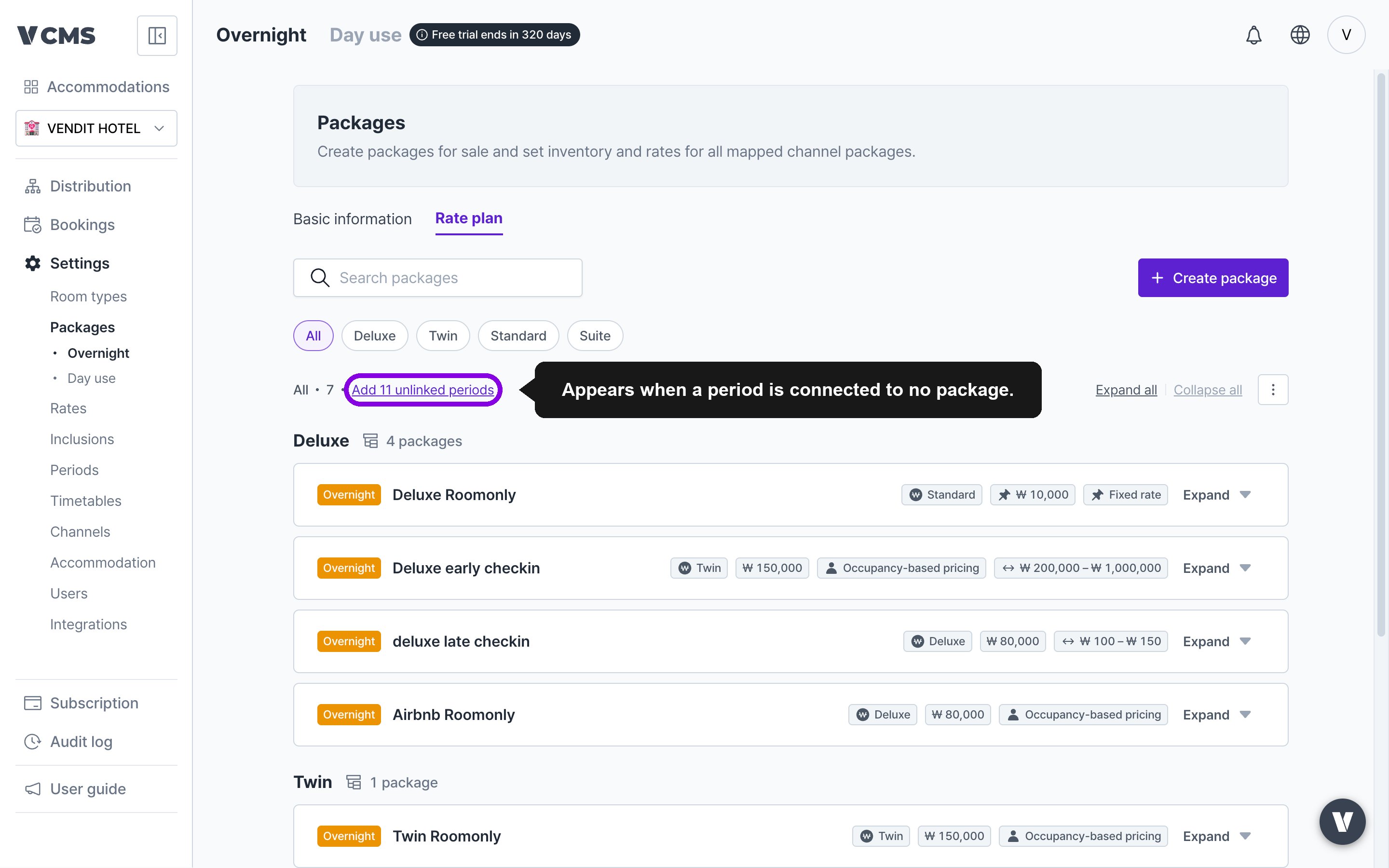
* **Add to several packages at once**: if a period is connected to no package at all, an "Add {N} unconnected periods" link appears at the top of the list. An unconnected period sells at the base rate for those dates, so follow the link when you see it.
**What copies is the period structure and the adjustments, not the amounts**
* The final rate is recalculated by applying the adjustments to each package's own rate. A package's base rate never moves.
* Periods that exist only on the receiving package are kept, and rates you changed individually are kept too.
* A calculated rate that falls outside the package's minimum or maximum is pulled back inside the range.
* Packages on a fixed rate, packages with no rate set, and packages in a different currency are excluded, and the list says why.
***
### Adding a period to a package is easier
> For owners tired of connecting periods one package at a time
* **Add to several packages at once**: if a period is connected to no package at all, an "Add {N} unconnected periods" link appears at the top of the list. An unconnected period sells at the base rate for those dates, so follow the link when you see it.
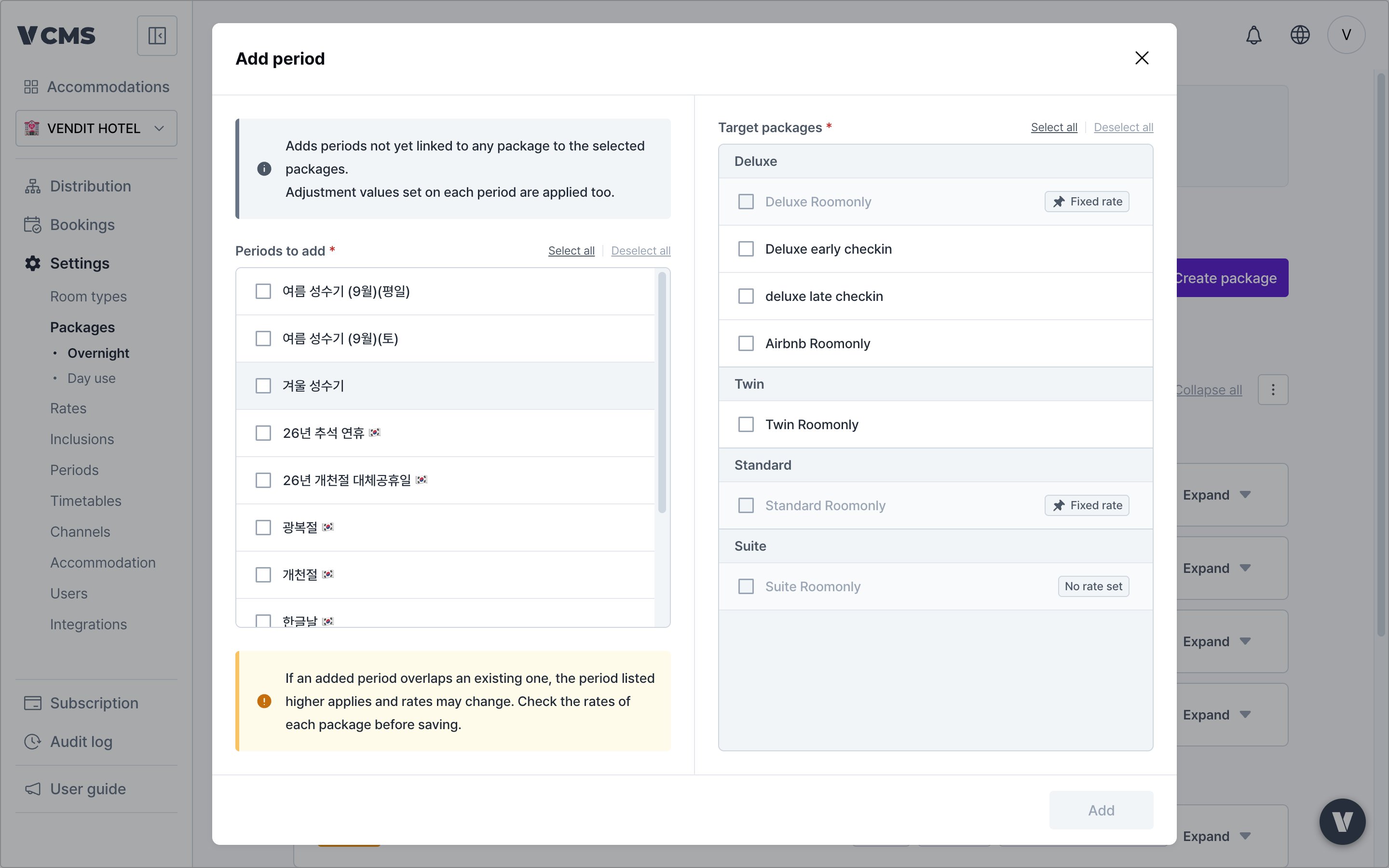 * **Add to a single package**: the "Add period" button on a package card picks a period from the periods page. The adjustment stored on the period comes across as the starting value.
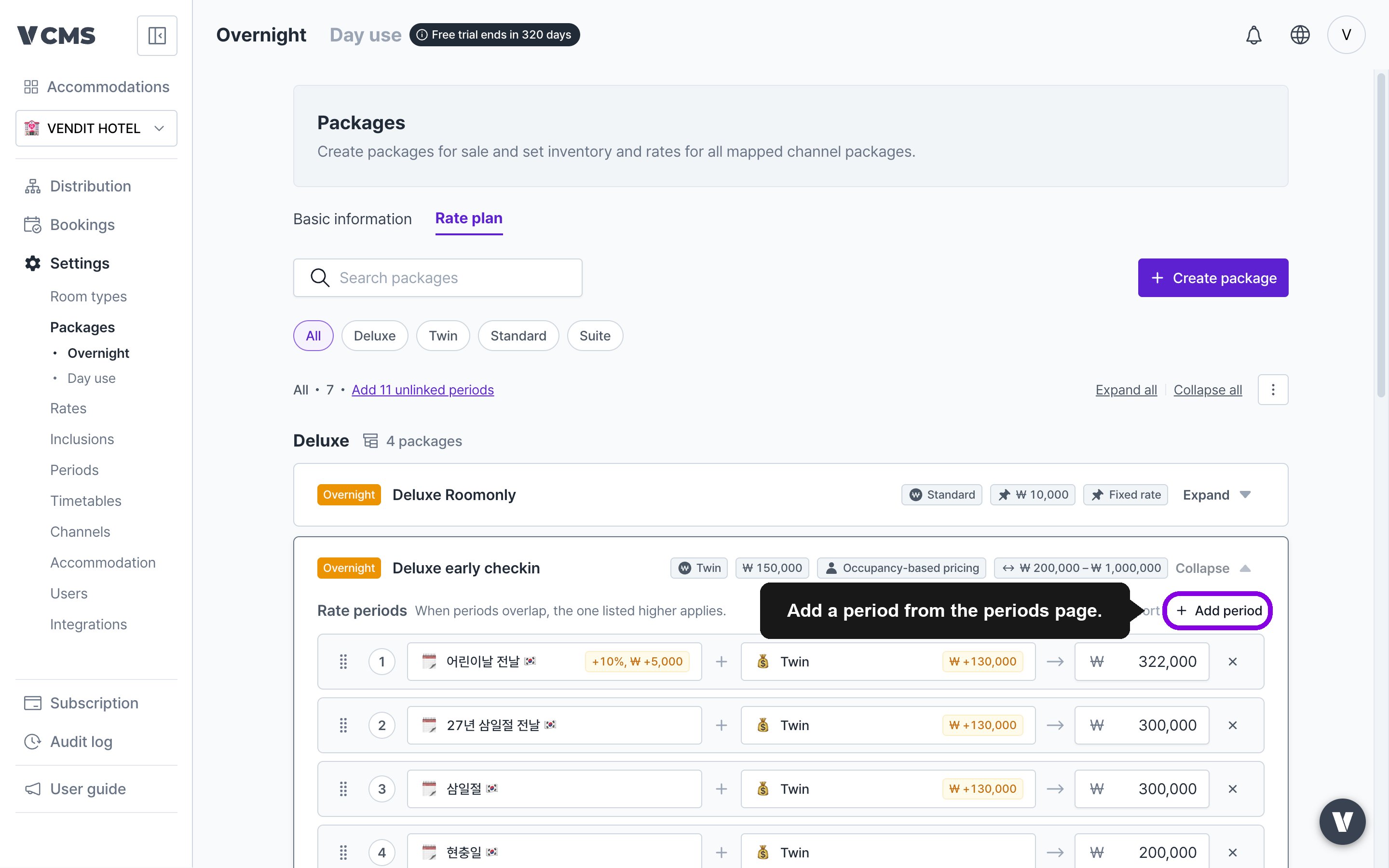 * An added period slots in at its priority position from the periods page.
If a period you add overlaps one already there, the higher period wins and the rate can change. Check each package's rate before you save.
***
### Align period order with the periods page in one step
A package's rate period order can be brought in line with the priority on the periods page. When periods overlap the higher one applies first, so an order out of step can sell at a rate you did not intend.
Only the order changes. No period is added or removed, and no rate or adjustment is touched.
* For every package, run "Sort periods" from the option (⋮) menu.
* An added period slots in at its priority position from the periods page.
If a period you add overlaps one already there, the higher period wins and the rate can change. Check each package's rate before you save.
***
### Align period order with the periods page in one step
A package's rate period order can be brought in line with the priority on the periods page. When periods overlap the higher one applies first, so an order out of step can sell at a rate you did not intend.
Only the order changes. No period is added or removed, and no rate or adjustment is touched.
* For every package, run "Sort periods" from the option (⋮) menu.
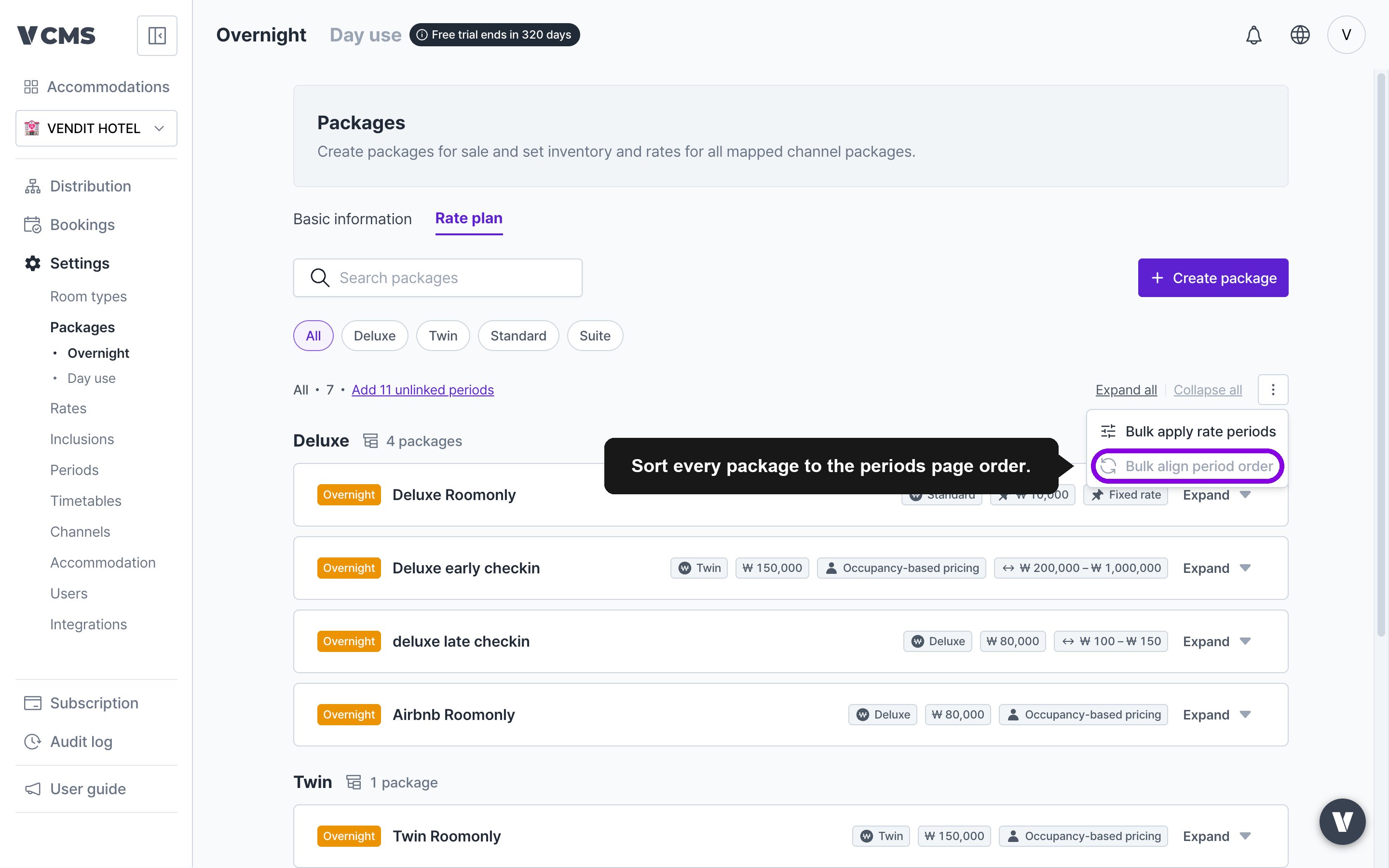 Packages already in the right order are skipped.
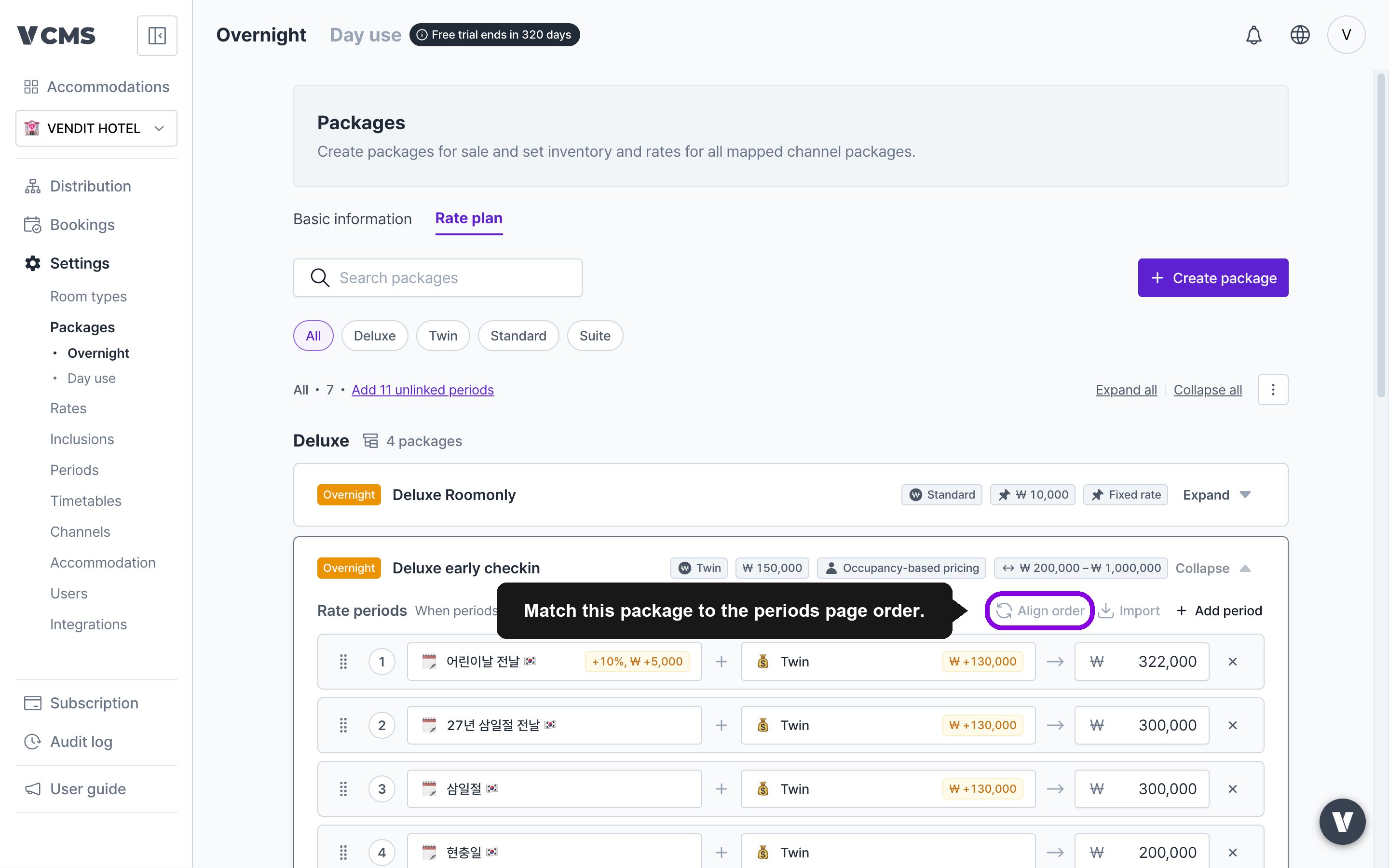
* For one package, use the "Sort" button on the card.
Packages already in the right order are skipped.
* For one package, use the "Sort" button on the card.
 ***
## Improvements
### Expand and collapse rate information in one go
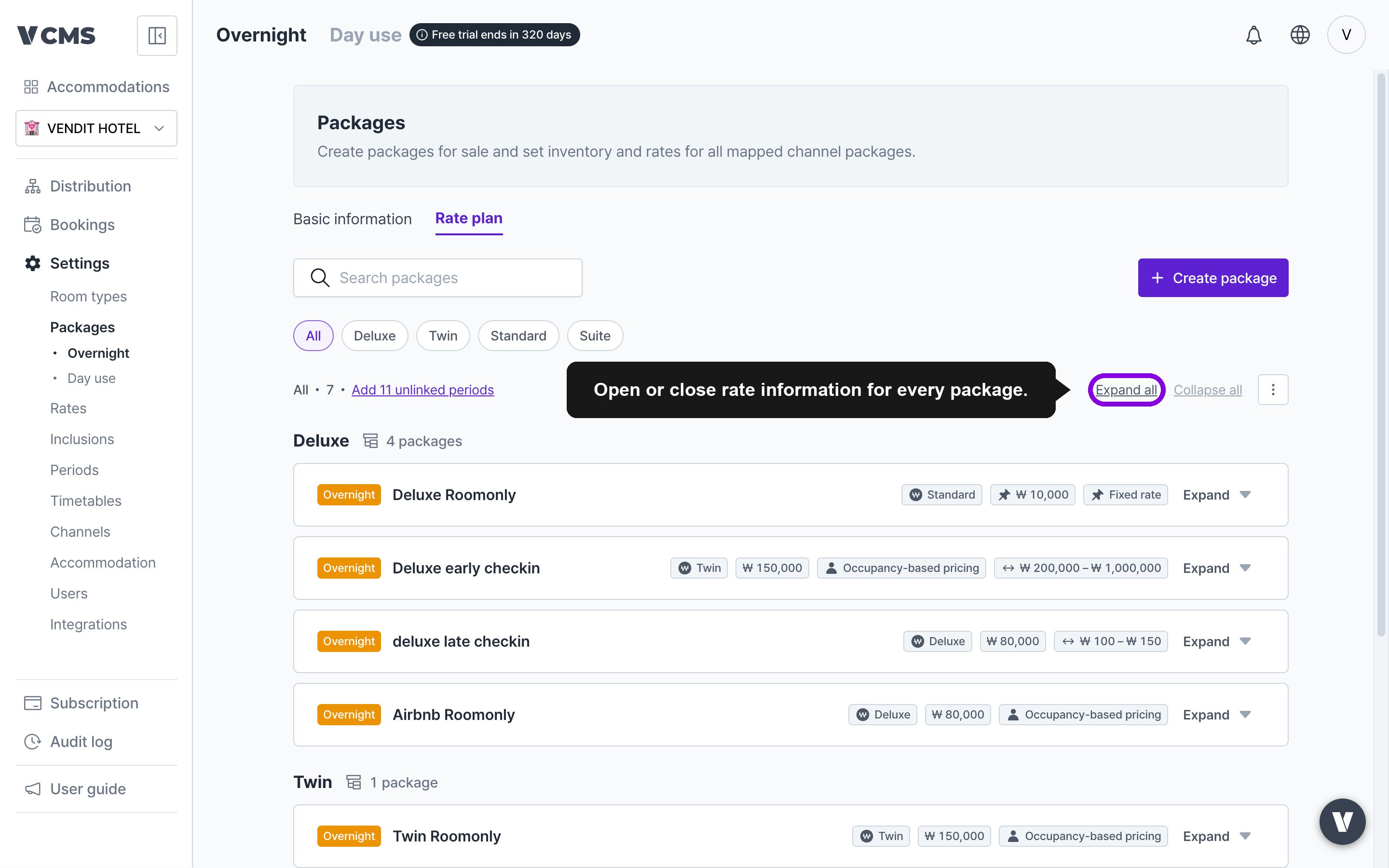
"Expand all | Collapse all" at the top of the package list opens or closes rate information for every package at once. With many packages, you reach the one you want quickly.
***
## Improvements
### Expand and collapse rate information in one go
"Expand all | Collapse all" at the top of the package list opens or closes rate information for every package at once. With many packages, you reach the one you want quickly.
 ***
### Select several room types in the filter
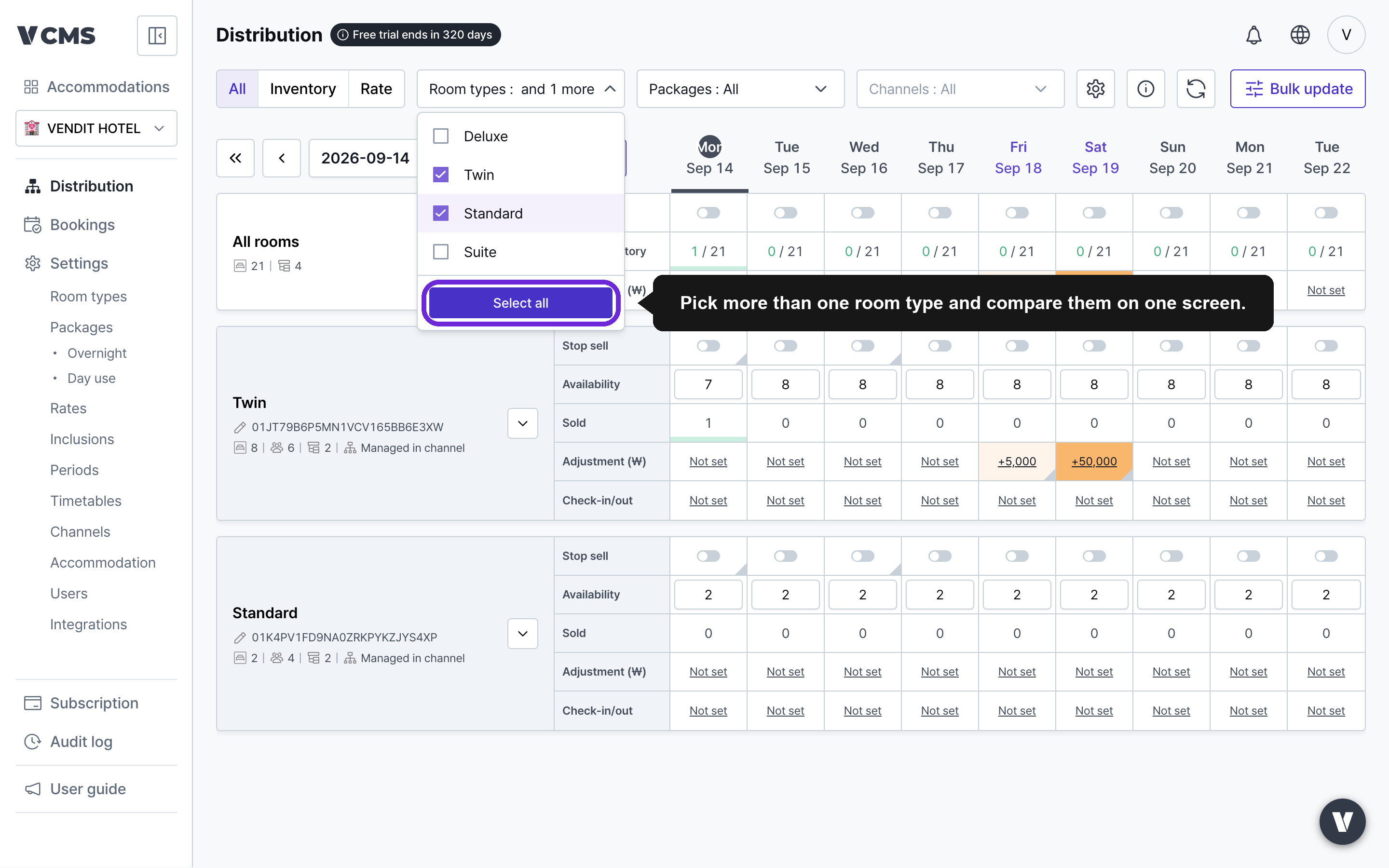
The room type chips at the top take more than one selection, so you can pull up just the types you want and compare them on one screen.
***
### Select several room types in the filter
The room type chips at the top take more than one selection, so you can pull up just the types you want and compare them on one screen.
 ***
### Undo provisional changes
Everything you do on the rate information tab (bulk apply, import, adding periods, sorting, editing rows) lands on screen as a provisional change first. Check it, then press Save in the top bar to commit.
***
### Undo provisional changes
Everything you do on the rate information tab (bulk apply, import, adding periods, sorting, editing rows) lands on screen as a provisional change first. Check it, then press Save in the top bar to commit.
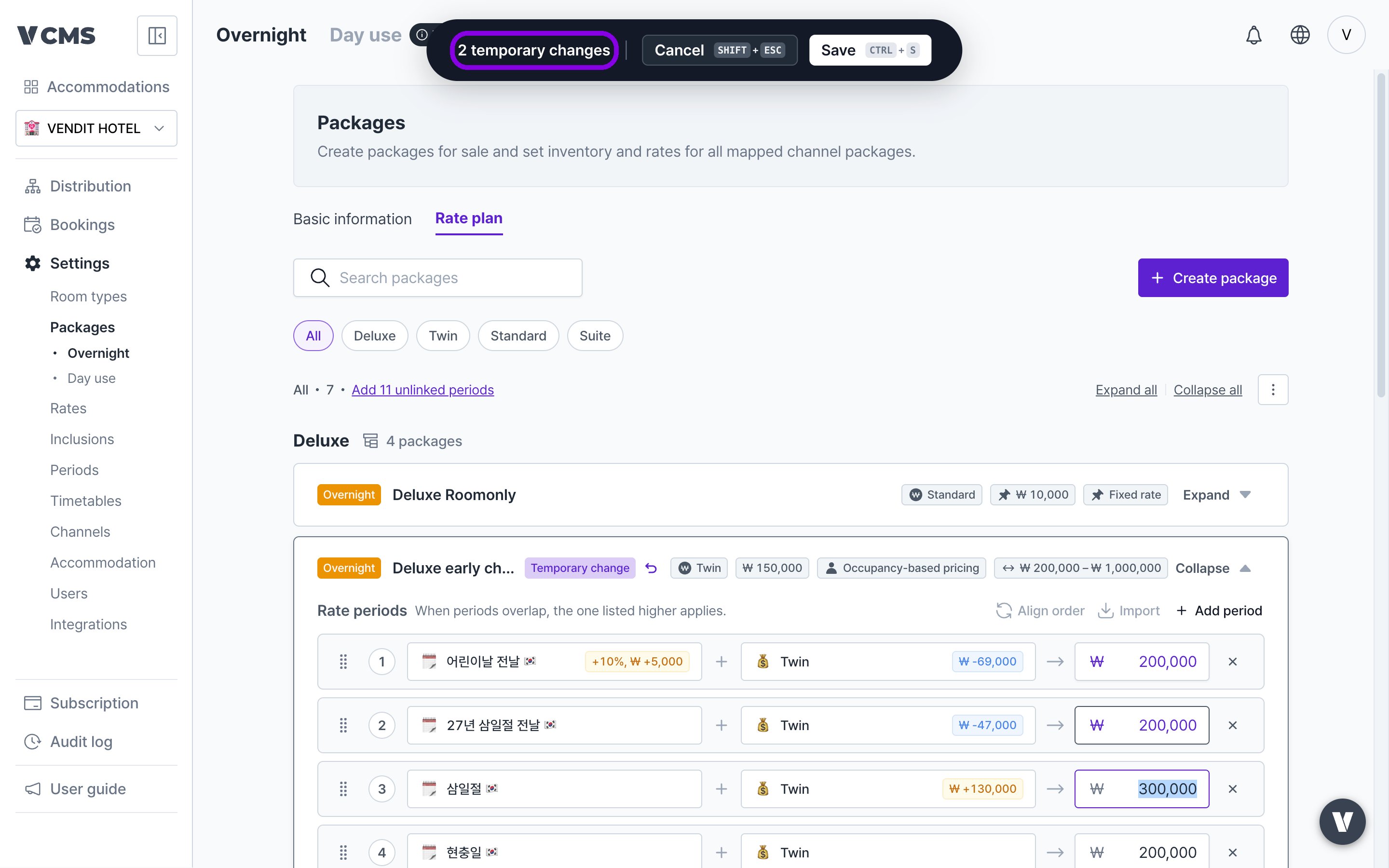 * A changed package card carries a "provisional" badge, and the changed cells and order are highlighted.
* The undo (↩︎) button on a card reverts that package to its pre-save state.
* Leaving the page without saving warns you that the changes will be lost.
* A changed package card carries a "provisional" badge, and the changed cells and order are highlighted.
* The undo (↩︎) button on a card reverts that package to its pre-save state.
* Leaving the page without saving warns you that the changes will be lost.