

1
Start by creating packages from the room types and rates your property already uses.
2
Build the package in VCMS on top of a room type.
Create the package from the room types and rates your property uses.
3
Link the sales channel's packages to your VCMS packages so inventory and rate management run cleanly.
Channel packages sitting under a linked package all take the same package rate, and they share inventory.
4
Link the channel package to the VCMS package.
A linked channel package takes the VCMS package’s rate exactly, and shares its inventory.
If you use the Vendit VCLOUD service, a channel package not linked to a package is created under an unassigned room type.
FAQ
Can I hide or delete packages I don't sell?
Can I hide or delete packages I don't sell?
Hide, yes. Delete, no. Deleting an unlinked channel package could take the booking data attached to it, so for safety and data integrity there is hiding but no deleting. Here is how to hide an unlinked channel package you do not sell.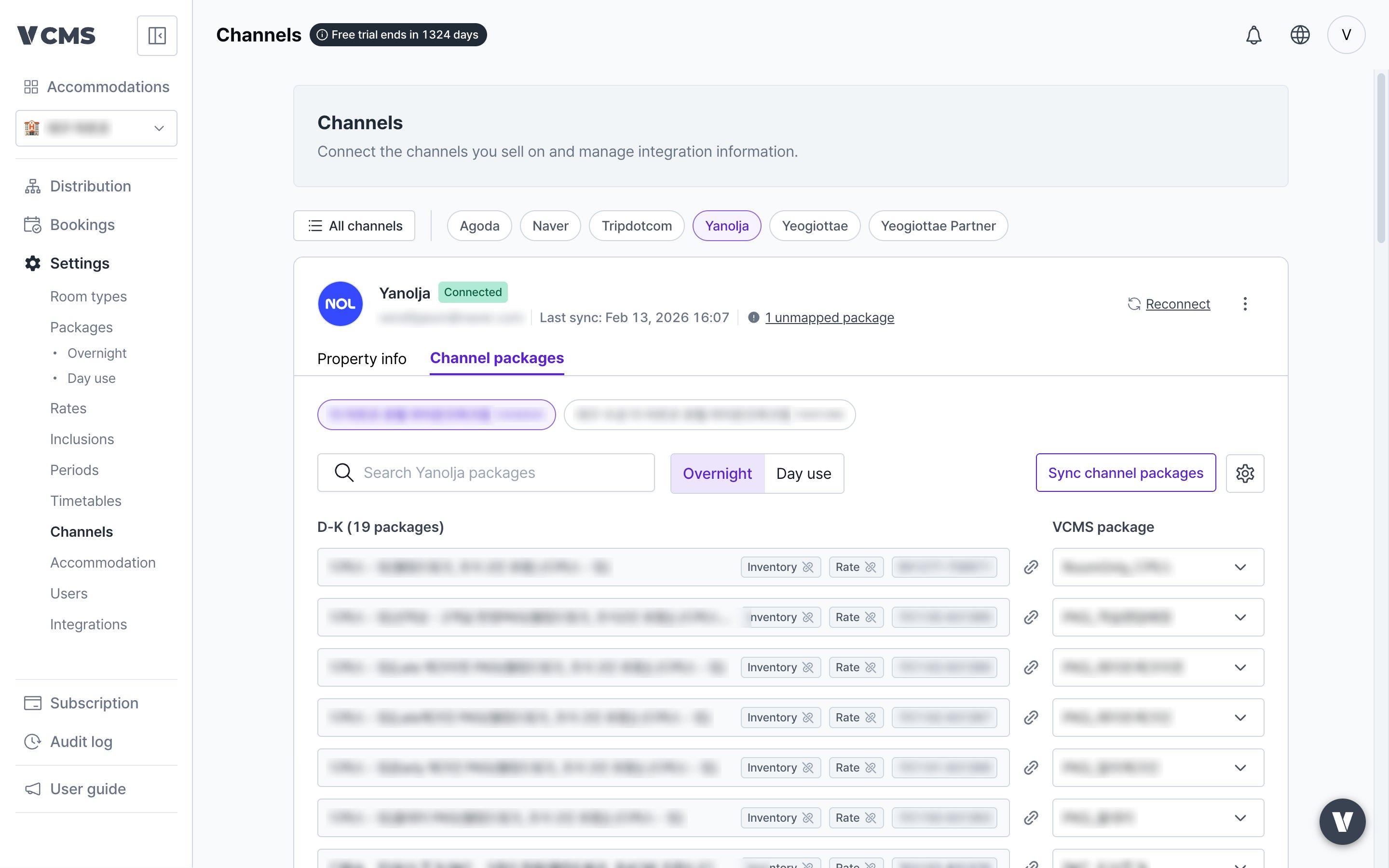
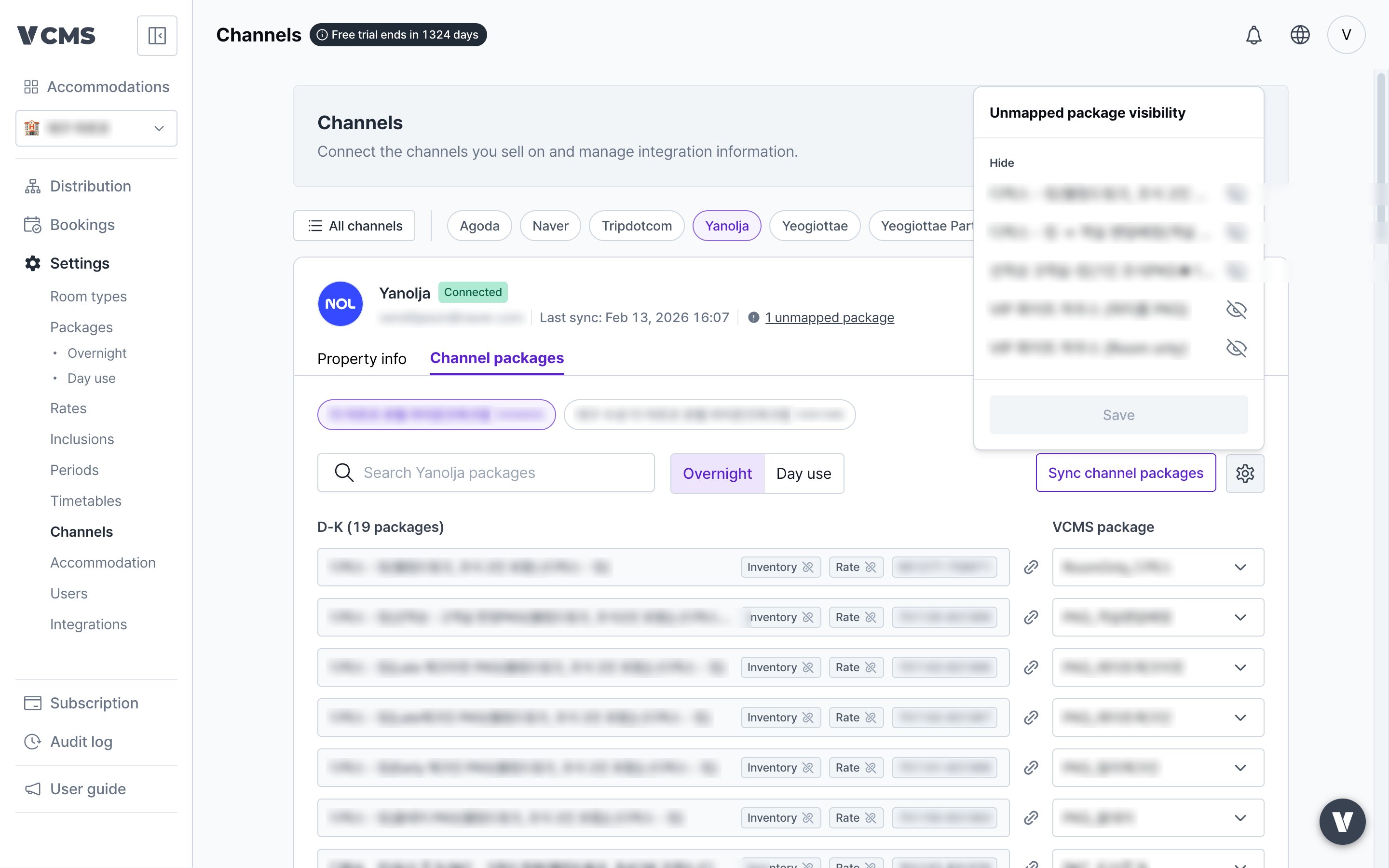
1
In [Settings] - [Channels] - [Channel packages], press the ⚙️ unlinked channel package display setting.
2
Press hide or show, then save, and the channel packages you picked are hidden.
Can I mark up or discount a single channel package?
Can I mark up or discount a single channel package?
Yes. Set that channel package’s final channel rate.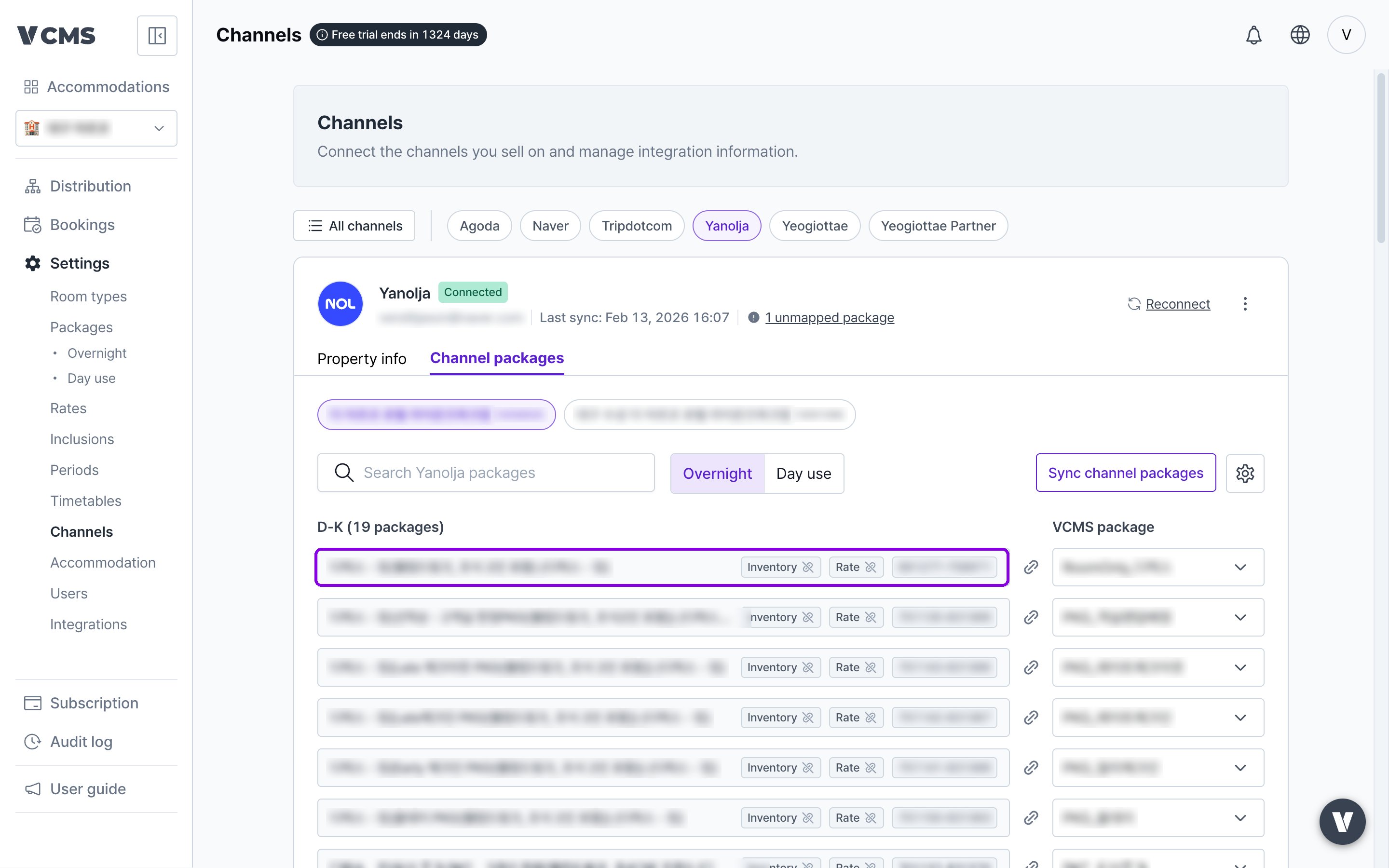
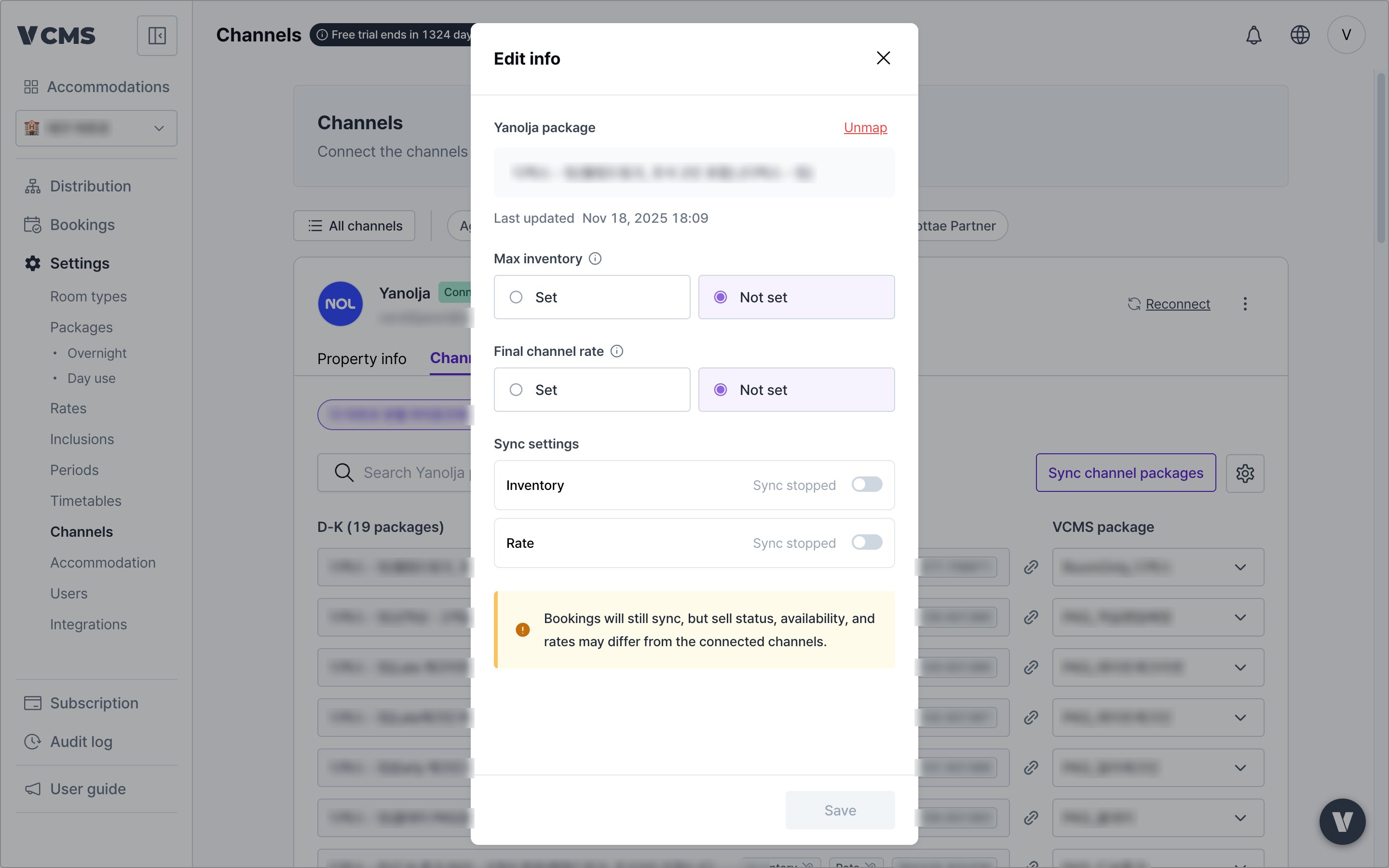
1
In [connected channel] - [Channel packages], pick the channel package to mark up or discount.
2
Set the final channel rate and the marked-up or discounted amount is what goes to the channel.