

What to check when the connection drops
Check you are signed in to the Chrome extension
Check the sign-in state on the screen where the Chrome extension is installed.
Check the sign-in state on the screen where the Chrome extension is installed.
-
Look at the Chrome window with the pinned Airbnb or Expedia tab on the left.
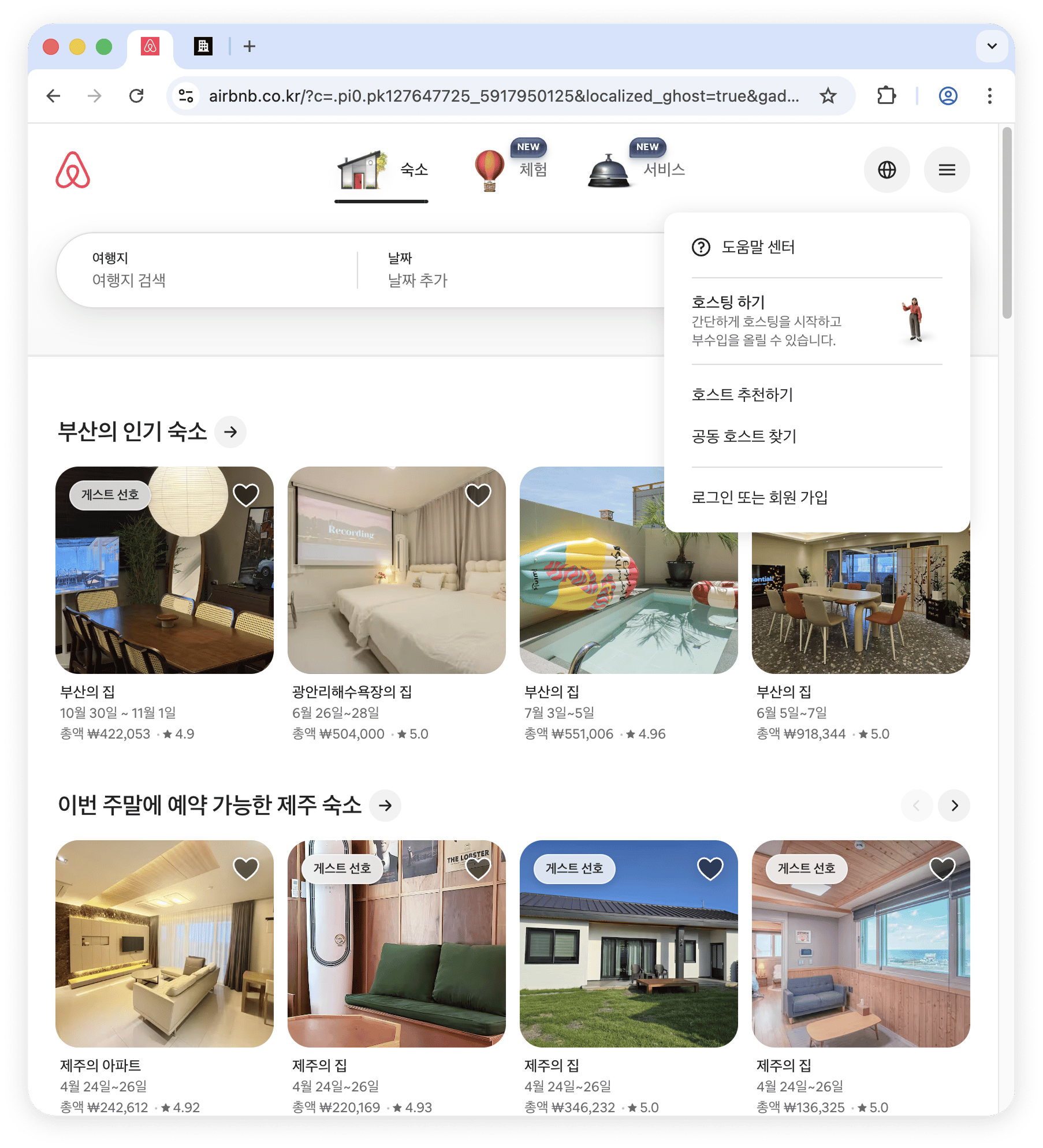
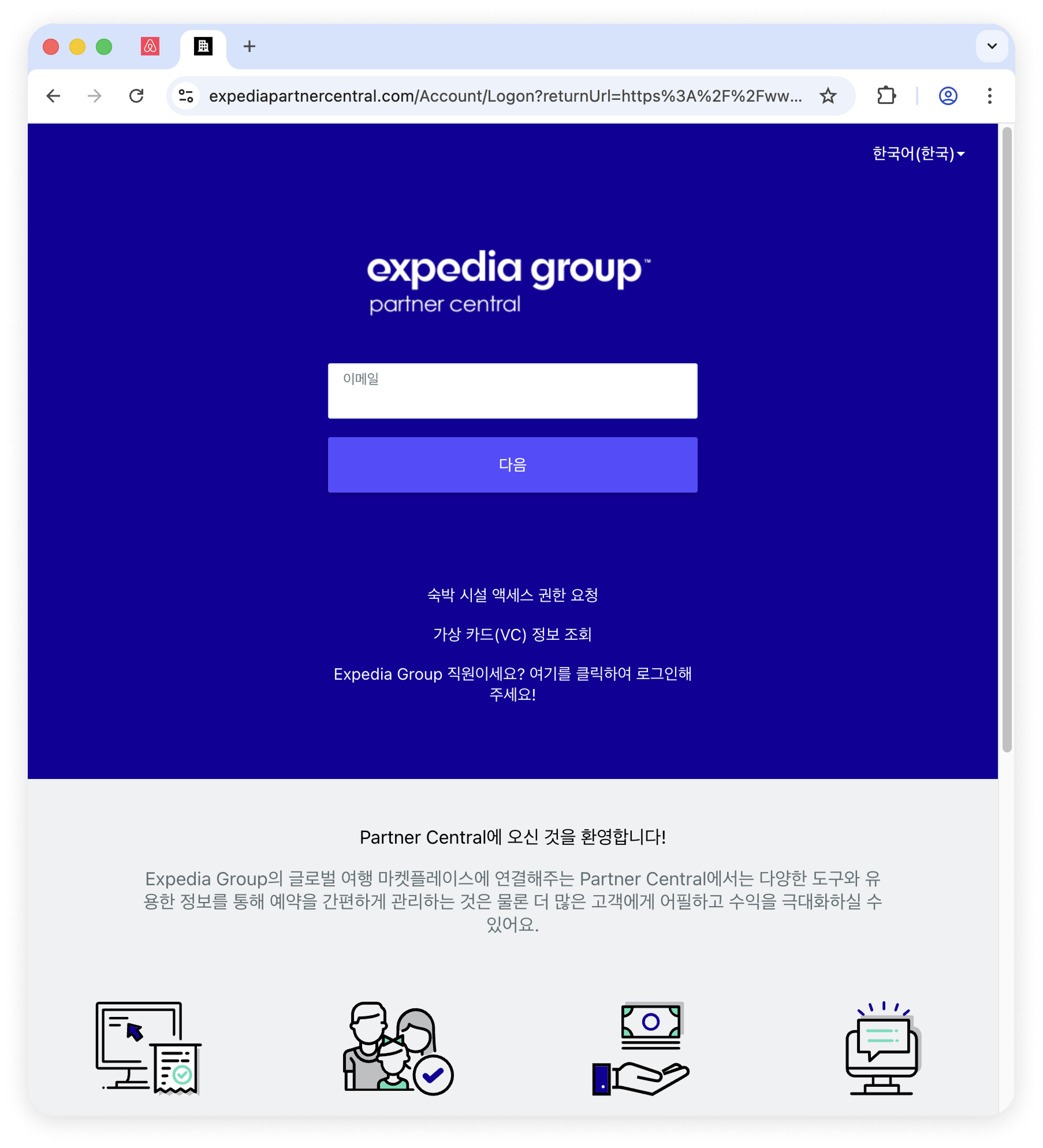
- Signed out? Sign back in.
-
After signing in, leave the tab open. Minimizing the window is fine.
The tab has to stay open for sync with Vendit to hold.
Check the Vendit extension is switched on
Is the Vendit extension enabled?
Is the Vendit extension enabled?
Check the extensions installed in Chrome.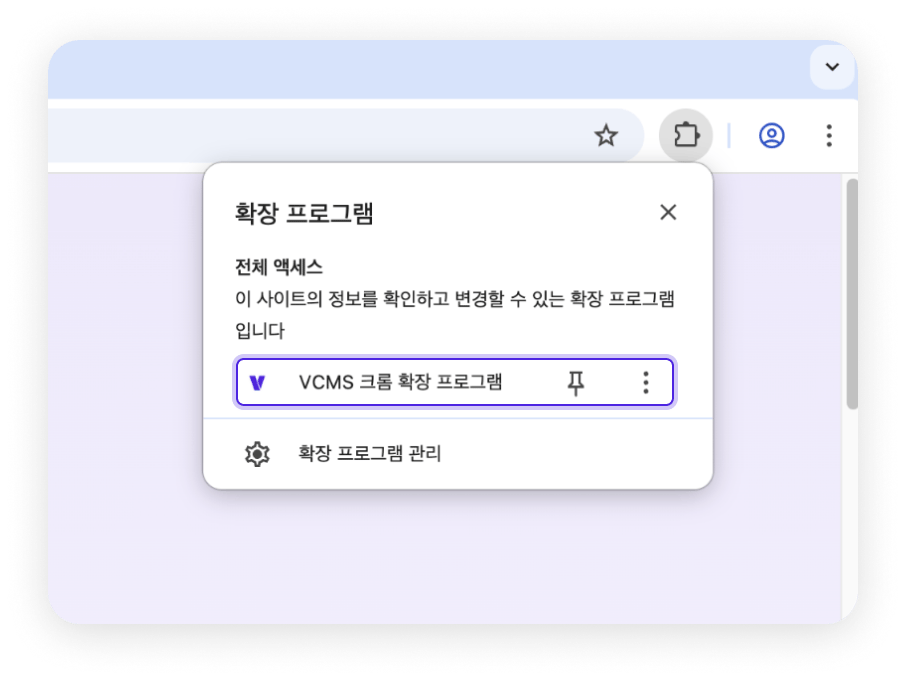
Check the Windows power options
Is sleep or turn-off-screen set in the Windows power options?
Is sleep or turn-off-screen set in the Windows power options?
Set the power options for the Windows version you run.
Windows 10 power settings
Windows 10 power settings
1
Windows icon → Settings → "System".
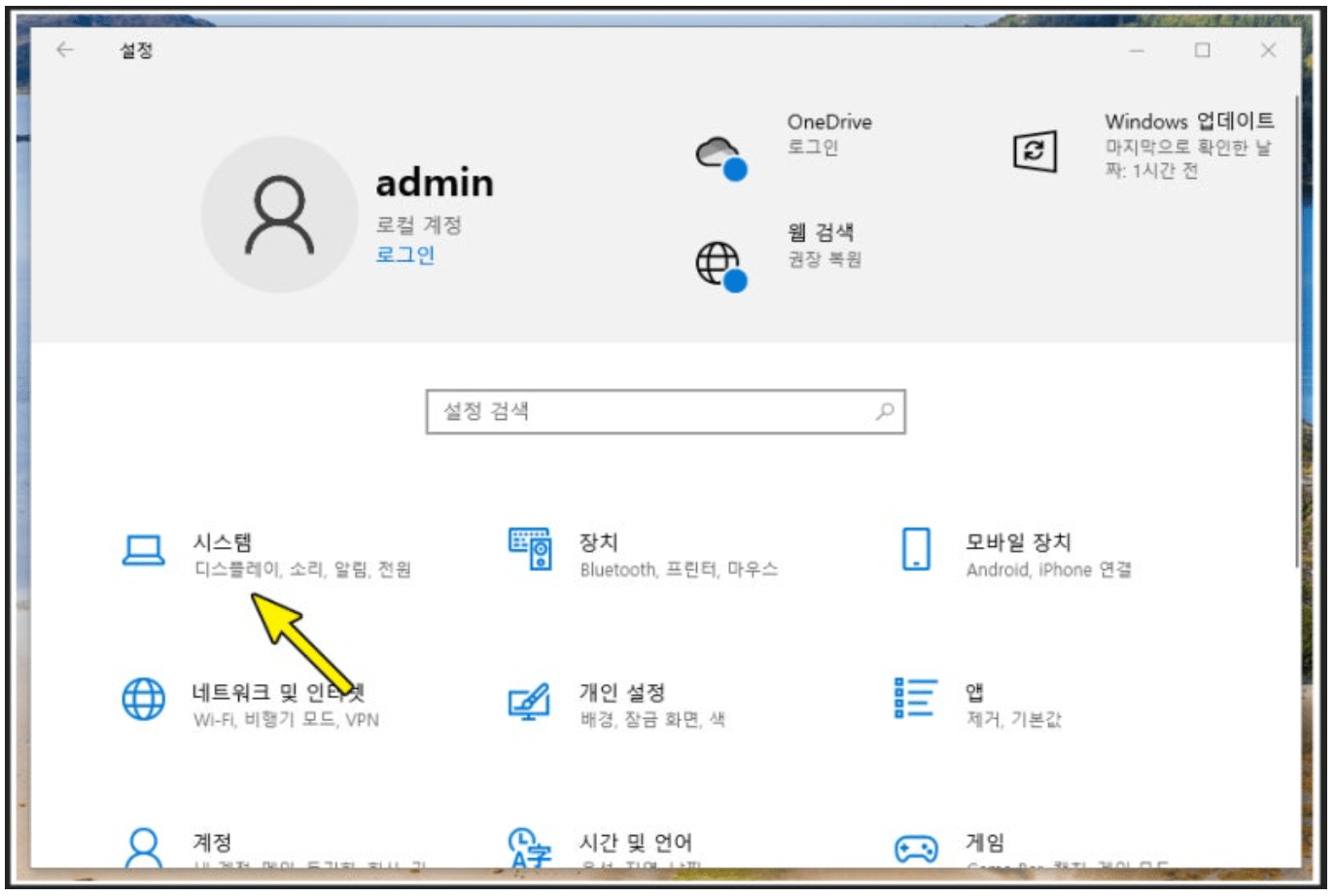
2
Set power and sleep to "Never", as below.
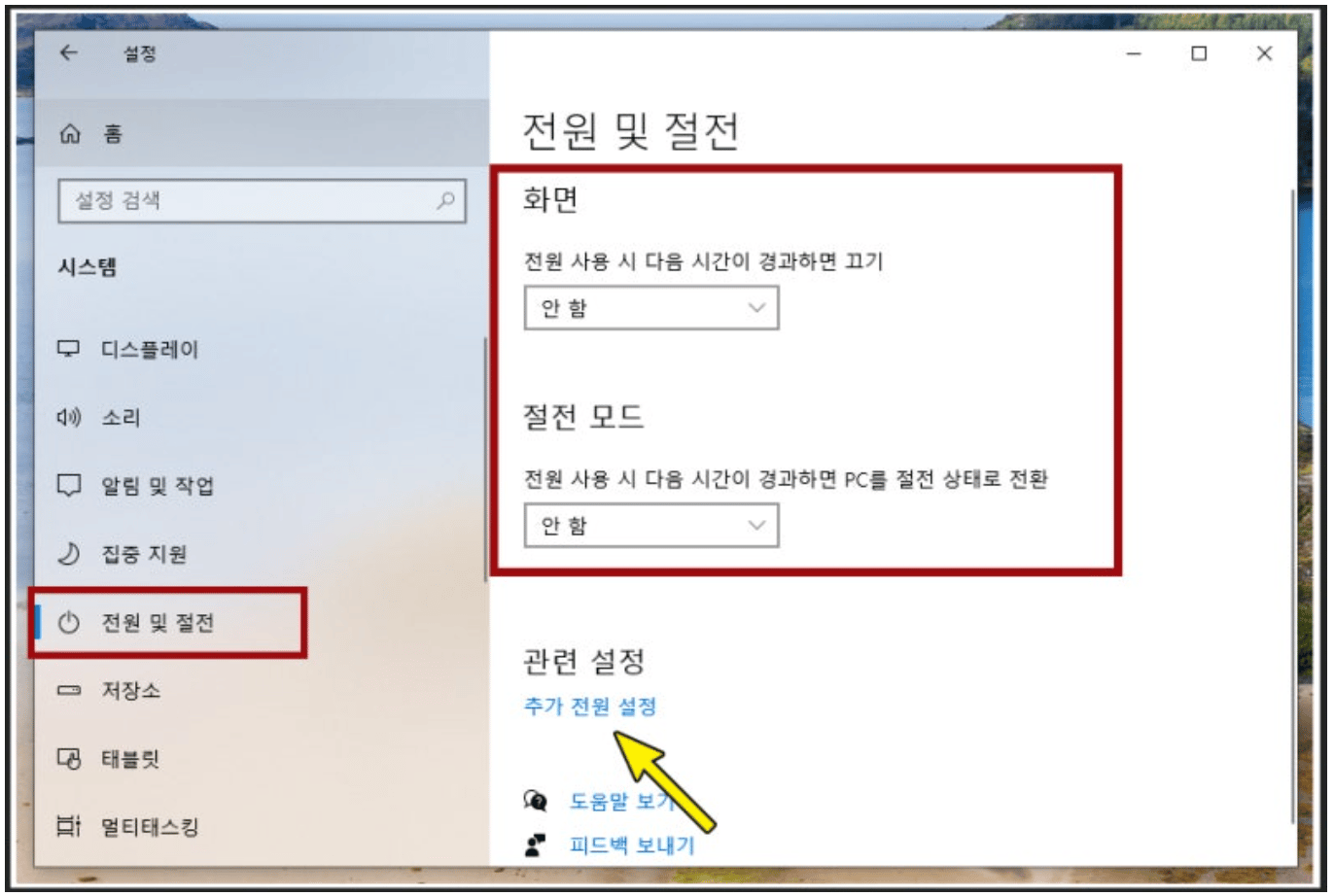
3
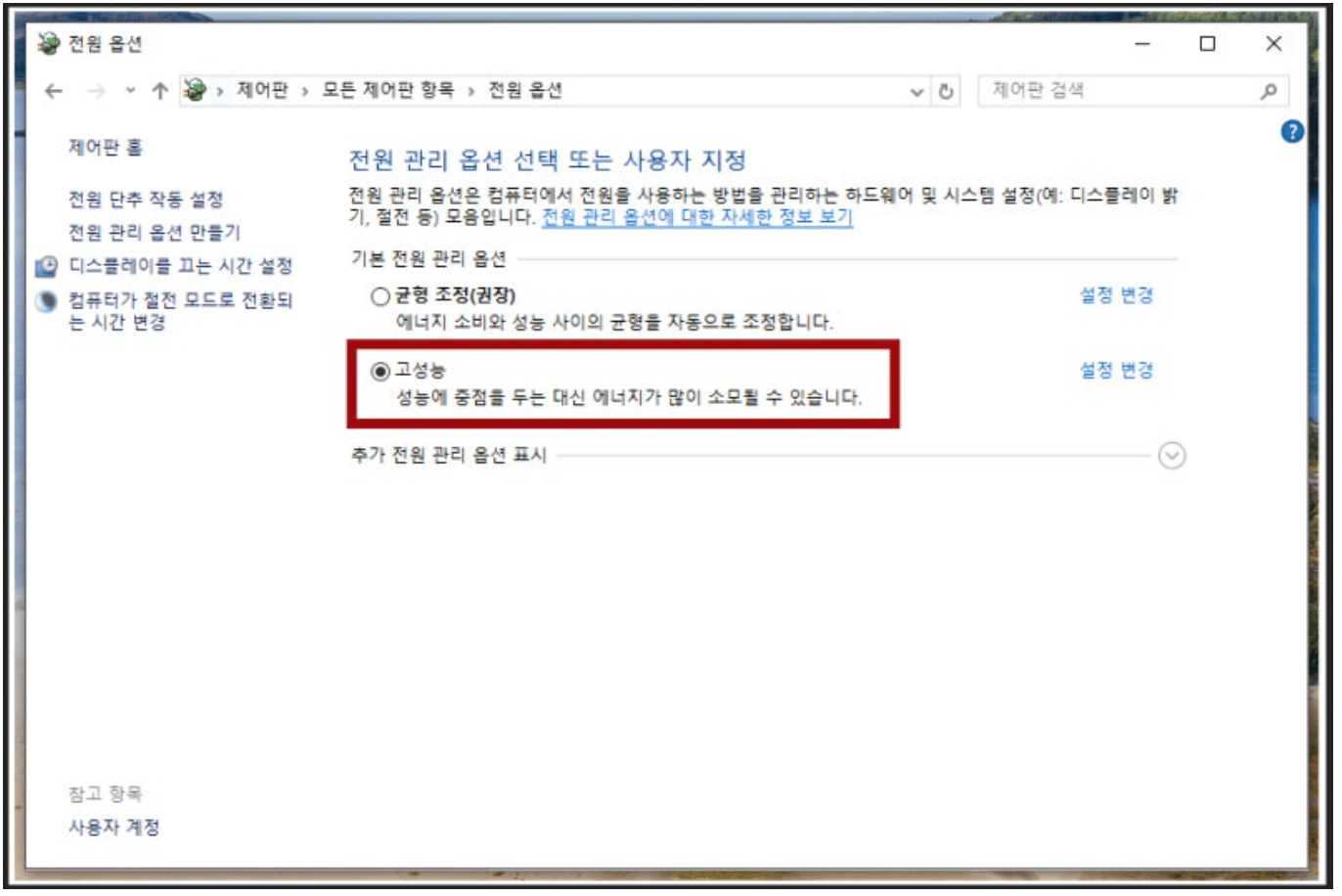
Check the additional power settings.
Windows 11 power settings
Windows 11 power settings
1
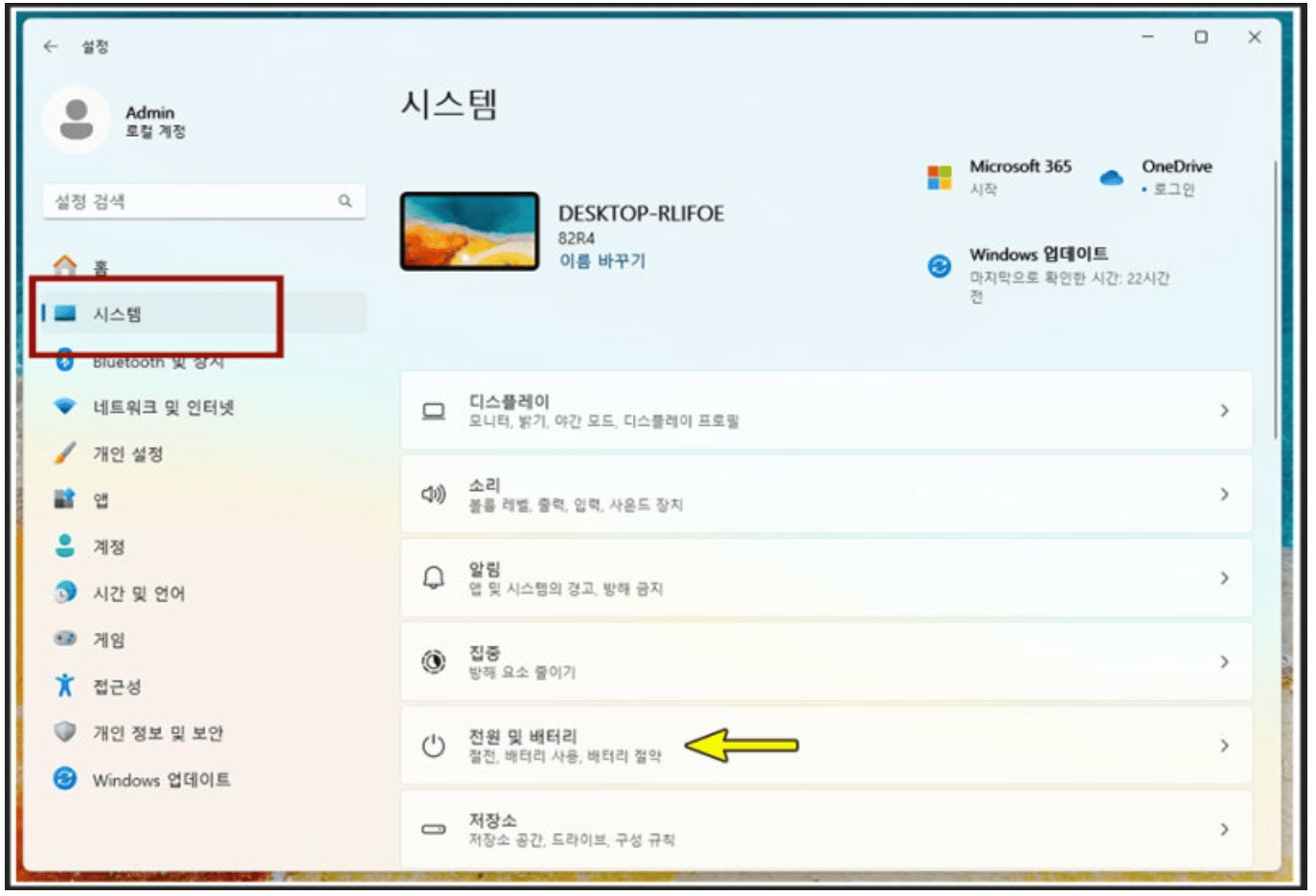
Settings → System → "Power & battery".
2
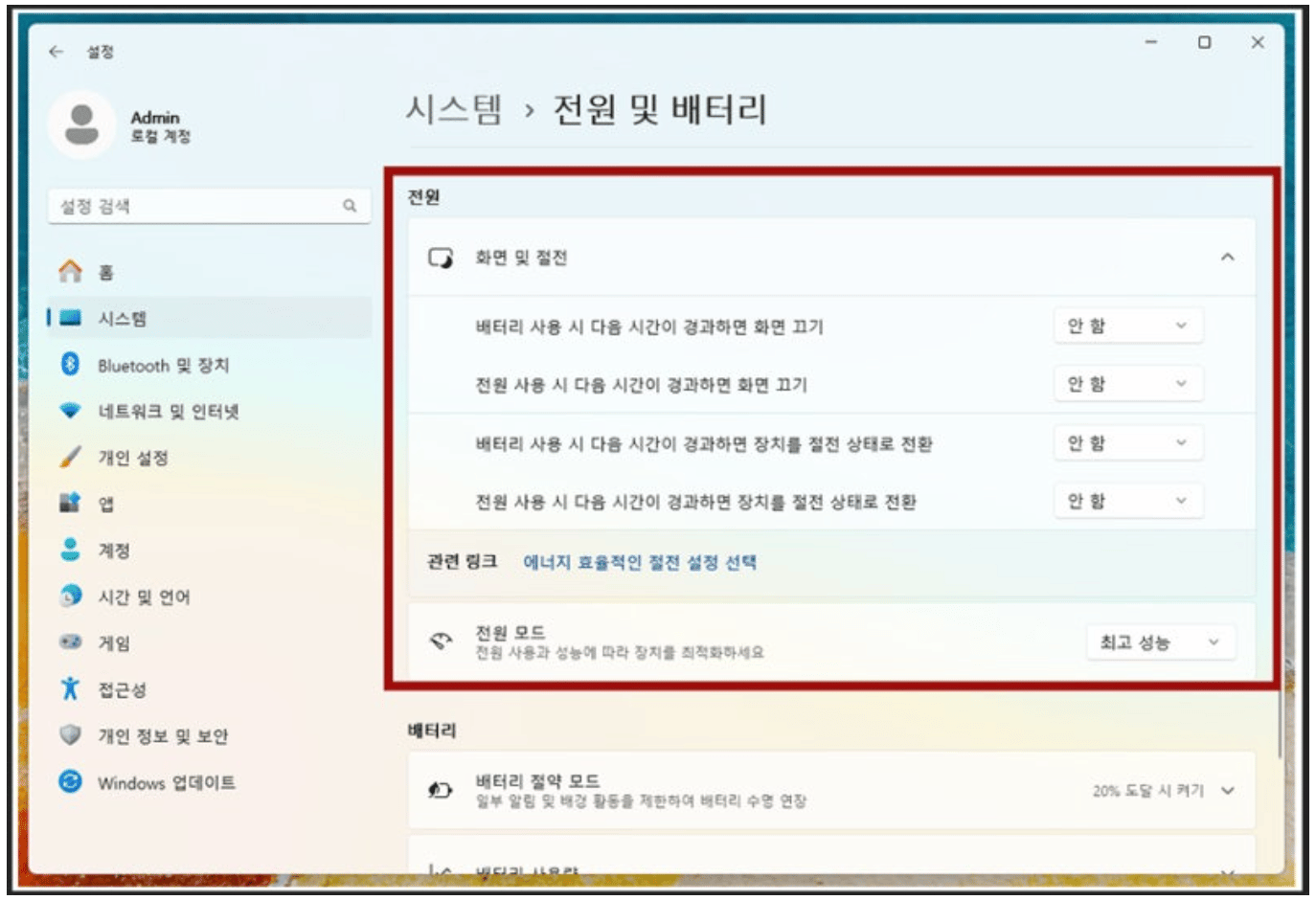
Set every power option below to "Never" and set power mode to "Best performance".
Check the network at your property
Is the property network working?
Is the property network working?
If everything above checks out and it still will not connect, look at the network at your property.