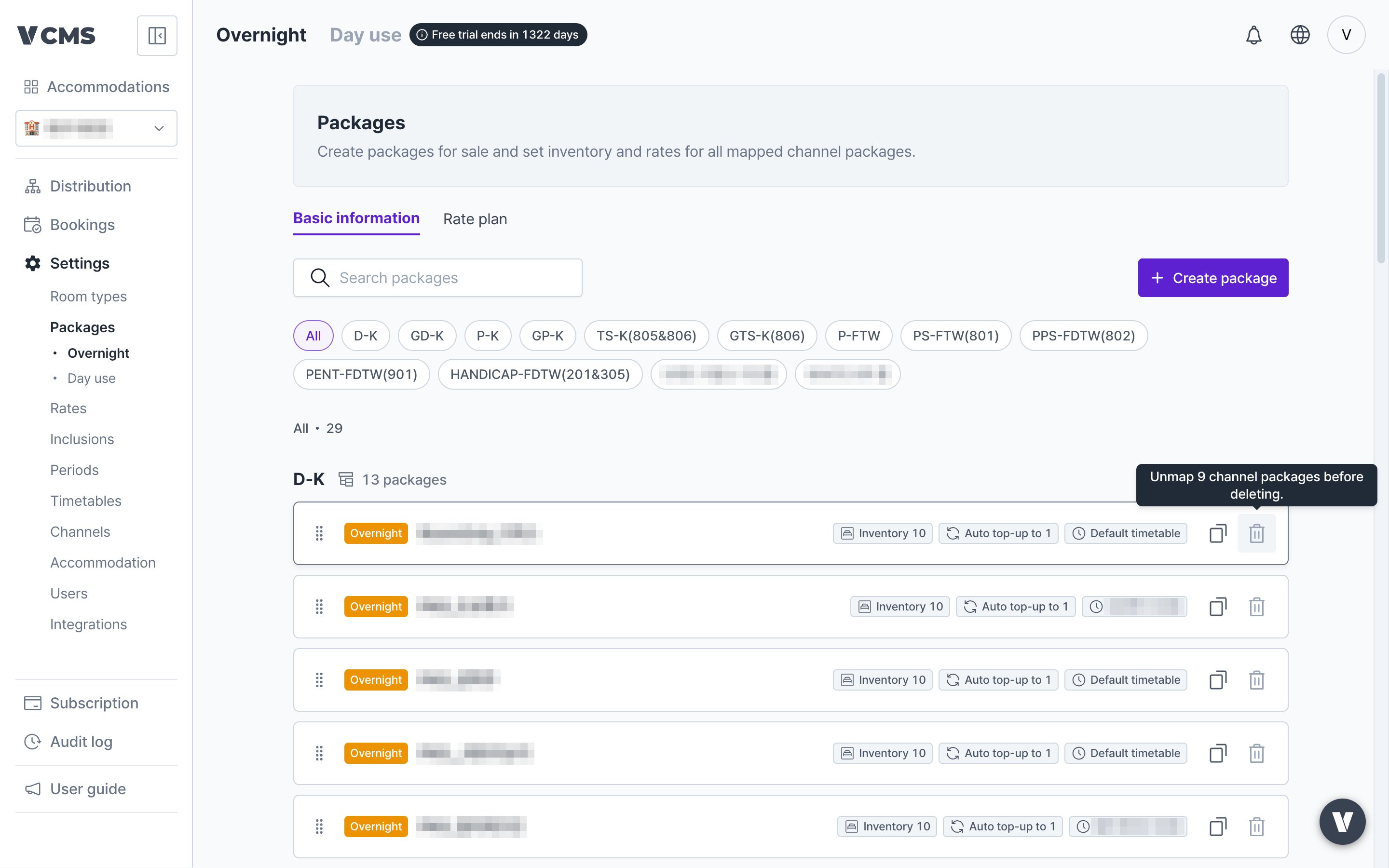
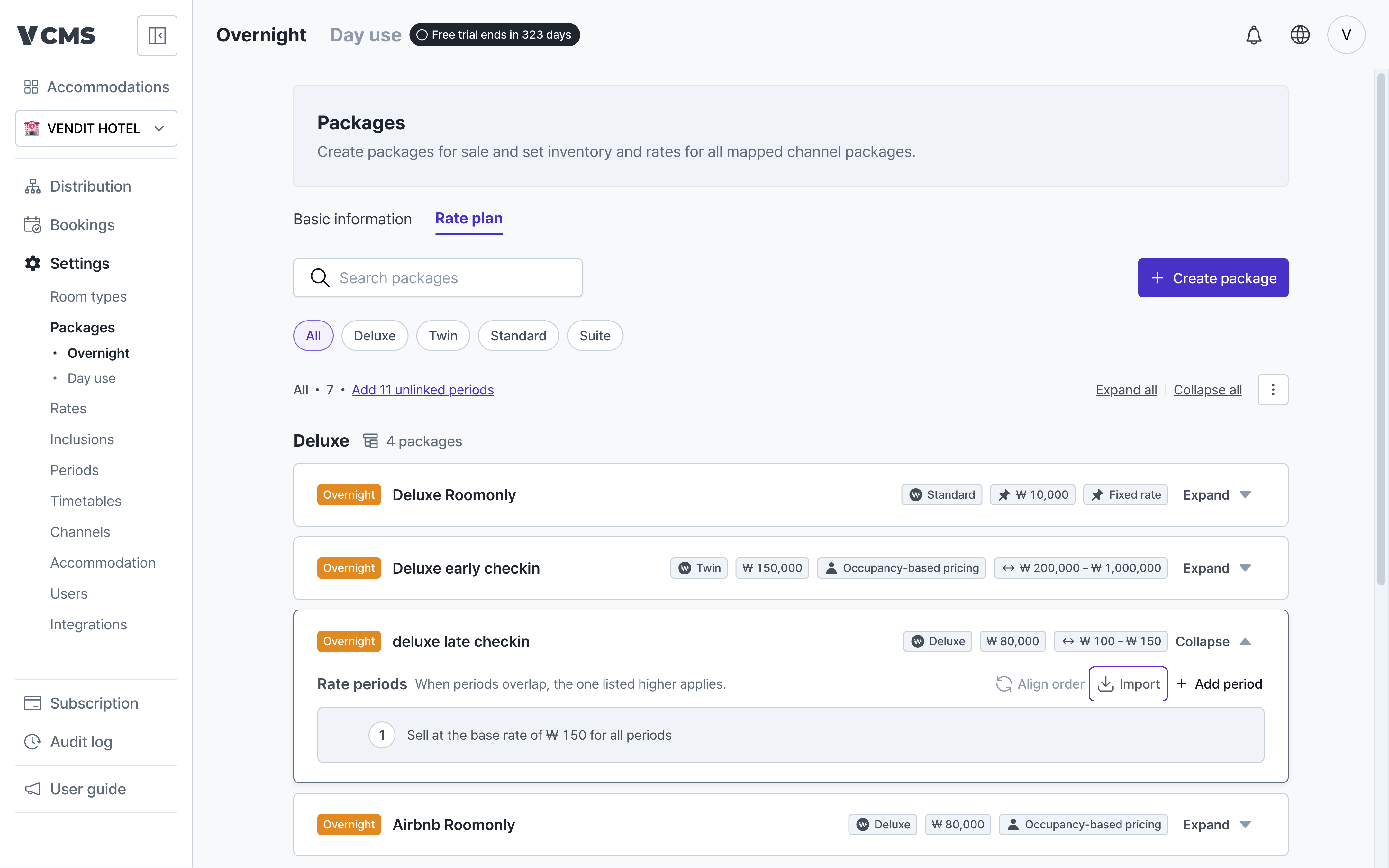
Package list
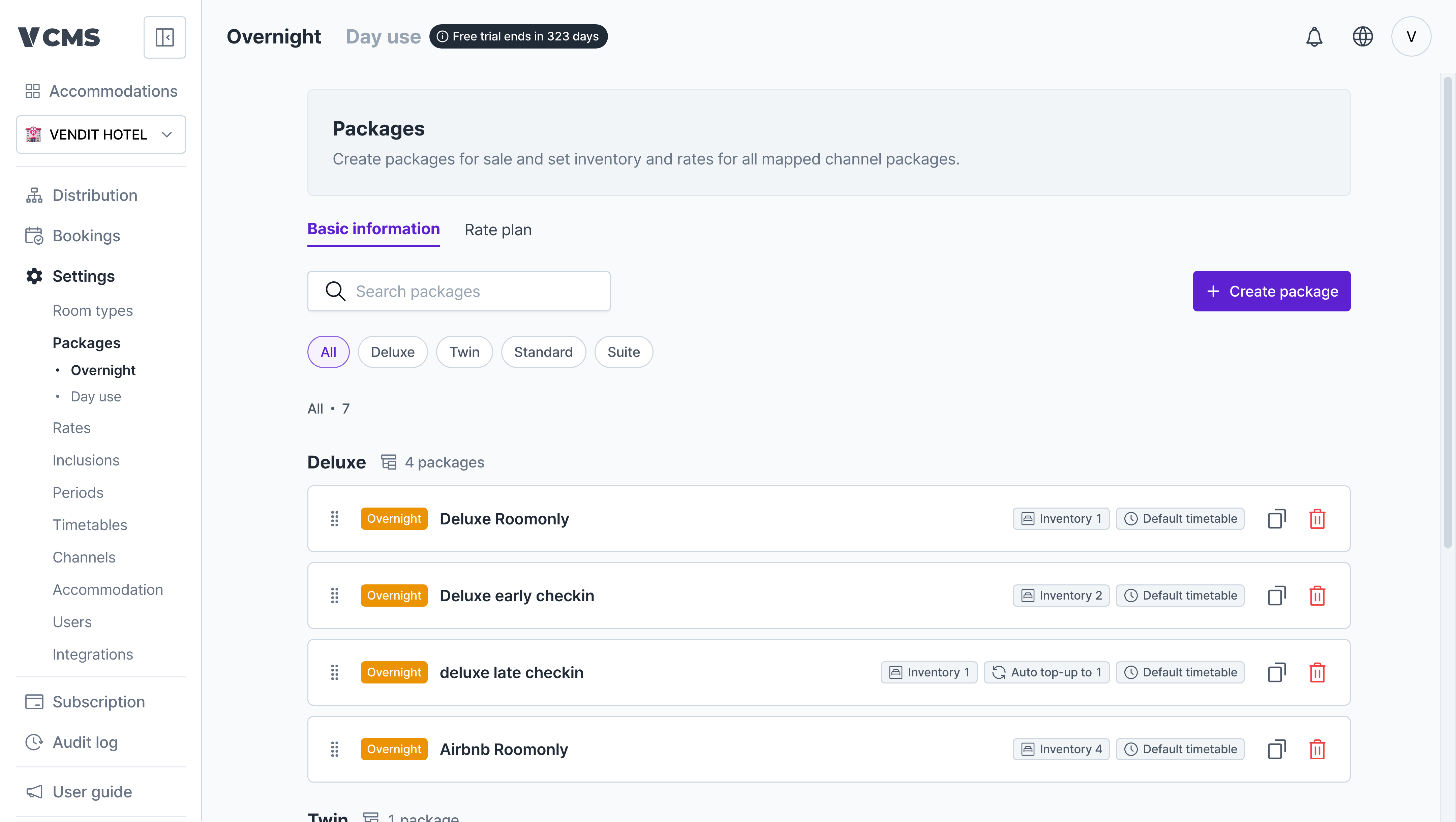
Basic information and rate information for your overnight packages, in one place. Packages can be reordered freely.Basic information
Rate information
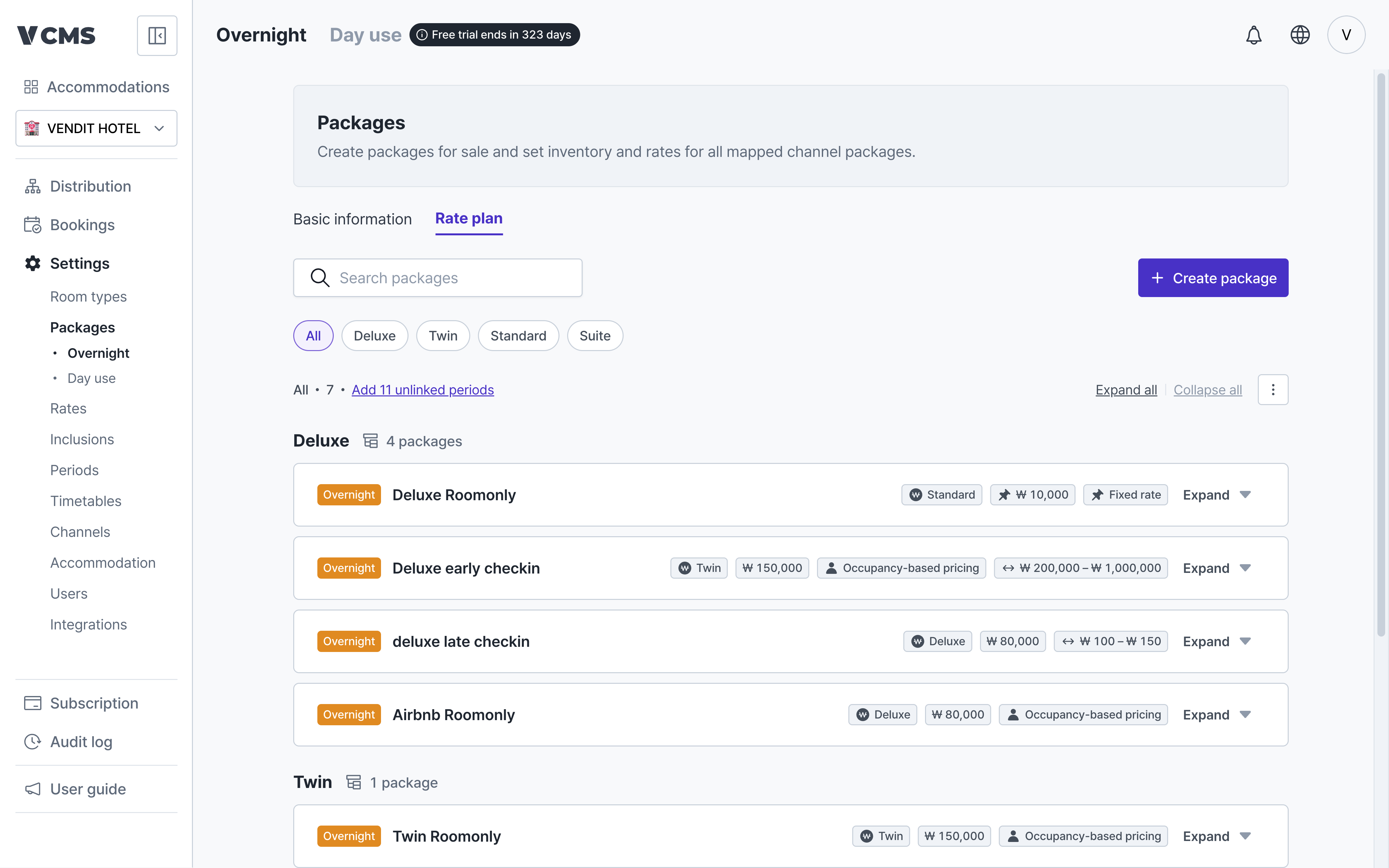
- Base rate: the selling rate applied on any date without a period of its own.
- Period rate: add a period and the package sells at a different rate for those dates only.
- Expand or collapse all: “Expand all | Collapse all” at the top of the list opens or closes rate information for every package at once. With many packages, you get to the one you want quickly.
- Multi-select room type filter: the room type chips at the top take more than one selection, so you can pull up just the types you want and compare them side by side.
Changes apply provisionally. Nothing is final until you press SaveEverything you do on the rate information tab (bulk apply, import, adding periods, sorting, editing rows) lands on screen first as a provisional change.
- A changed package card carries a “provisional” badge, and the changed cells and order are highlighted.
- The undo (↩︎) button on a card reverts that package to its pre-save state.
- Press Save in the top bar to commit. Leave the page without saving and the changes are gone.
Creating a package
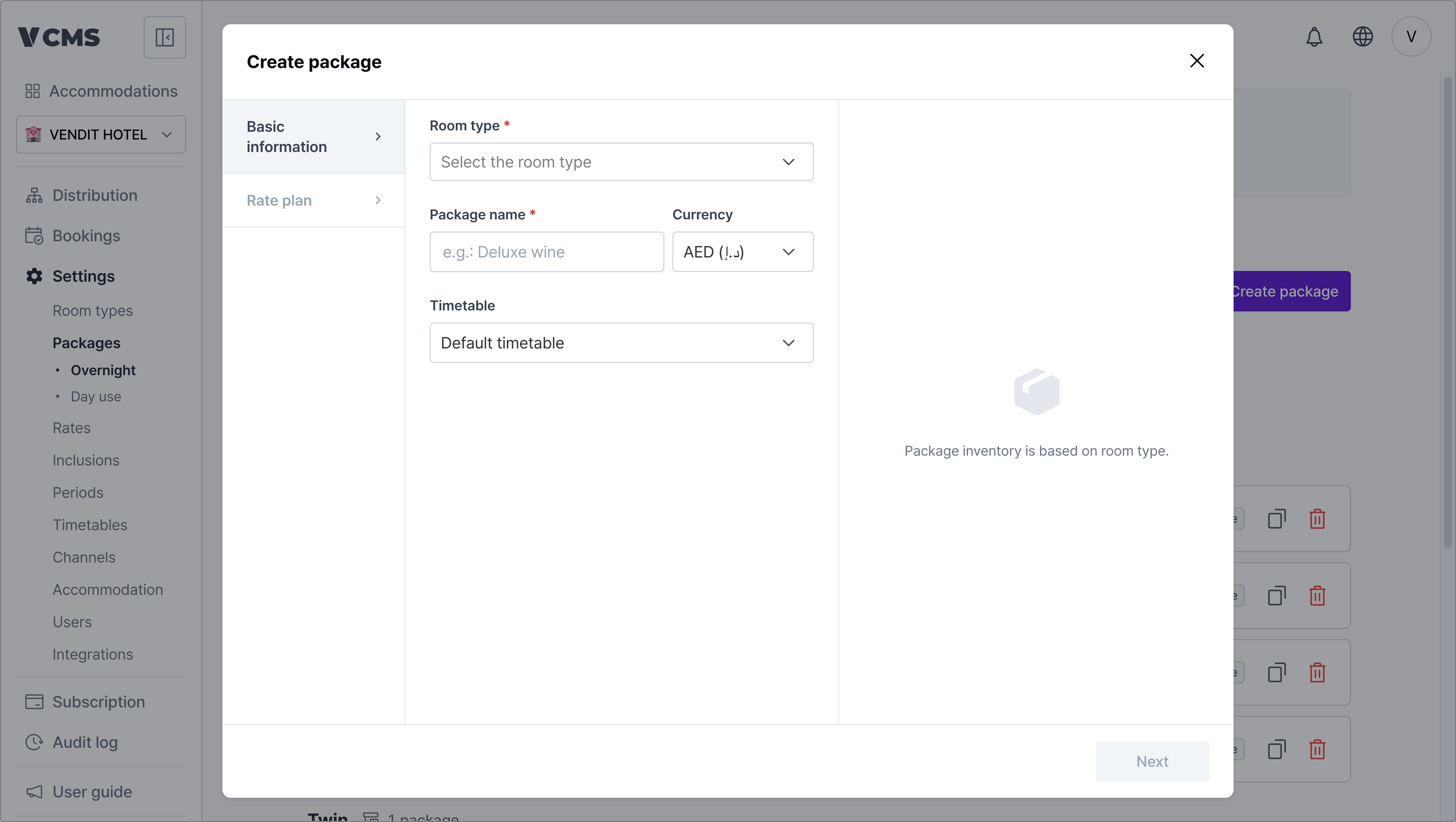
- Room type (required): the room type this package is connected to. Inventory follows the number of rooms in that type, and the connection cannot be changed after creation.
- Package name (required): the name that distinguishes this package.
- Currency: the currency the package rate is in. Like the room type, it cannot be changed after creation.
- Timetable: the package’s check-in and check-out times.
- Inventory details
- Max inventory: caps how many can be sold, up to the number of rooms in the room type.
- Auto top-up: tops the availability of every connected channel package back up so inventory stays level. If the number you set matches actual inventory, it draws down as sales come in.
- Units per booking: how many rooms one booking consumes. Set it to 2 and each booking draws 2 from inventory. Inventory stays accurate even when several rooms are sold as a single package, as with capsule rooms.
Spotting a booking with units per booking applied
Spotting a booking with units per booking applied
When a booking comes in for a package that sets units per booking, that setting shows up in Bookings.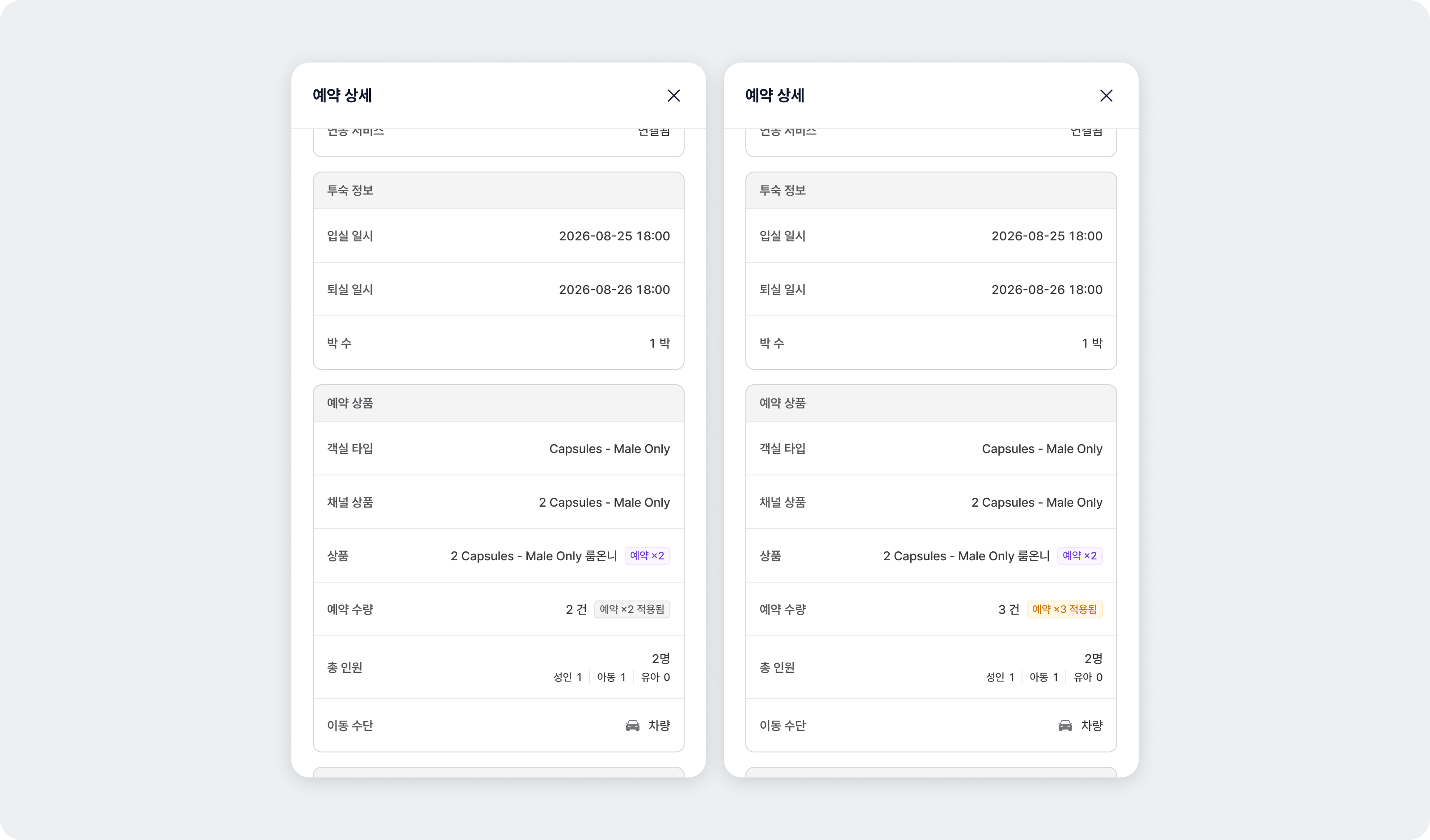
- Package: a “booking ×2” badge next to the package name shows the units per booking currently set.
- Quantity: “booking ×2 applied” shows the units per booking that was in force when the booking synced.
Setting the package rate
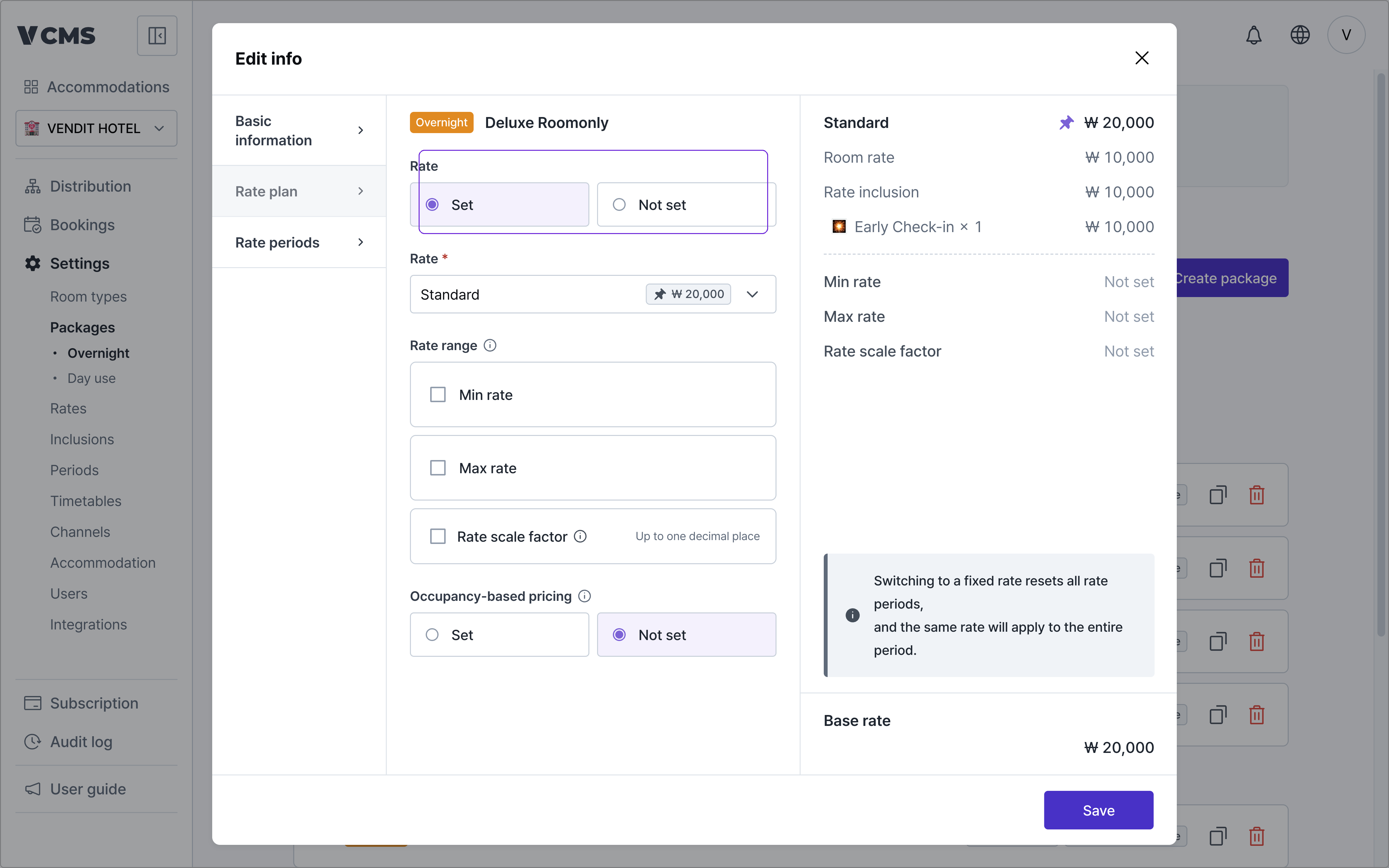
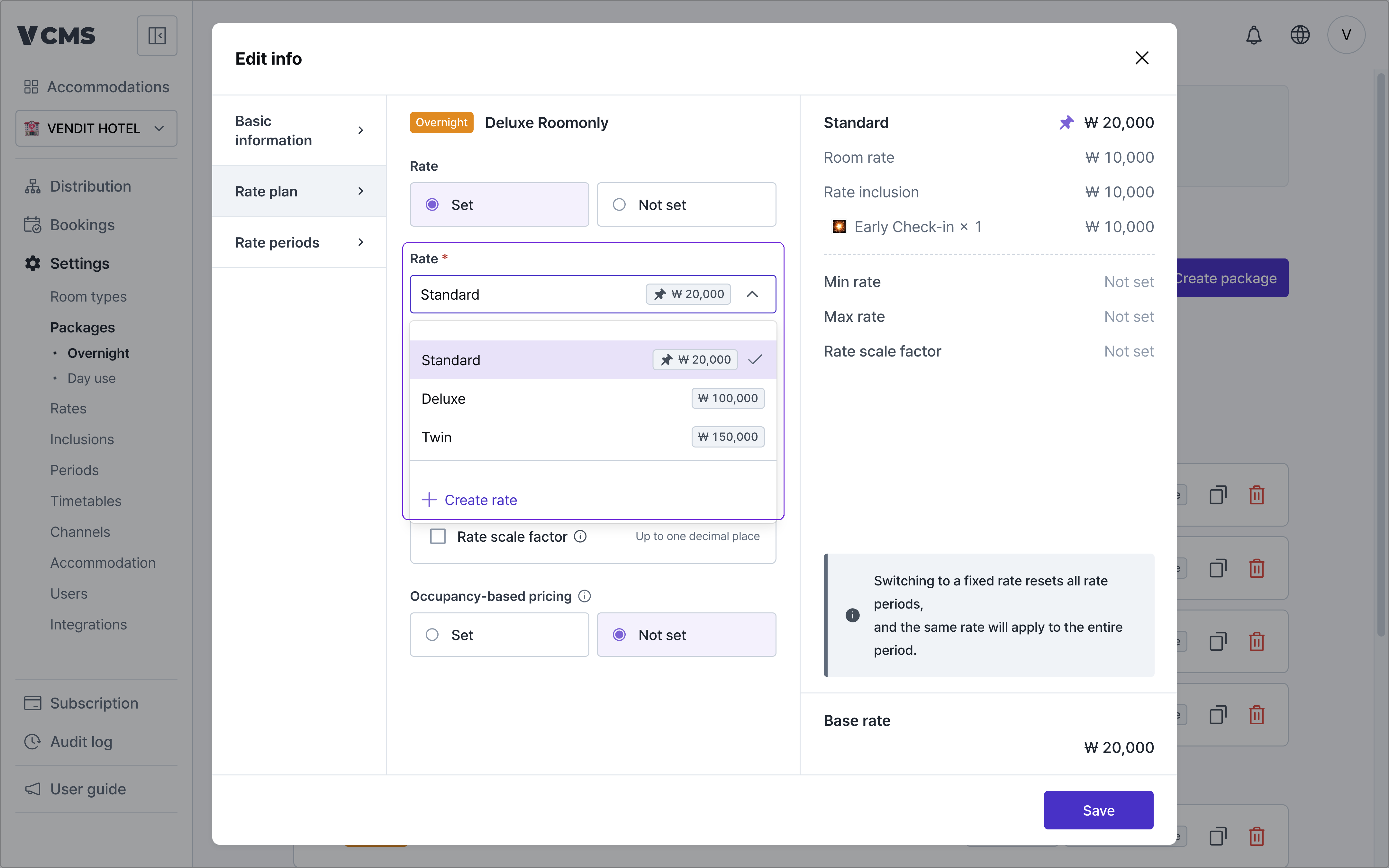
+ Create rate and make it on the spot. The rates guide covers this in full.
Package inclusions
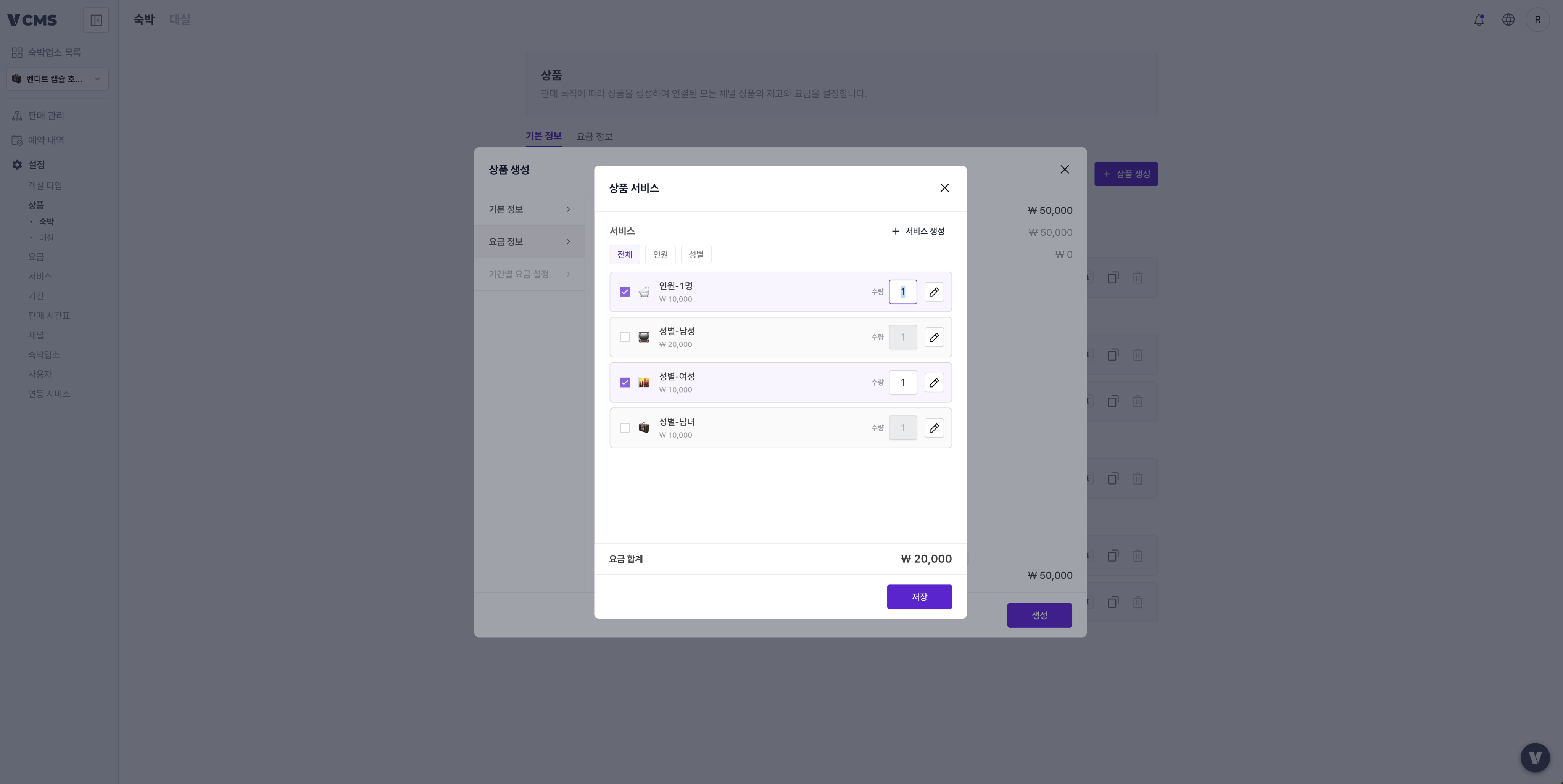
+ Create inclusion. The inclusions guide covers this in full.
Extra rate adjustment
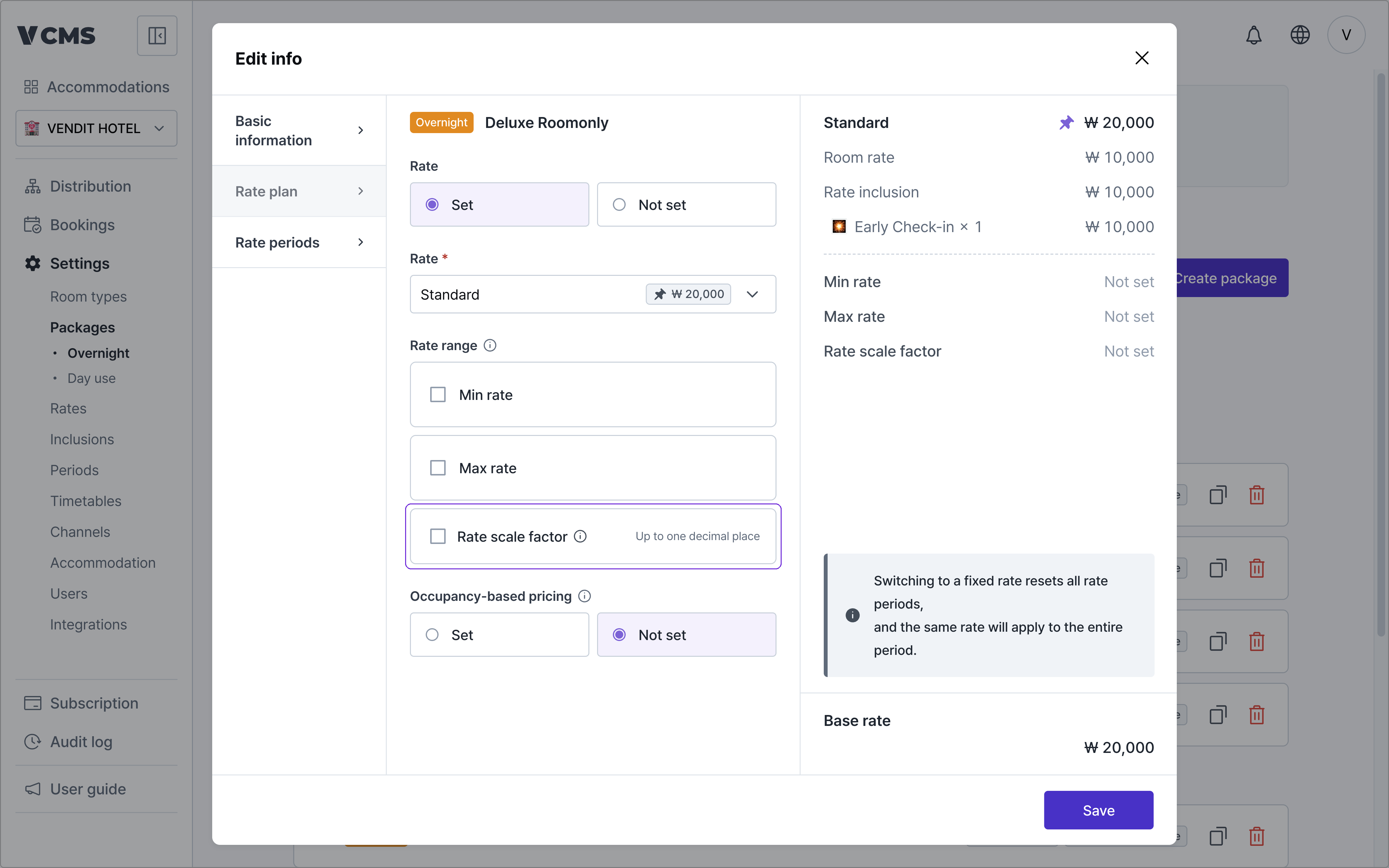
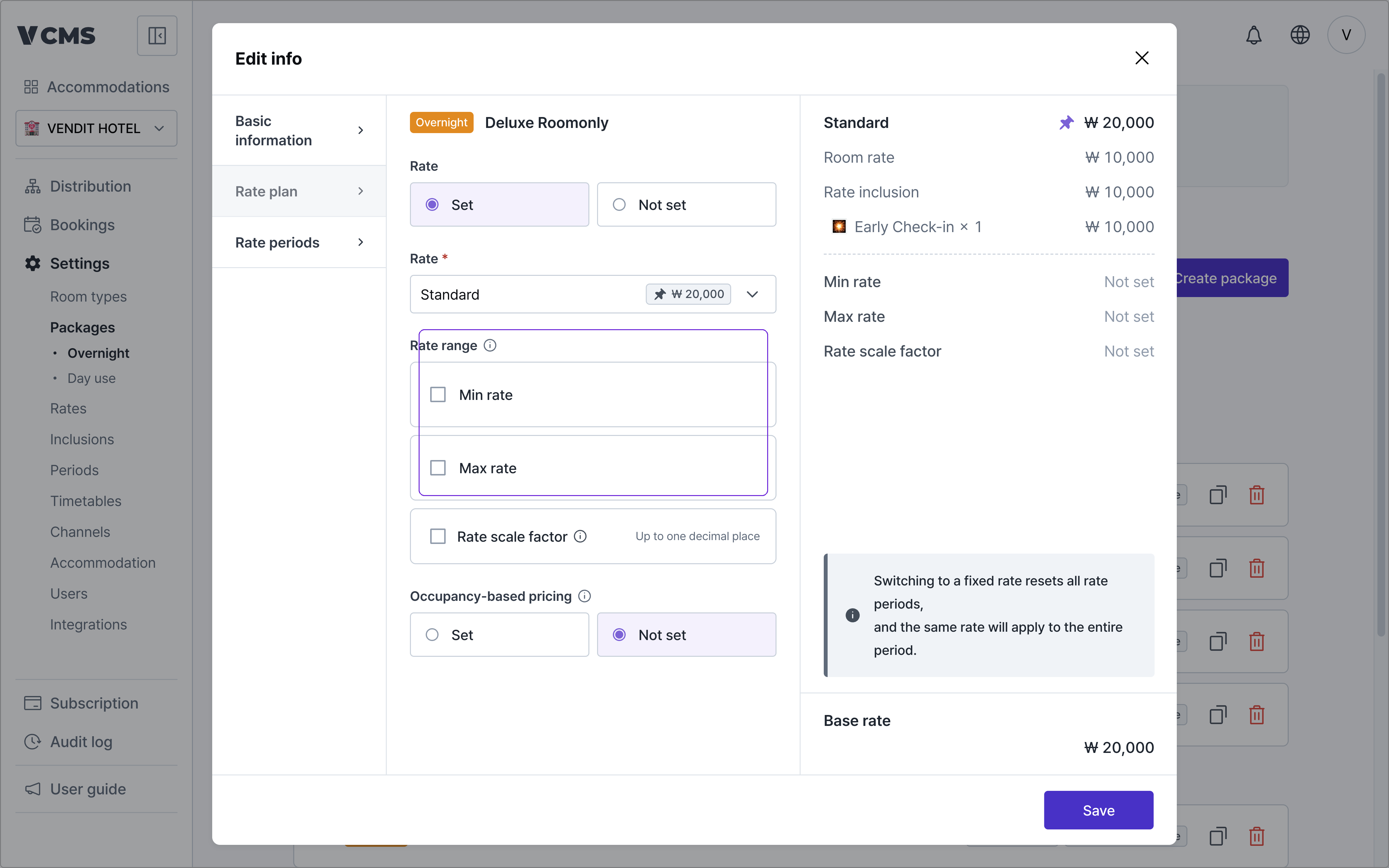
Rate range
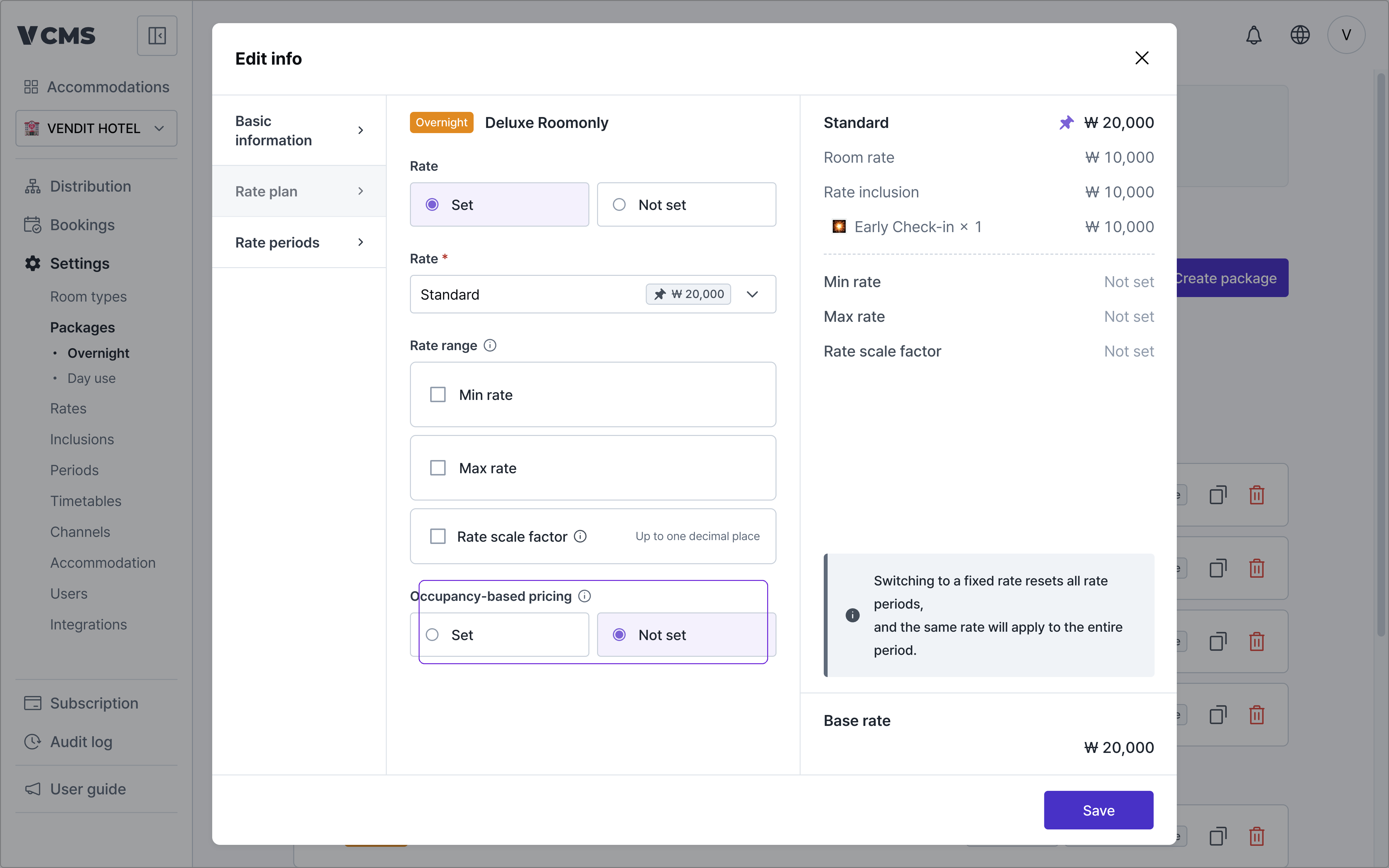
Occupancy-based pricing
Setting rate periods
When you want a different rate in peak season than in the quiet months, rate periods give you the room to do it.Period rates
Add a period and a different rate applies for those dates only. The periods guide covers how to build one.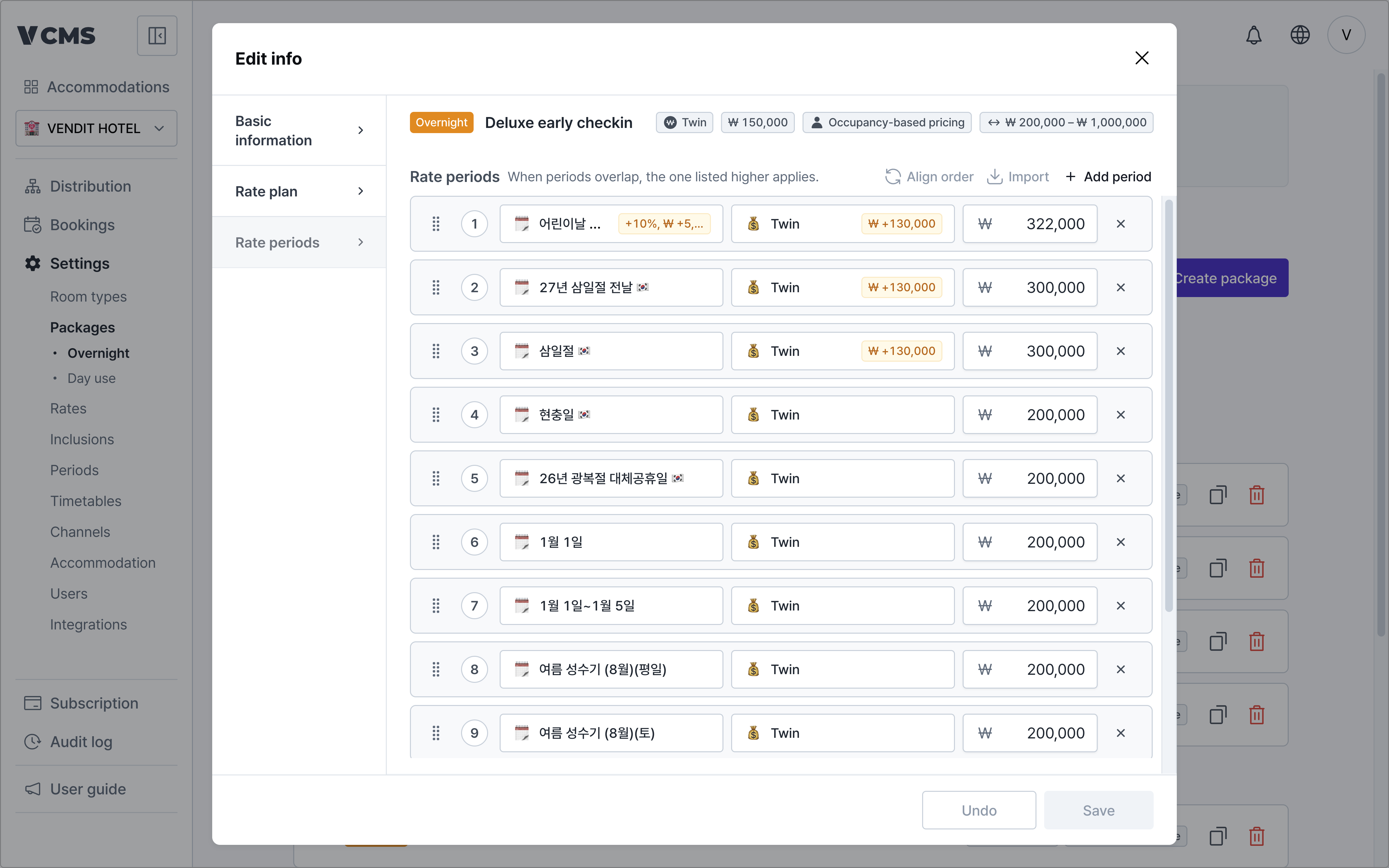
Adding a period
Connect a period you built on the periods page to a package, and it has a period rate.-
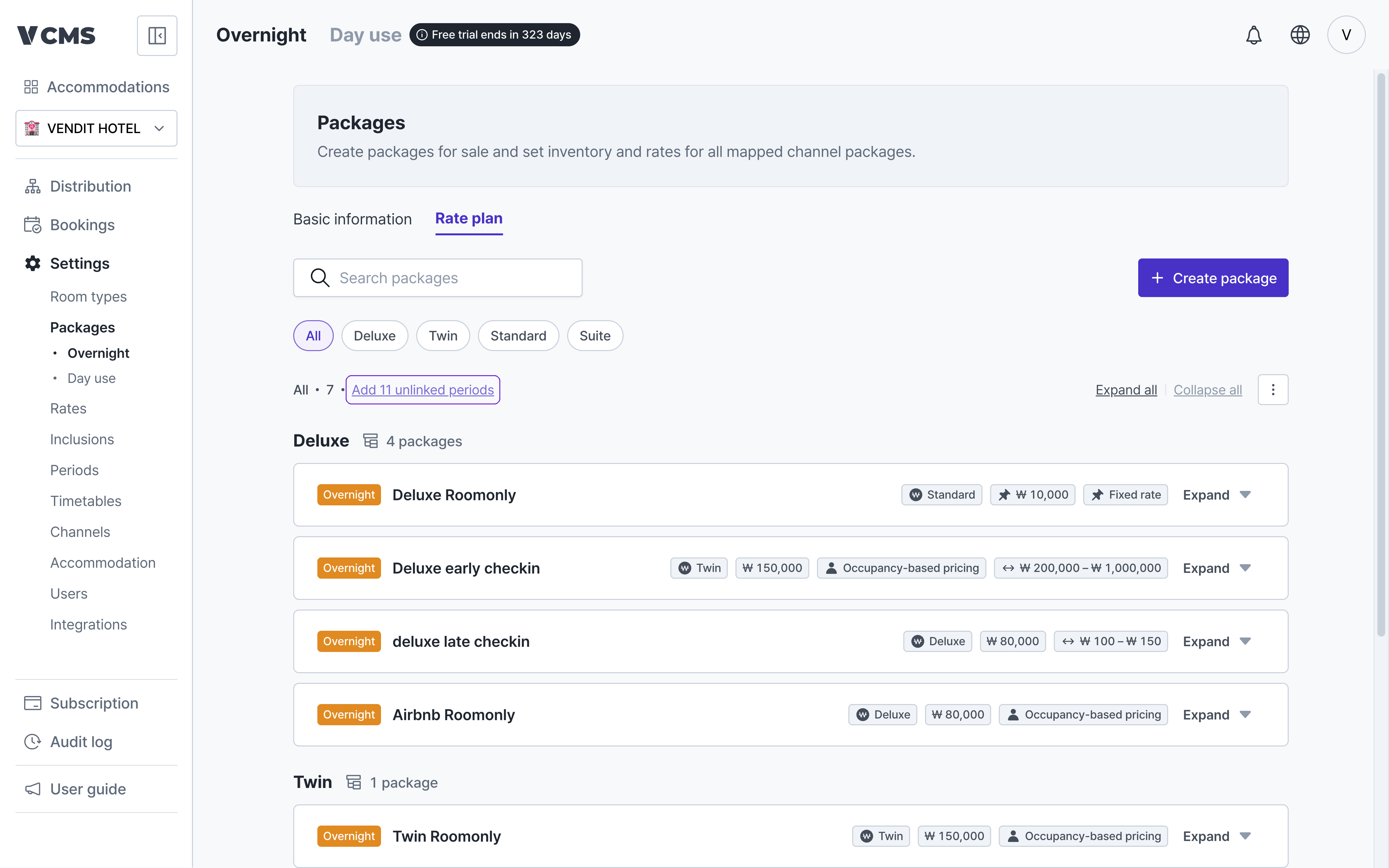
Add to several packages at once: if a period is connected to no package at all, an “Add N unconnected periods” link appears at the top of the list. An unconnected period sells at the base rate for those dates, so follow the link when you see it.
-
Add to a single package: use the “Add period” button on the package card. The adjustment stored on the period comes across as the starting value.
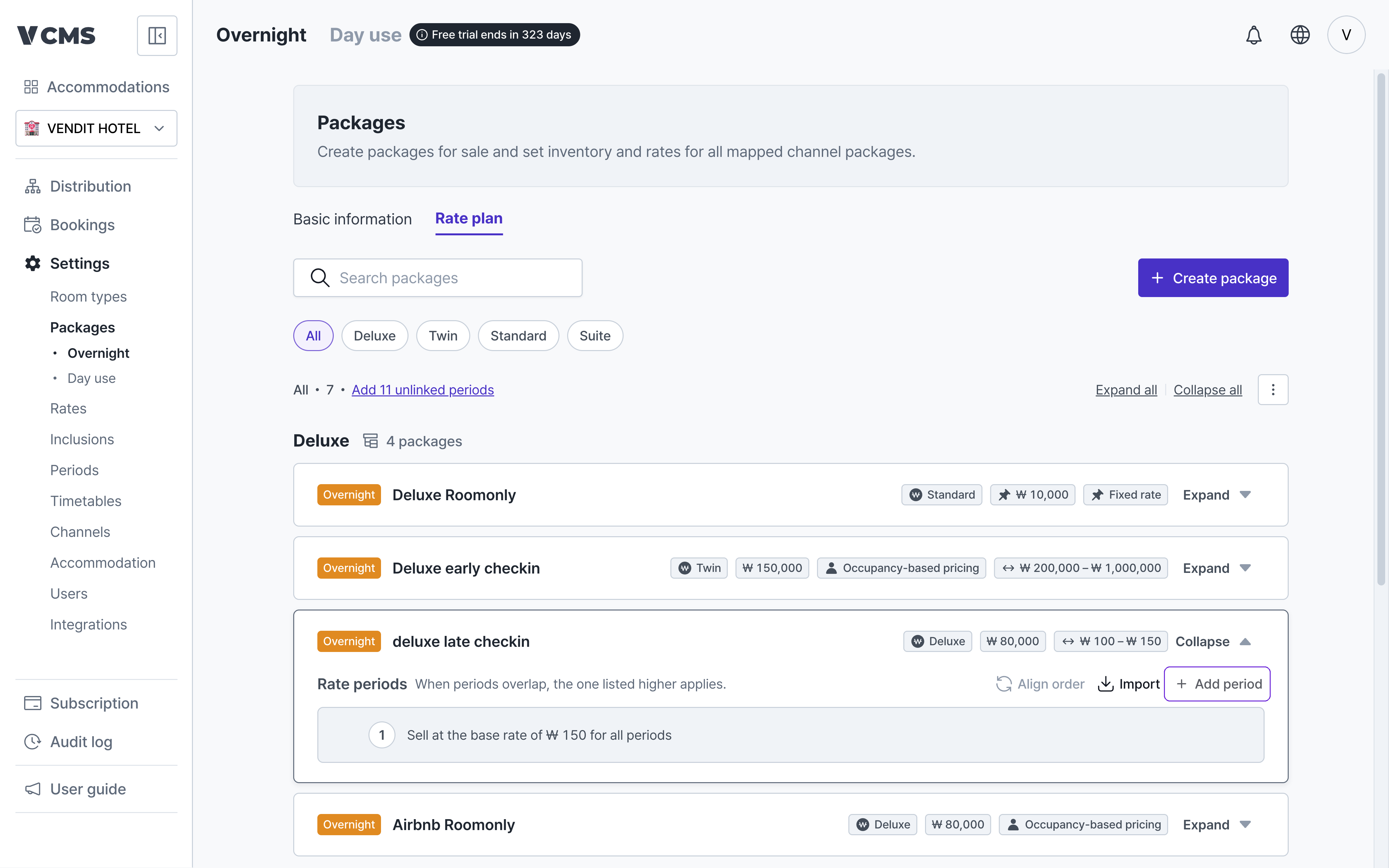
- An added period slots in at its priority position from the periods page.
Applying rate periods to other packages
Period rates set on one package can be carried over to others, so you are not repeating the same periods package by package.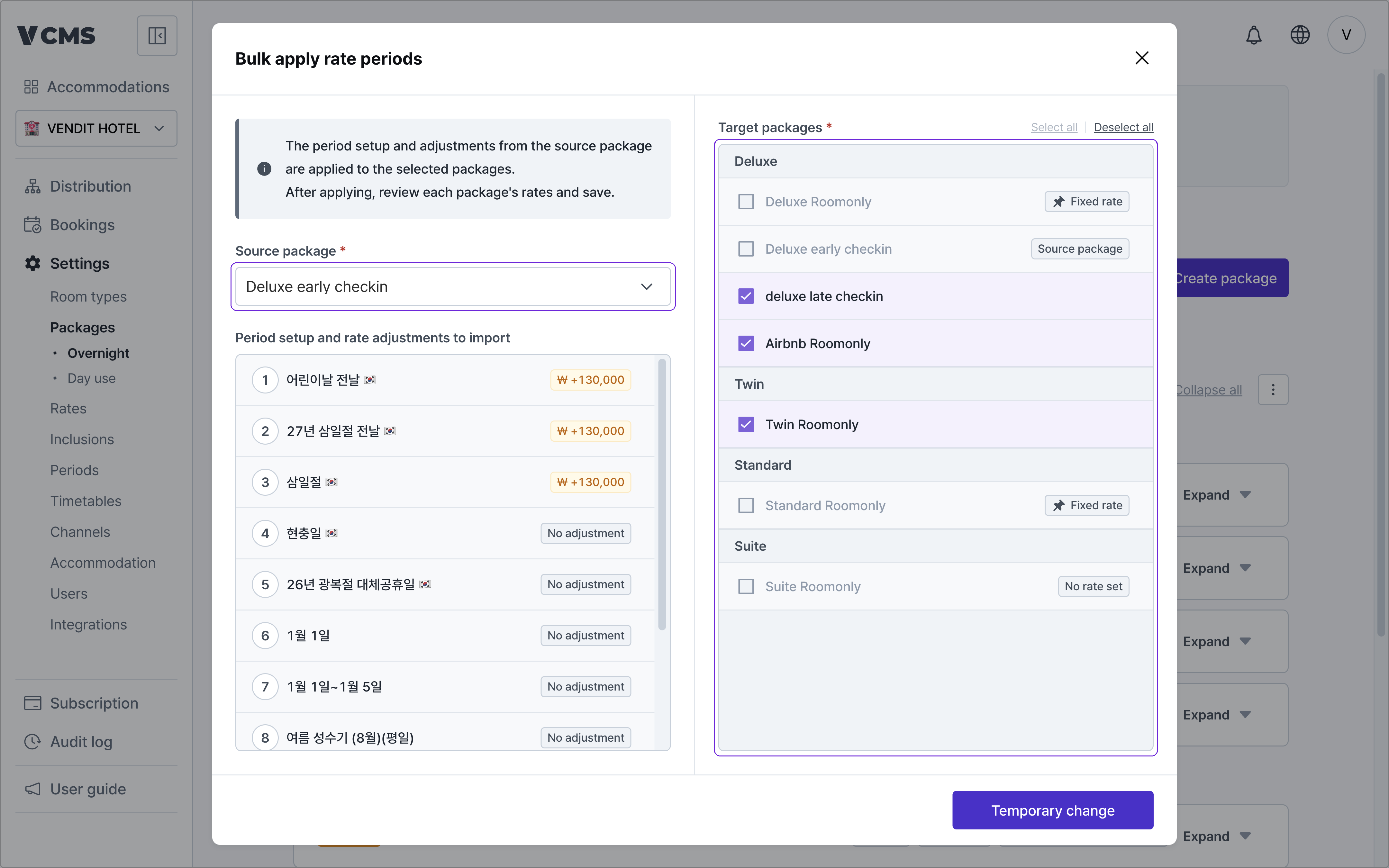
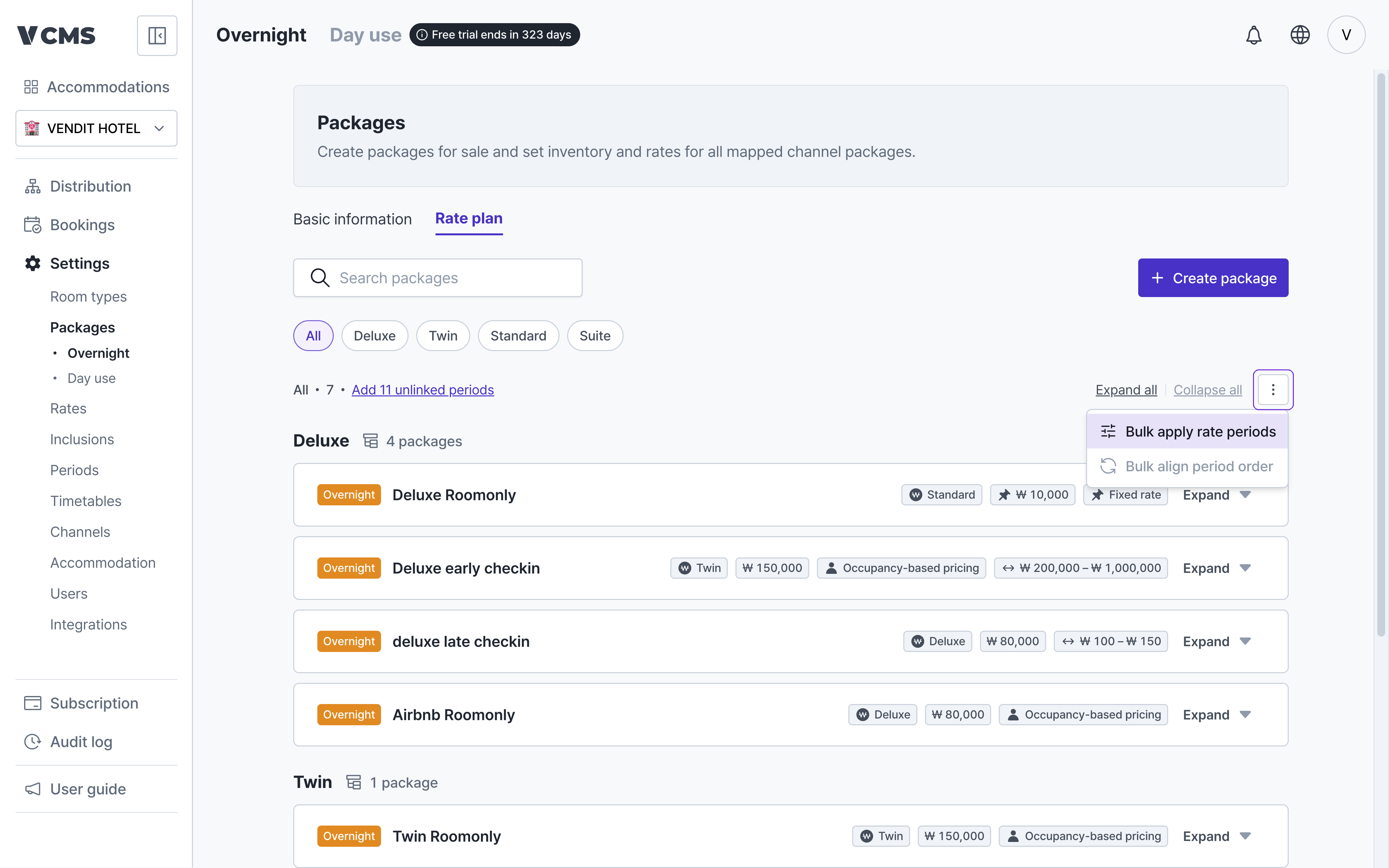
- Bulk apply: from the option (⋮) menu at the top of the list, pick one package to copy from and apply it to many at once.
- Import: the “Import” button on a package card pulls another package’s rate periods into this one.
What copies is the period structure and the adjustments, not the amounts
- The final rate is recalculated by applying the adjustments to each package’s own rate. A package’s base rate never moves.
- Periods that exist only on the receiving package are kept, and rates you changed individually are kept too.
- A calculated rate that falls outside the package’s minimum or maximum is pulled back inside the range.
- Packages on a fixed rate, packages with no rate set, and packages in a different currency are excluded, and the list says why.
Sorting periods
When periods overlap, the one higher up applies first. Out of order, they can sell at a rate you did not intend, so a package’s rate periods can be sorted to match the priority on the periods page.- Every package: run “Sort periods” from the option (⋮) menu. Packages already in the right order are skipped.
- One package: use the “Sort” button on the package card.
Only the order changes. No period is added or removed, and no rate or adjustment is touched.
Deleting a package