

Highlights
”See sold bookings right in Distribution."
"Create peak season and holiday periods more easily and link them to packages.”
New features
See sold bookings right in Distribution
For properties that need a quick look at bookings by dateIn Distribution, select a Sold count and the bookings for that date open on the right. You can see who is staying and when without going to the Bookings screen.
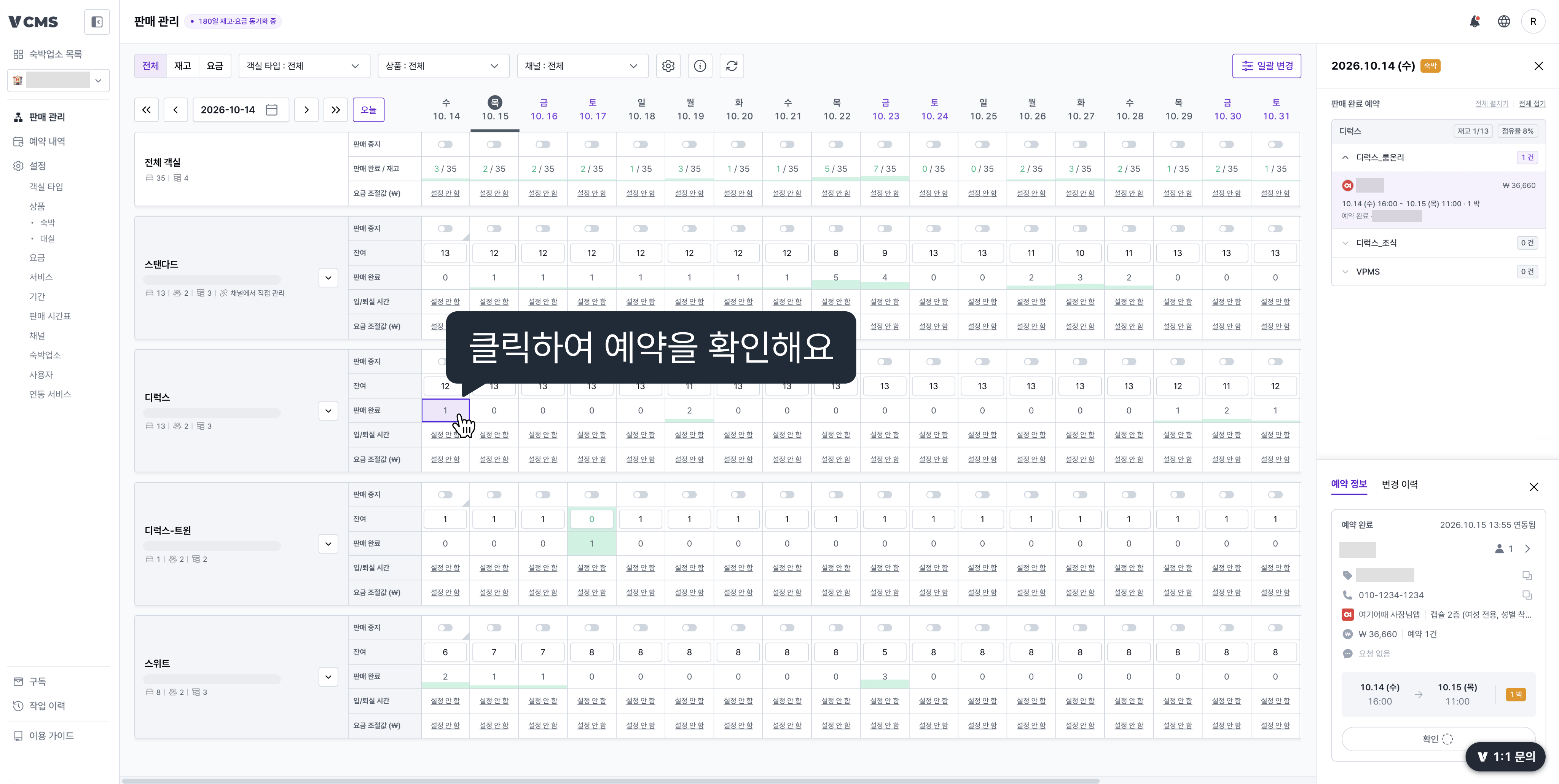
- See the Guest name, Payment amount, Check-in and Check-out, Nights, Booking ID, and sales channel on one screen.
- Inventory and OCC show for each room type, and the number of bookings shows for each package.
- You can collapse and expand each package. Collapse all and Expand all are also available.
- The most recently synced bookings appear at the top.
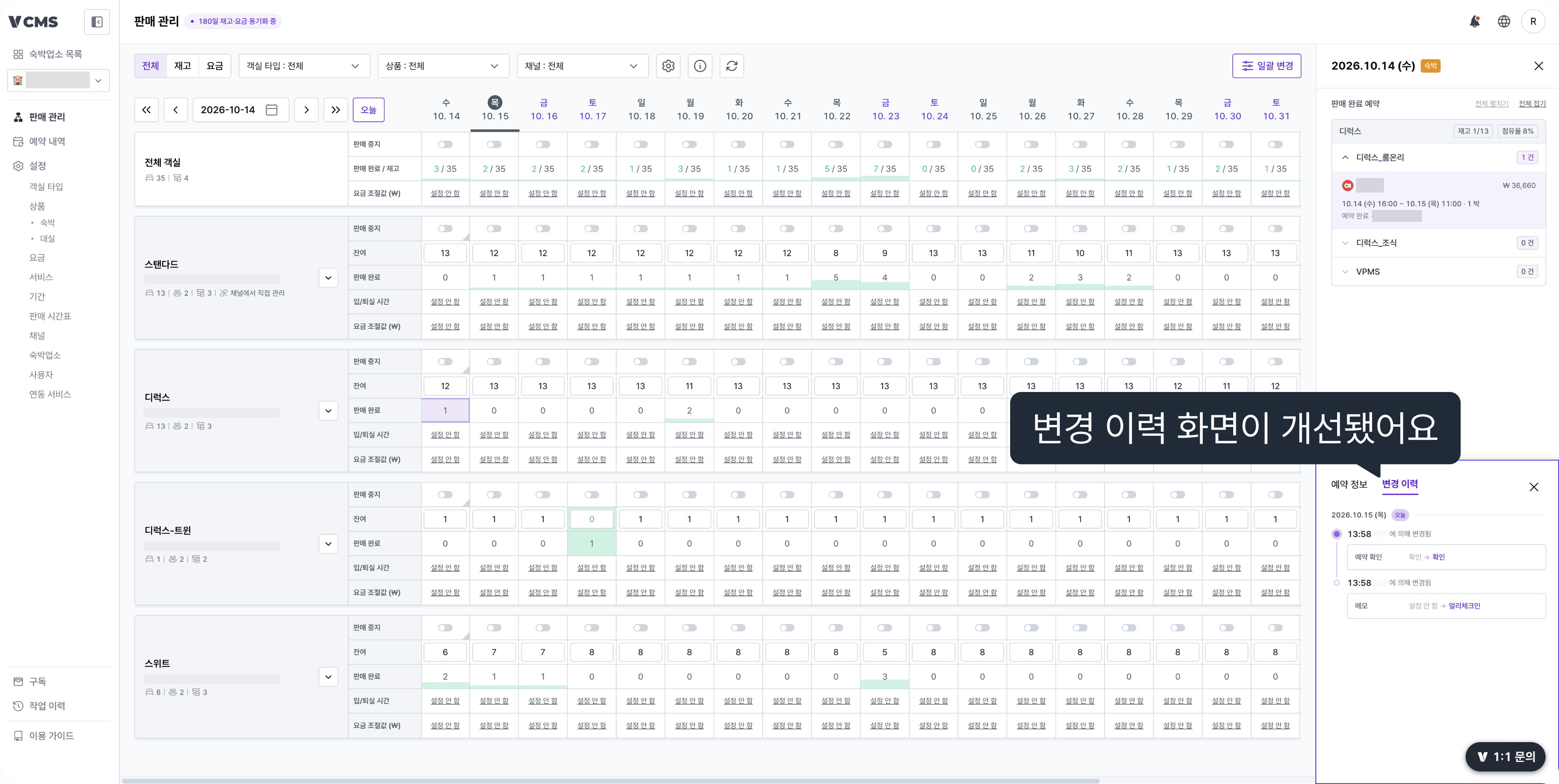
- You can also see the booking’s Change history.
Improvements
The Periods page is easier to use
For properties that manage peak season, holiday, and weekend periodsWe refined the whole process of creating periods and linking them to packages in Settings > Periods. Pick the method that fits the period you want to create The Create period screen now has three methods: Holidays, Date range, and Recurring.
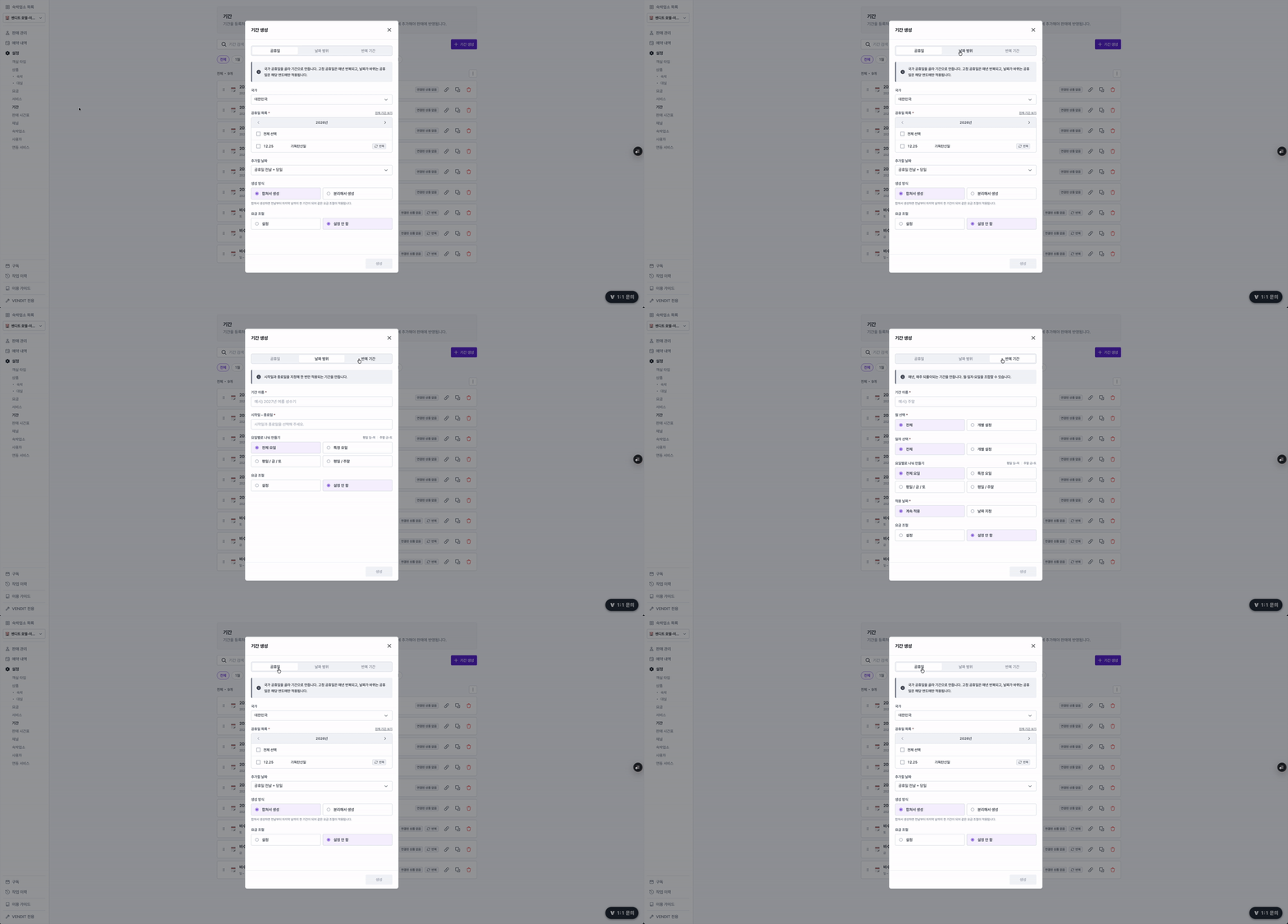
- Holidays: Pick national holidays from the list and turn them into periods right away. You can create Holiday only, just the day before, or both the day before and the holiday. You can merge the day before and the holiday into one period or create them separately. Holidays you already created are marked, so you don’t create duplicates.
- Date range: Set Start and End to create a period that applies once. (Example: summer peak season)
- Recurring: Create a period that repeats, such as every year or every week. You can combine months, dates, and days of the week.
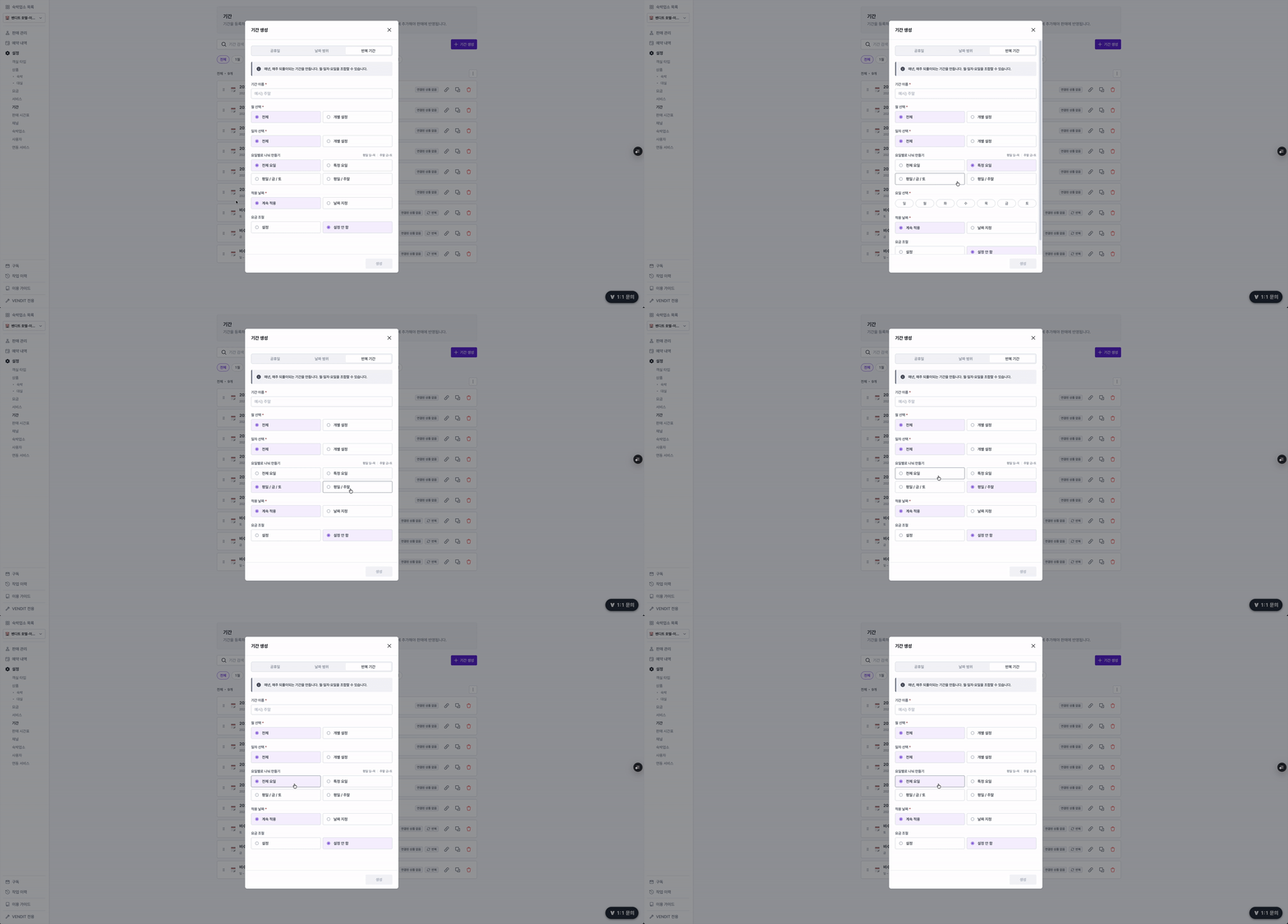
Create weekday and weekend periods at once
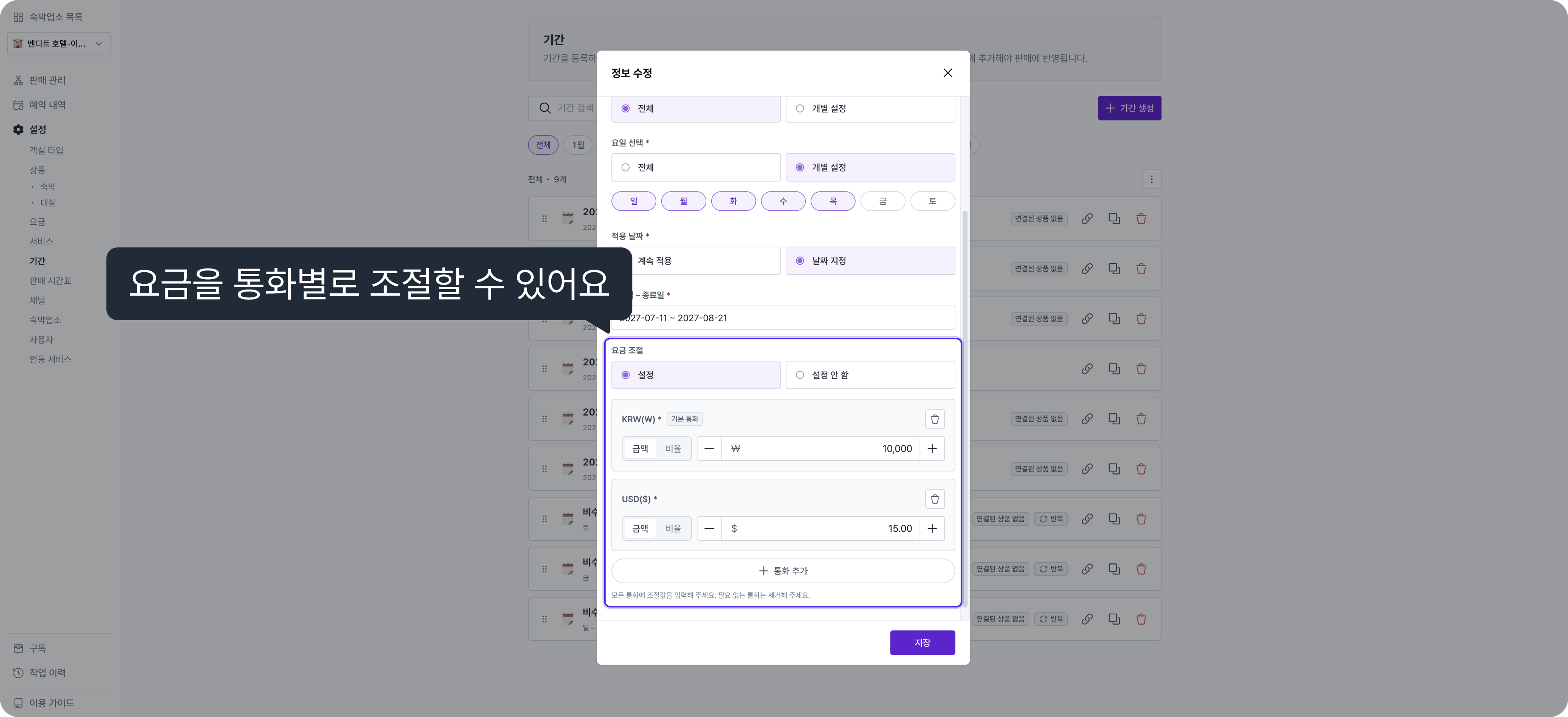
Set Adjustment values in advance
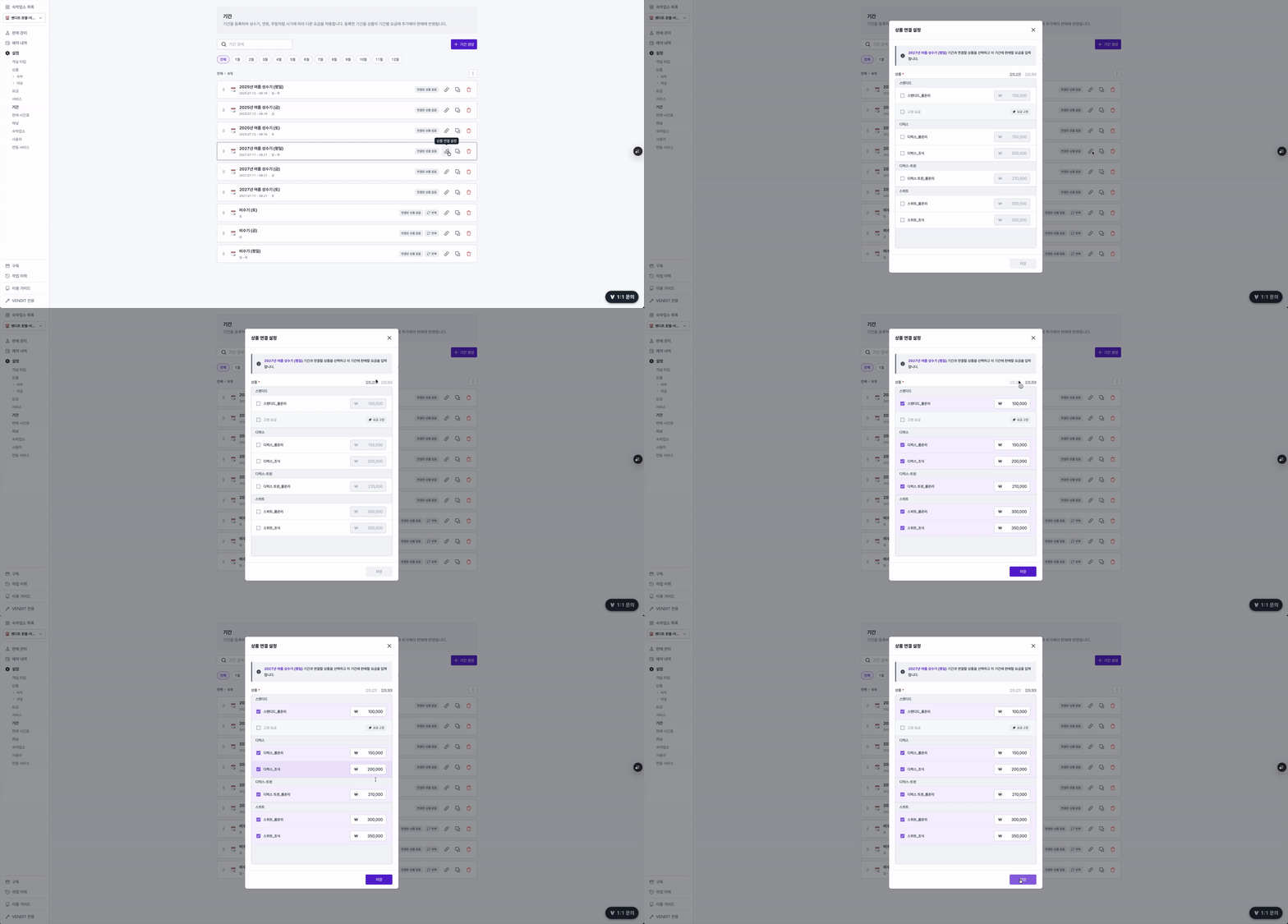
Creating a period alone doesn’t change selling rates. The package sells at a different rate during that time only after you link the period to it. Periods that aren’t linked yet show ‘No linked packages’.
Set the packages to link to a period on one screen
Delete periods that need cleanup at once
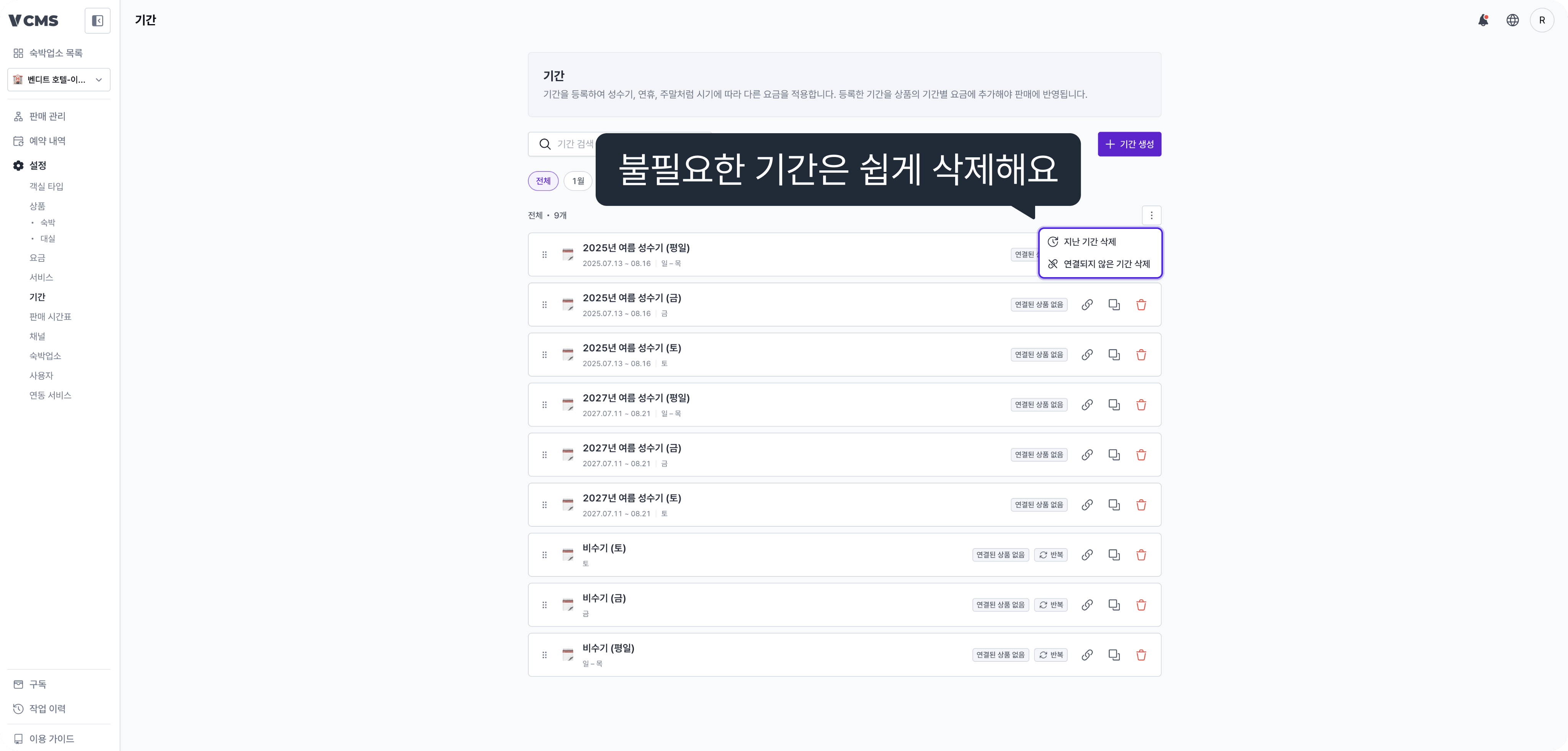
- Delete past periods: Clean up periods that have already ended, all at once.
- Delete unlinked periods: Find periods not linked to any package and delete them together.