

Connecting Airbnb
What you need first
- The Airbnb account you want to connect
- Chrome
- A stable internet connection
Step 1. Sign in to Airbnb in Chrome
Open Chrome, go to Airbnb, and sign in with your host account.- Launch Chrome.
- Go to Airbnb.
- Sign in.
- Leave that tab open. Do not close it.
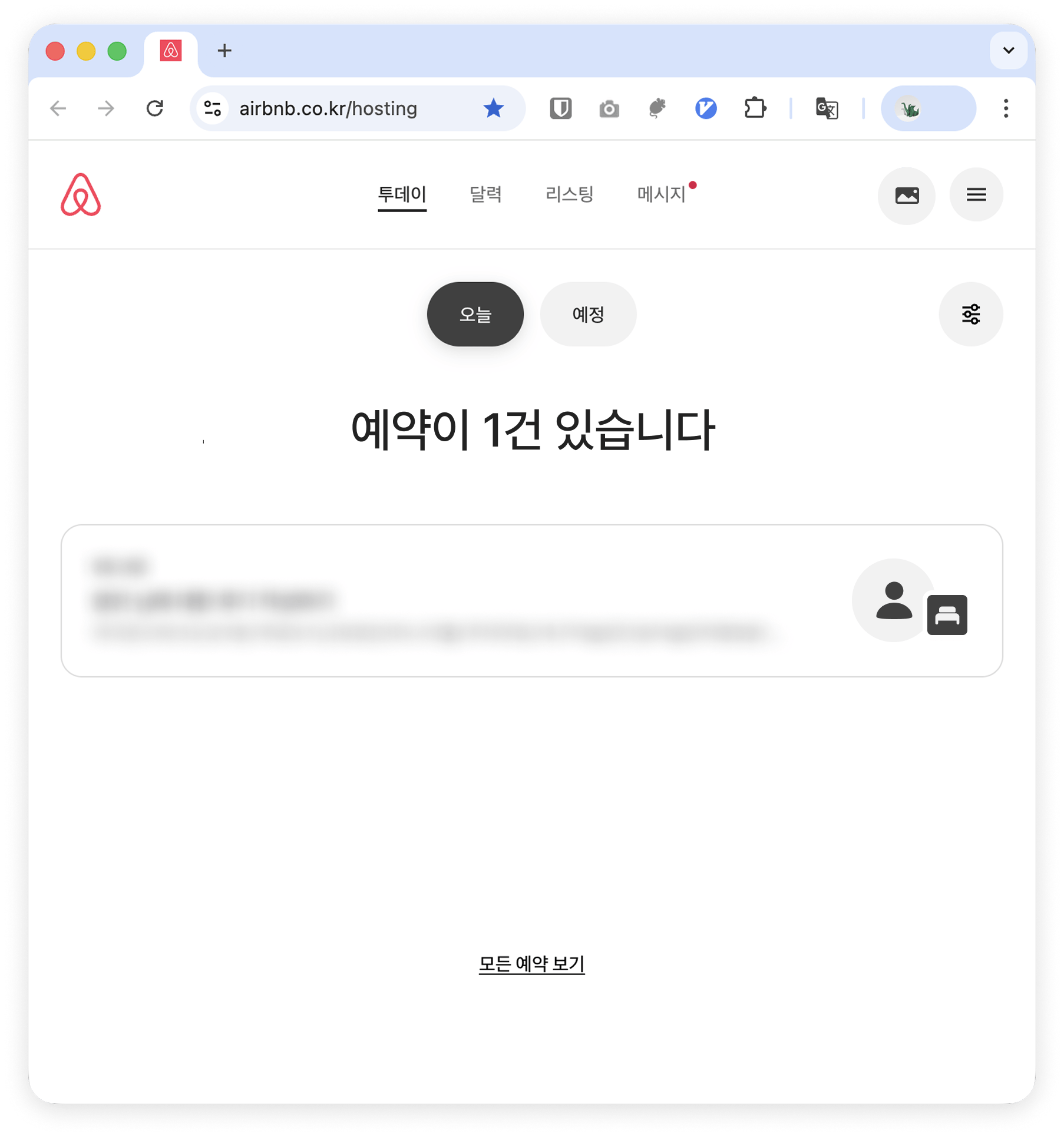
The signed-in tab has to stay open even after the integration is running. Close it and sync stops.
Step 2. Install the Chrome extension
Install the VCMS extension from the Chrome Web Store and run it.Already have the extension? Skip to Step 3.
- Install the extension.
- Click the puzzle icon at the top right of the browser.
- Click the VCMS extension to run it.
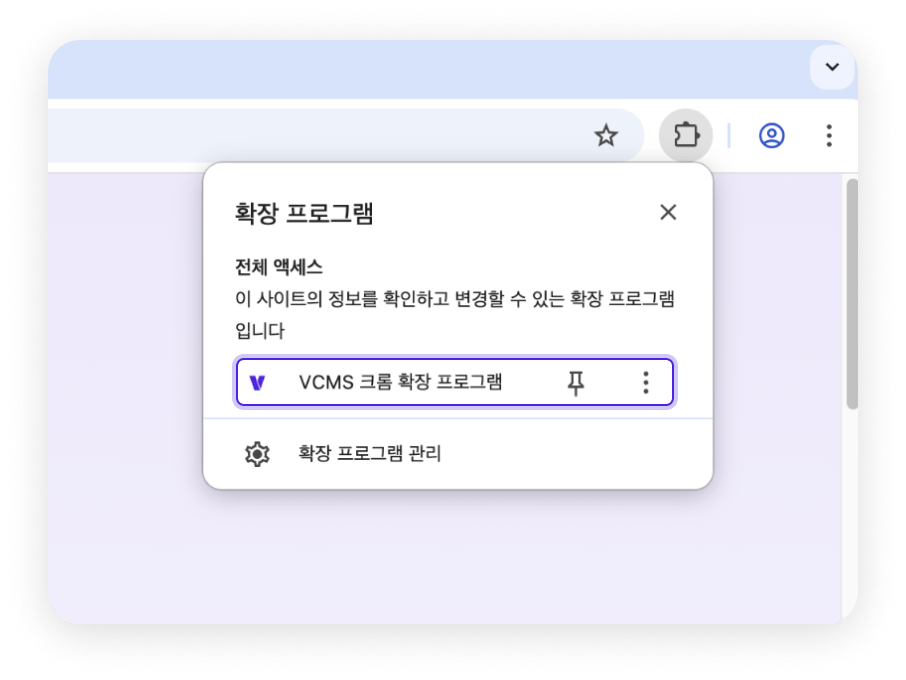
Step 3. Run and set up the extension
Sign in to the extension with your VCMS account, pick the property, and press Airbnb’s “Use” button.- Sign in with your VCMS account.
- Pick the property to connect.
- Press the Airbnb “Use” button.
Step 4. Connect the Airbnb property in VCMS and map packages
Back in VCMS, connect the Airbnb property and map the packages. That completes the connection.- Go to the Channels menu in VCMS.
- Select the Airbnb channel.
- Connect the property you operate.
- Link each Airbnb package to the VCMS package it corresponds to.
- Press Save once every mapping is done.
Package mapping can be changed any time afterwards in the VCMS channel settings.
Things to watch
Once the channel is connected, bookings, inventory, and rates sync automatically. Keep to the following or sync will not hold.FAQ
What if I reboot the computer or close Chrome by accident?
Start Chrome again and the Airbnb tab opens by itself.
How often does it sync?
Airbnb syncs every 5 minutes. As long as the integration is healthy, bookings, inventory, and rates sync on that cycle.
I run several properties. What then?
One Chrome profile connects one property. Add a Chrome profile and run Step 1 through Step 4 again.
Can I sync inventory only?
Turn off rate sync under Settings, Channels, channel packages, and only inventory syncs. Manage rates on Airbnb yourself.
I got a notification that the Airbnb integration dropped.
Sign in again from the Airbnb tab on the left of Chrome and it reconnects. If the notifications keep coming, check the network at your property.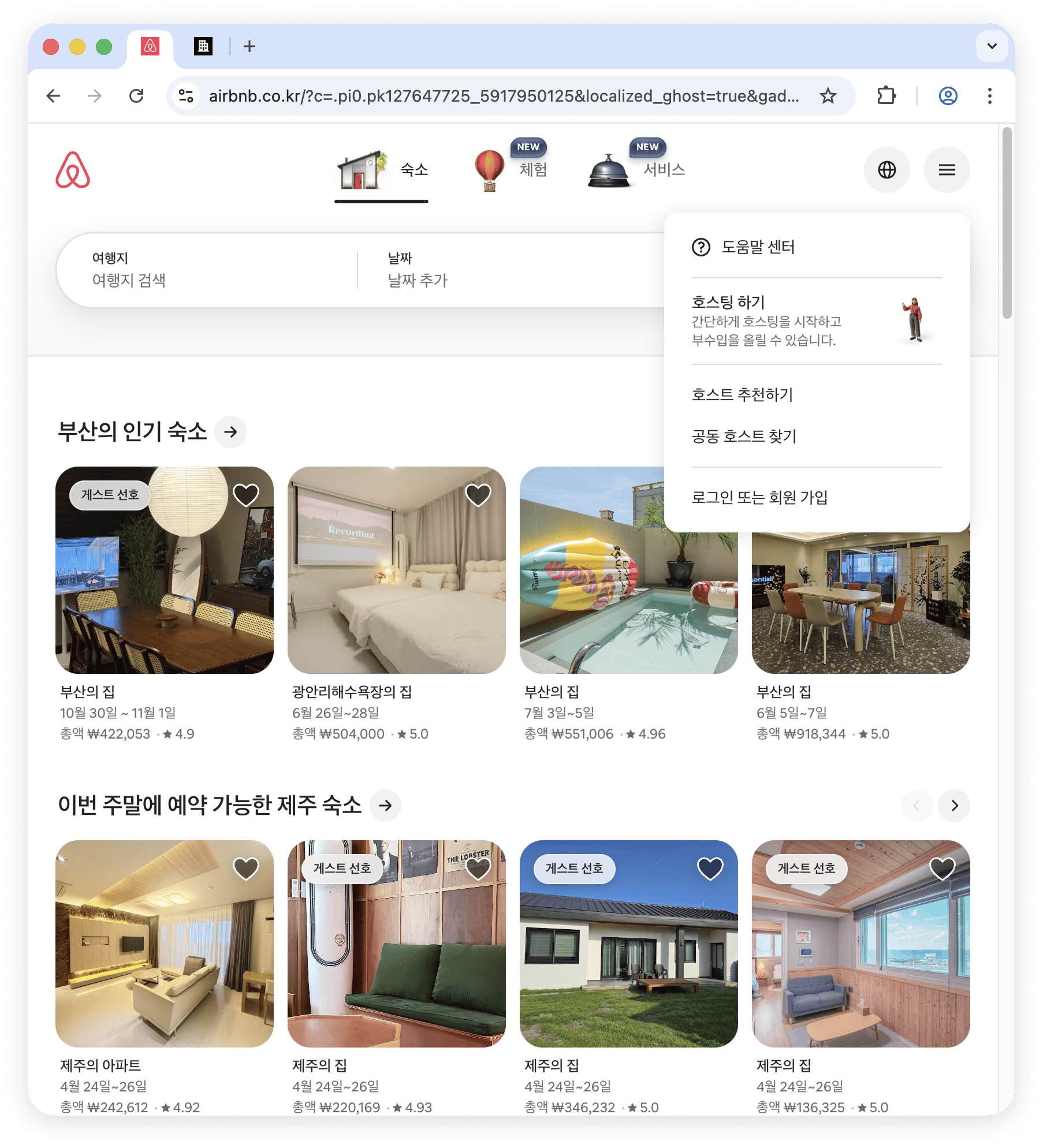
The extension is already installed. Do I have to install it again?
No install needed
No install needed
If the extension is already there from another channel (Expedia, say) and you are adding Airbnb for the same property, you do not need to install anything. Skip Step 2 and start at Step 3.
Install needed again
Install needed again
If you run several properties and connect two or more of them to the same channel, separate your Chrome profiles and install the extension in each profile.